
AI Image Editor
Describe the change and the AI image editor does the rest — free credits to start, no subscription.
CHOOSE YOUR IMAGE MODEL
Every model is available in the editor above — pick one from the model menu. Specs below reflect what each model supports here.
| Model | Output | Reference images | Typical wait | Best for |
|---|---|---|---|---|
| Seedream 5 Flash | Up to 2K | 10 images | ~20s | Everyday edits at the lowest Seedream price — the default |
| Seedream | Up to 4K | 10 images | ~30s | Everyday edits with crisp 4K output |
| Seedream 5 Pro | HD or 2K | 10 images | ~50s | Complex edits that must stay logically consistent |
| Qwen Image 3.0 / 3.0 Pro | HD or 2K | 3 images | ~20s | Lifelike images with rich detail |
| Hunyuan Image 3.0 | Auto | 3 images | ~30s | Instruction-following edits with visual reasoning |
| WAN 2.7 / 2.7 Pro | Matches your photo | 4 images | ~30s | Cinematic, high-fidelity looks |
AI IMAGE EDITING, ANSWERED
Is the AI image editor free to use?
Yes to start: the free credits you get on sign-up cover around fifteen edits on WAN 2.7, Seedream 5 Flash or Qwen 3.0, which cost 4 credits an image. After that it is pay-per-image with credits — no subscription, no card up front, and the price of the edit you are about to make is shown before you make it.
How much does the AI image editor cost?
Each edit is a flat price per image, not a per-minute or monthly one: 4 credits on WAN 2.7, Seedream 5 Flash or Qwen 3.0, 5 on Seedream 4.5, 8 on Qwen 3.0 Pro at HD, 13 on Seedream 5 Pro at HD, 14 on WAN 2.7 Pro, and 17 on Hunyuan 3.0 Instruct. Nothing is charged for a retry you did not run, so drafting on a cheap model and finishing on a dear one is the sensible way to work.
How do I edit a photo with a prompt?
Upload a photo and describe the change in plain words — “make it golden hour”, “remove the background”, “turn this into a watercolor painting”. The model applies the edit and keeps the rest of the image intact, and you can keep refining the result step by step. It also works as an AI image generator from an image: describe a new scene and get a fresh variation of your picture.
Which AI models power the editor?
Seedream 4.5, 5 Pro and 5 Flash, Qwen Image 3.0 and 3.0 Pro, Hunyuan Image 3.0 Instruct, and WAN 2.7 and 2.7 Pro — picked from a menu, the same way you pick a video model in the generator. Seedream 5 Pro follows a complicated instruction most closely and is the one to reach for when layout or lettering matters; Hunyuan 3.0 leans photorealistic; WAN 2.7 and Seedream 5 Flash are the cheapest per image and fine for ordinary retouching.
Can I use reference images?
Yes, and how many depends on the model: Seedream accepts up to 10, WAN 2.7 up to 4, and Hunyuan 3.0 and Qwen Image 3.0 up to 3. Use them to hold a character, product, or style steady across edits — a face that has to stay the same person, or a bottle that has to stay the same bottle, is what reference images are for.
Does the AI image editor restrict what I can edit?
Nothing is added on our side: the browser version runs no safety checker of its own, so nothing sits between your prompt and the model. The models do keep their own policies, and they differ — over the past month Seedream declined about 4% of edits and WAN 2.7 about 5%, while Hunyuan 3.0 Instruct declined none of the 3,500 it ran. A declined edit is refunded, so switching model costs you nothing but the retry.
Do AI edited images have a watermark?
No. Edits download as plain image files with no watermark, logo, or corner badge added on any model — including the ones your free credits cover. Nothing is stamped on a free image that is absent from a paid one, so a first edit is usable exactly as it comes out.
Can I turn the edited image into a video?
Yes, and it is the reason the editor lives here rather than somewhere else. One tap sends the edited image to the video generator, where Seedance 2.0, Kling, Vidu, Wan and the rest animate it in up to 4K with sound. Fixing a photo and animating it are usually two tools and two uploads; here the second one starts from what the first one produced.
EDIT PHOTOS WITH EVERY TOP MODEL
The AI image editor puts Seedream, WAN, and Hunyuan in one place. Retouch, restyle, or swap backgrounds with reference images that keep characters consistent — switch models per edit and pay per image, no subscription.
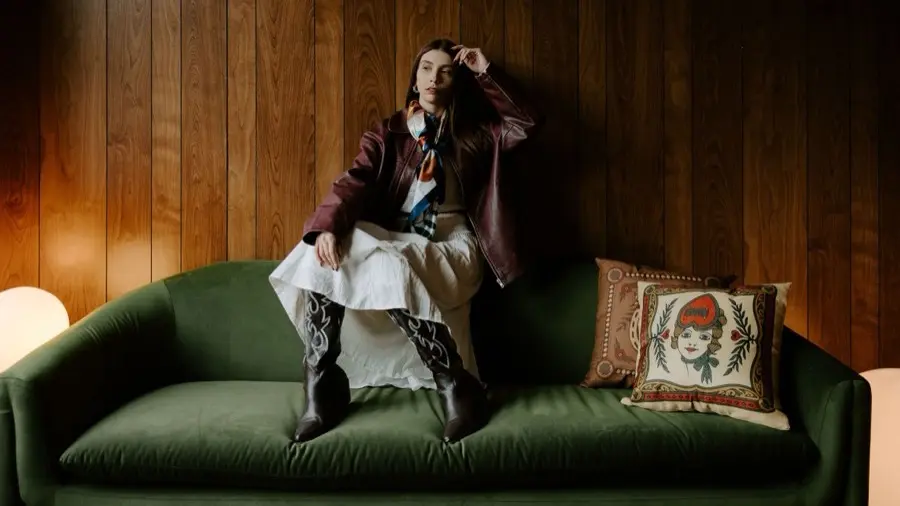

Region-precise edits in up to 4K — with a Pro tier for logically consistent, reasoning-driven results
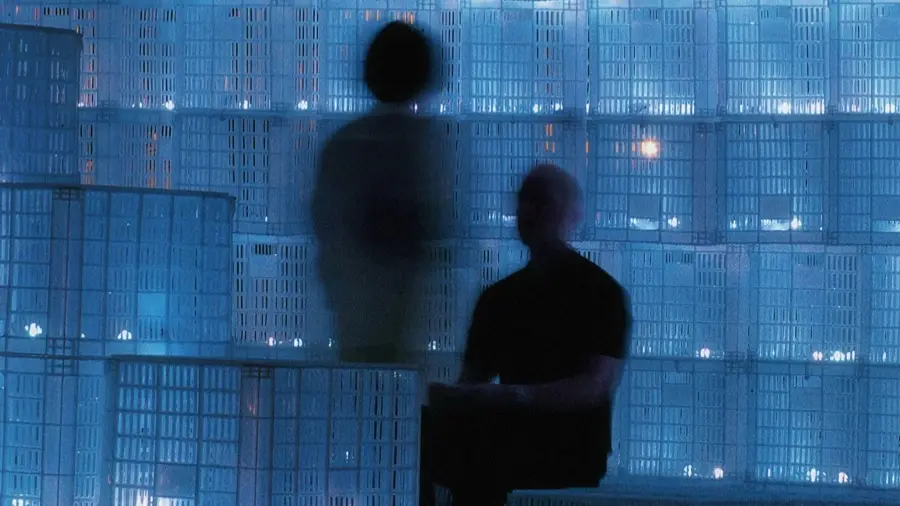

High-fidelity cinematic edits that keep your photo's framing — Standard and Pro, up to 4 reference images
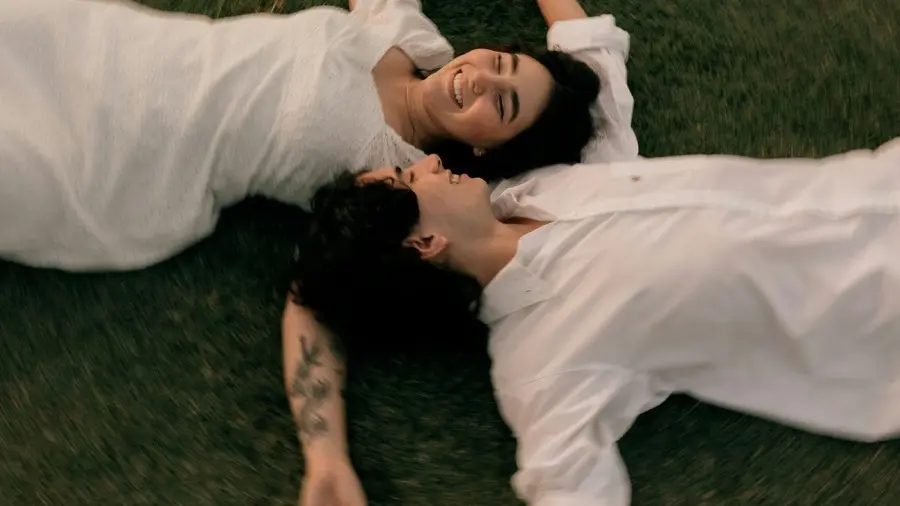

Reasoning-powered editing that follows complex instructions, with up to 3 input images