On this page
How to Turn a Photo into an AI Video: Prompts, Settings, and Examples
 Photo to Video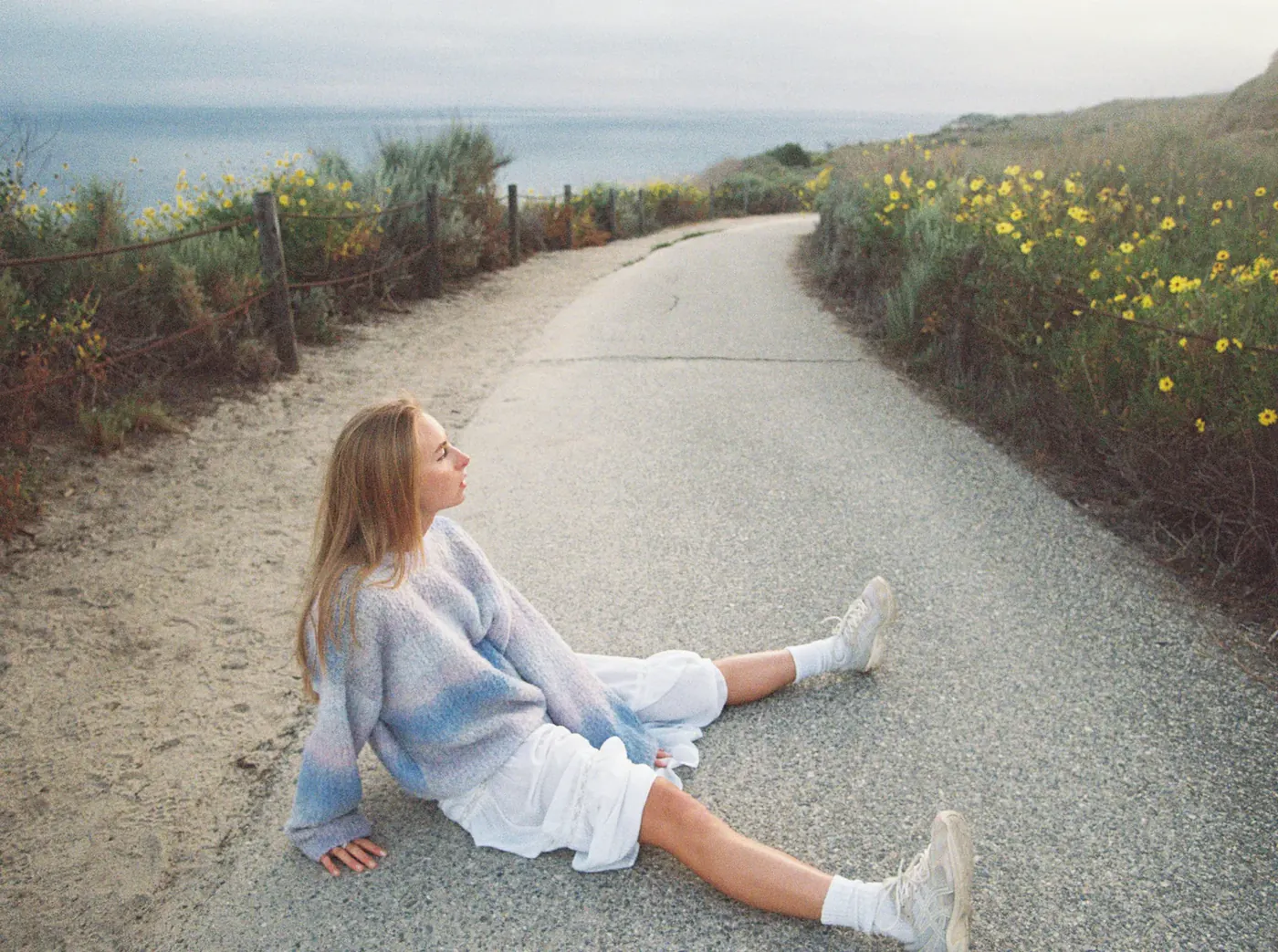
You can turn almost any still photo into a short video clip with AI: a portrait that blinks and smiles, a product that slowly rotates, a landscape where the clouds drift and the camera pushes in. The basic flow takes three steps: upload, describe, generate. The difference between a clip you delete and one you share comes from four choices: the photo you start with, the prompt you write, the model you pick, and the settings you use.
This guide walks through each of those choices using Photo to Video, with prompt templates you can copy and a troubleshooting table for the most common problems.
Quick answer: Upload a clear, well-lit photo, describe one main motion and one camera move in your prompt (for example, "she turns toward the camera and smiles, slow push-in"), choose a model and clip length, then press Make Video and download the MP4. If the result warps or barely moves, simplify the prompt, try a different model, or shorten the clip.
What you need
- A photo. Common formats work, including JPG, PNG, WebP, AVIF and iPhone HEIC. A phone photo is fine.
- A Photo to Video account. New accounts get some free credits, with no subscription, so you can try settings that fit within them. Each generation uses credits, and longer clips, higher resolutions and premium models use more. The Make Video button shows the credit cost for your current settings, so check it before you generate.
- A few minutes. Generation time depends on the model and settings. Faster models can return a clip in seconds, while others can take a minute or more.
Step 1: Choose a photo that animates well
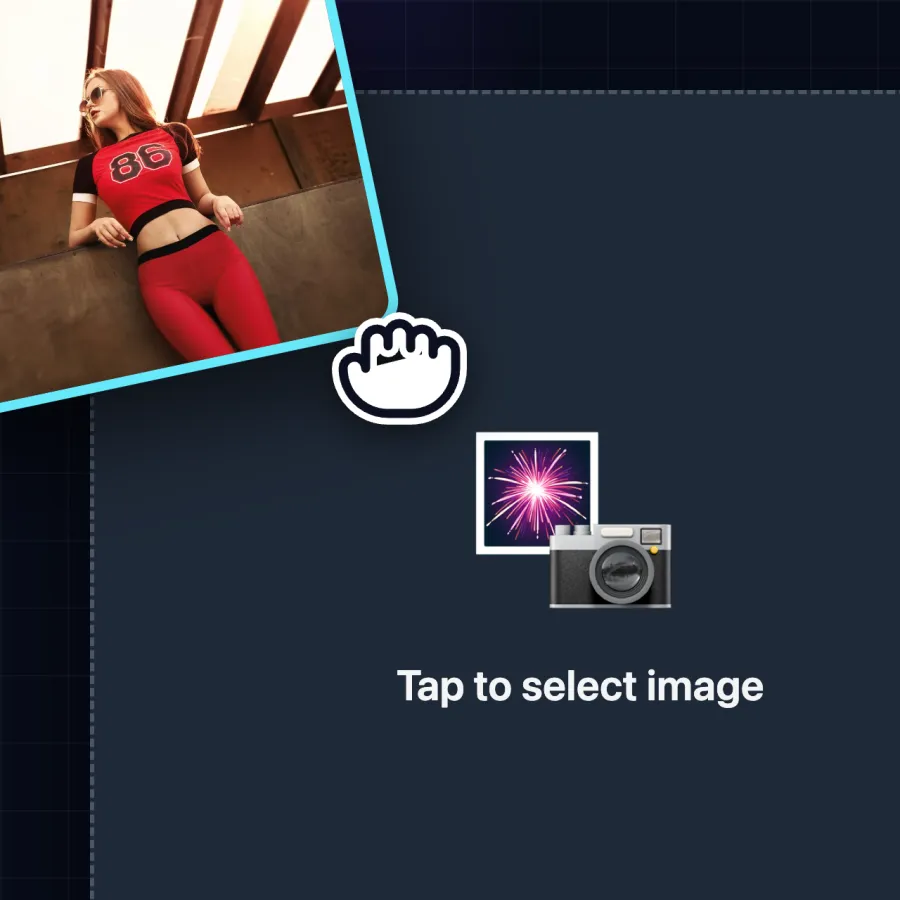
The AI doesn't film anything new. It predicts how the scene in your photo would move. The more clearly it can read the subject, edges and lighting, the better the motion looks.
Photos that work well
- One clear main subject: a person, a pet, a product, a single landmark
- Sharp focus on that subject, with even, natural lighting
- Some space around the subject, so it has room to move and the camera has room to travel
- For portraits, a visible face looking roughly toward the camera, with eyes and mouth unobstructed
Photos that cause trouble
- Crowded group shots: faces in the background tend to distort
- Heavy blur, strong motion blur or very low light
- Hands covering the face, or subjects cut off at the frame edge
- Screenshots with lots of small text: text usually warps once it moves
Old family photos are worth trying. Scan or photograph the print straight on, crop away the border, and keep the requested motion small: a blink, a slight smile, a gentle head turn. Subtle motion usually gives a face a better chance of staying close to the original, but always check the result.
You can also fix the photo before animating it. The built-in image editor lets you adjust the image first, so you don't need a separate app.
Step 2: Write a prompt that directs the motion
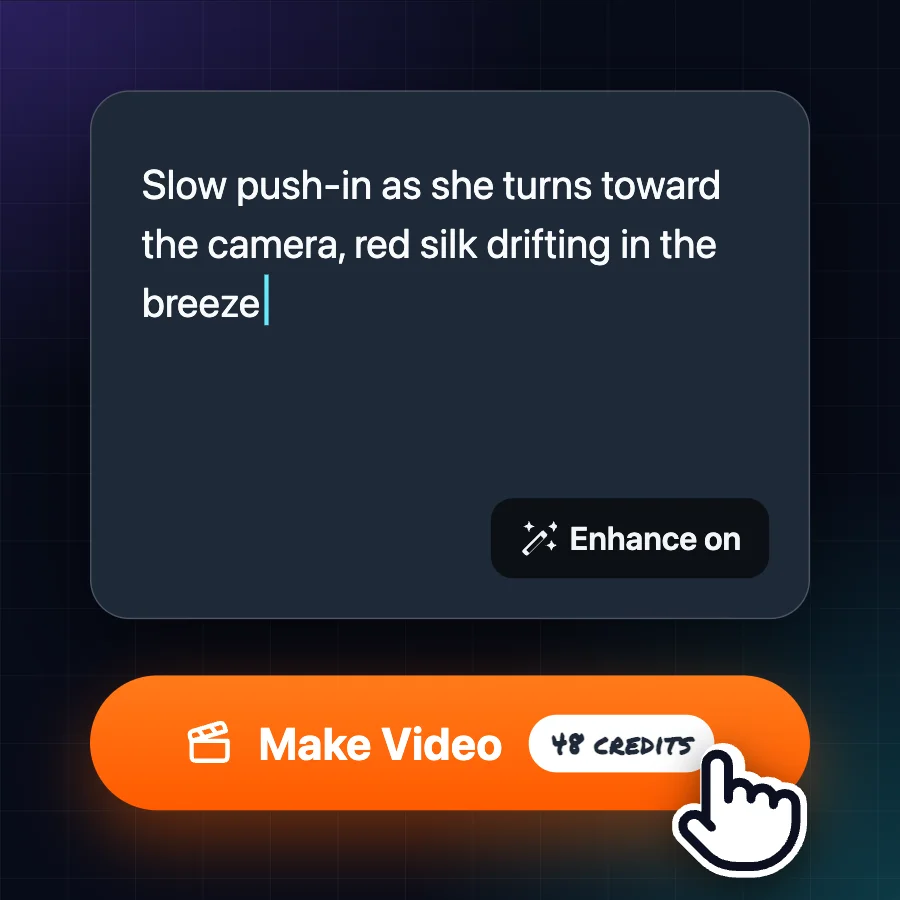
The prompt is optional. Without one, the model guesses what should move. A short, specific prompt usually gives you more control, and you only need to describe what changes, not what is already in the photo.
A structure that works well as a starting point has three parts:
Subject action + camera move + mood or pacing
| Part | What to write | Examples |
|---|---|---|
| Subject action | One main movement | "turns her head and smiles", "steam rises from the cup", "waves roll onto the shore" |
| Camera move | One camera motion | "slow push-in", "gentle pan left", "orbit around the product", "static camera" |
| Mood / pacing | How it should feel | "calm and slow", "cinematic, soft light", "energetic" |
Prompt templates by photo type
Portrait
She blinks, smiles softly and tilts her head slightly toward the camera. Hair moves gently in the wind. Slow push-in, natural light.
Old family photo
He blinks slowly and gives a small smile. Very subtle movement, static camera.
Product shot
The bottle turns slowly on the table. Static camera, clean studio lighting.
Tip: a single photo only shows one side of a product. When the AI turns it, it has to invent the sides it can't see, so check labels, logos and the back of the product carefully before you use the clip.
Landscape or travel photo
Clouds drift across the sky and the grass sways in the breeze. Slow aerial push-in toward the mountains, golden hour.
Pet
The dog tilts its head, ears perk up, and it wags its tail. Handheld feel, playful.
Artwork or illustration
The painted water ripples and the lanterns flicker. Gentle pan right, dreamy and slow.
Prompt tips that make the biggest difference
- One main action per clip. "She smiles, stands up, walks to the window and opens it" asks for too much in a few seconds. Pick the moment that matters.
- Name the camera move. "Slow push-in" or "static camera" gives far steadier results than leaving the camera to chance.
- Keep it short. One to three sentences is plenty.
- Don't describe the photo back to the model. It can already see the image. Spend the words on the motion.
Step 3: Pick the right AI model
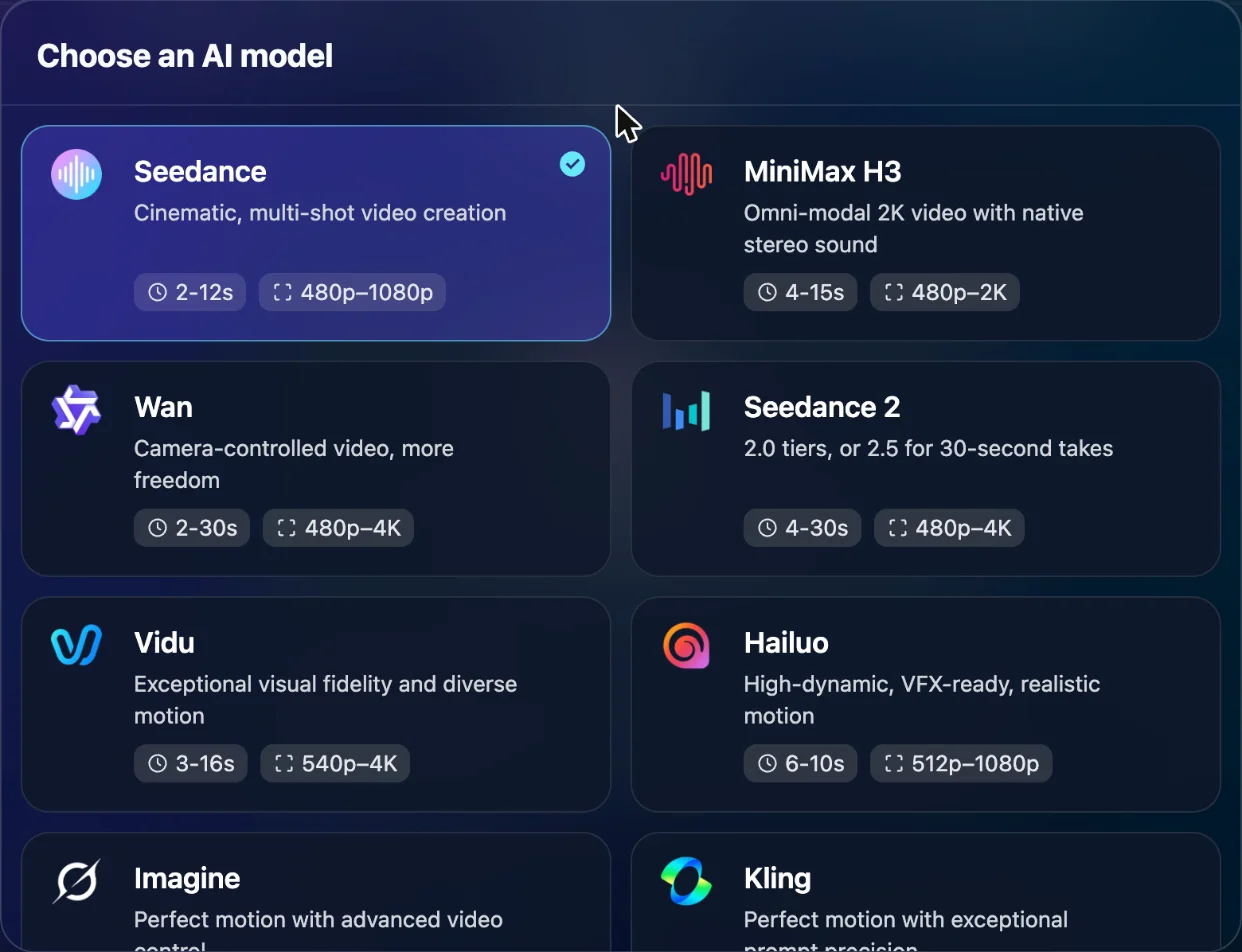
Photo to Video brings many leading video models into one workspace, including Seedance, Wan, Kling, Hailuo, MiniMax H3, Vidu, Grok Imagine, Sora 2 and Veo. You can switch models for each shot and keep the result you like best.
The models differ in supported clip length, resolution and audio options. The suggestions below are starting points, not measured quality rankings:
| If you want… | Try | Why |
|---|---|---|
| A quick first draft | The default Seedance, or Grok Imagine | Useful for testing a prompt before a more expensive render |
| Precise camera moves and product turns | Wan | Strong at rotations, zooms, pans and shot pacing |
| Portrait motion | Kling | Try subtle head or body movement. If you choose a model with audio, check the voice and mouth movements before sharing |
| Polished, realistic fashion or product motion | Seedance 2.5 | High-end product and apparel motion |
| Sound in the same pass | MiniMax H3, Vidu, Grok Imagine | Generate dialogue, effects or ambience together with the video |
Clip length depends on the model, and the model picker shows each model's length and resolution range. For example, Grok Imagine makes clips of 1 to 15 seconds and Vidu Q4 makes 3 to 16 seconds. Some models go longer, while others are limited to shorter clips, so check the length options after you pick a model.
One way to work: test your prompt on a lower-cost option first. If the motion looks right, try the same photo and prompt on another model and compare. Results vary from photo to photo, so judge by the actual clip, not the model's reputation.
Step 4: Choose your settings
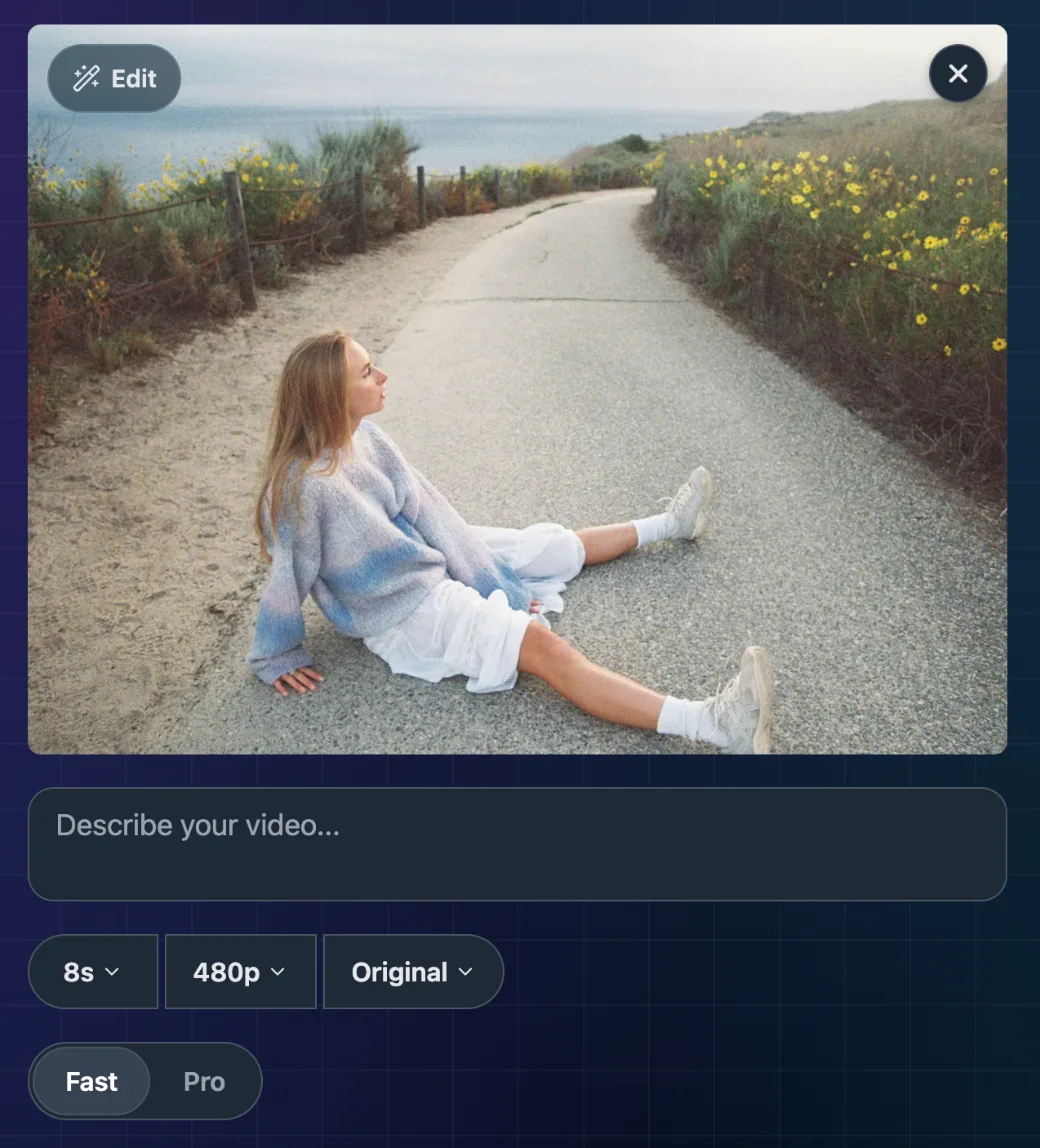

After you pick a model, the settings row shows what that model supports. The options change from model to model.
- Duration. Shorter clips (around 5 to 8 seconds) usually look the most stable and cost fewer credits. Go longer only when the motion needs time, such as a full product rotation.
- Resolution. Draft at a lower resolution, then use a higher one for the final version. Resolution options vary by model, and some reach 2K or 4K.
- Aspect ratio. Match where the video will be posted: vertical (9:16) for TikTok, Reels and Shorts; square (1:1) for feeds; wide (16:9) for YouTube and websites. A ratio close to your original photo crops the least.
- Generate Audio. On models that support it, turn this on to get sound with the video. Leave it off if you plan to add your own music.
- Variant. Some models offer more than one version, such as Fast and Pro. They differ in supported options, cost and speed. Compare them on your own photo rather than assuming one is always better.
- Turbo. On some models, a separate Turbo switch is available. It is not the same as choosing a variant; check the cost on the Make Video button when you turn it on.
- Reference images. On supported models, you can add extra reference images to guide the look and keep shapes and colors consistent across shots.
Step 5: Generate, review and download
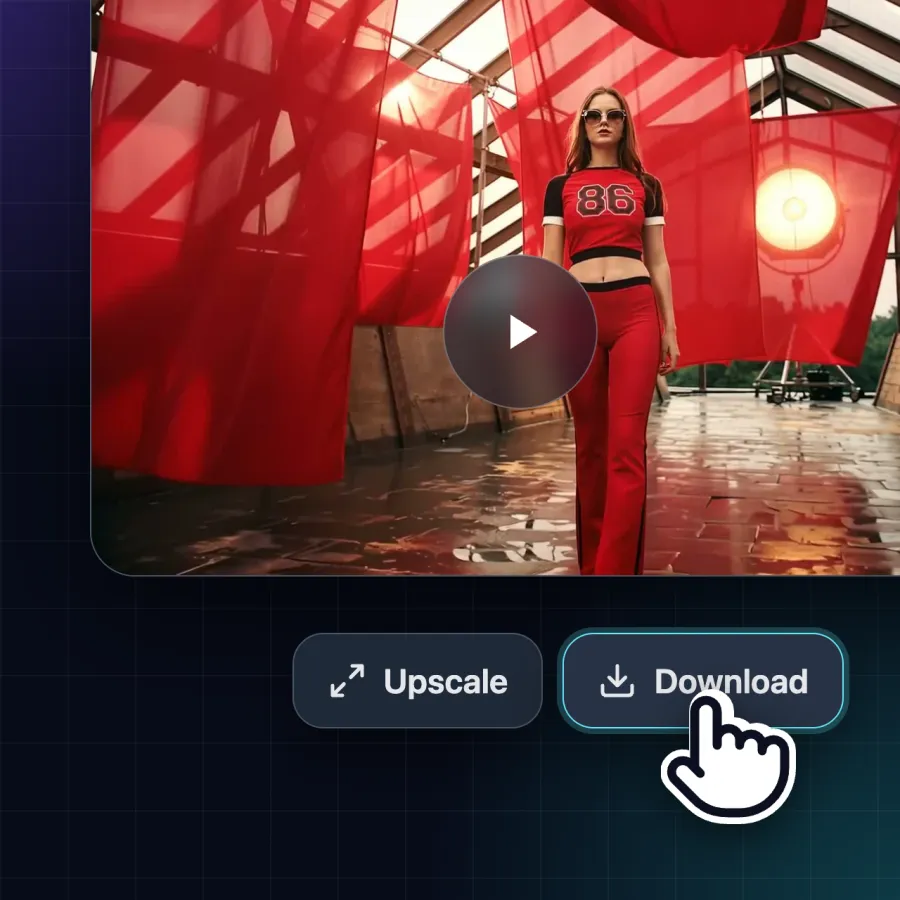
- Check the credit cost on the Make Video button, then press it and wait. How long it takes depends on the model and settings.
- Review the video against the original photo to check faces, logos and product details.
- Use Download to save the clip as an MP4.
- Need a sharper file? Run it through Upscale to take it up to 4K.
It's normal to generate two or three versions and keep the best one. Changing a single word in the prompt, or switching models, can change the result a lot.
Photo-to-video examples
These existing examples also appear on our homepage. They illustrate possible motion, rather than guaranteed results from the suggested prompts in this guide.
Coastal scene
Original image
AI video
Portrait
Original image
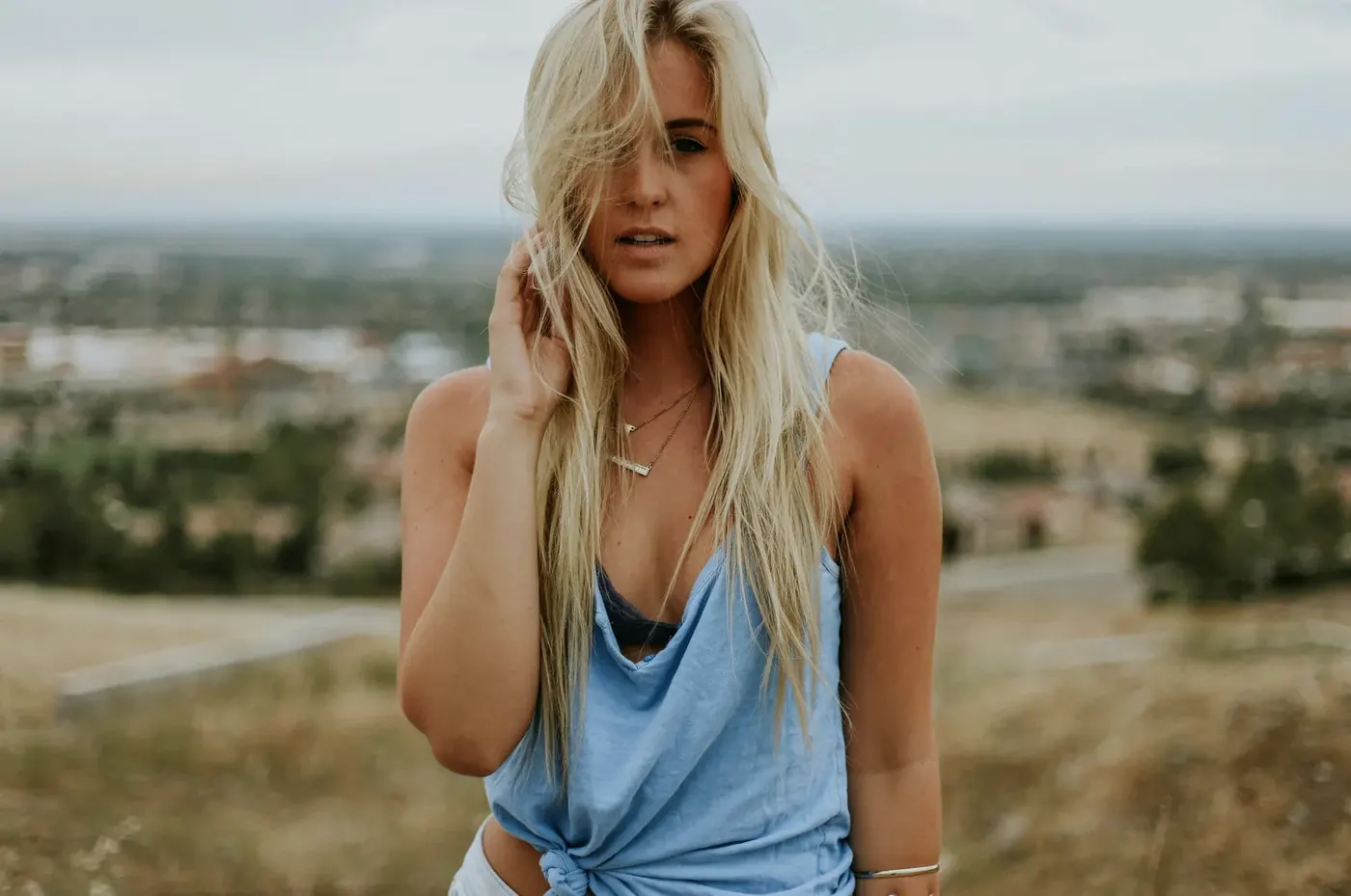
AI video
Camera movement
Original image
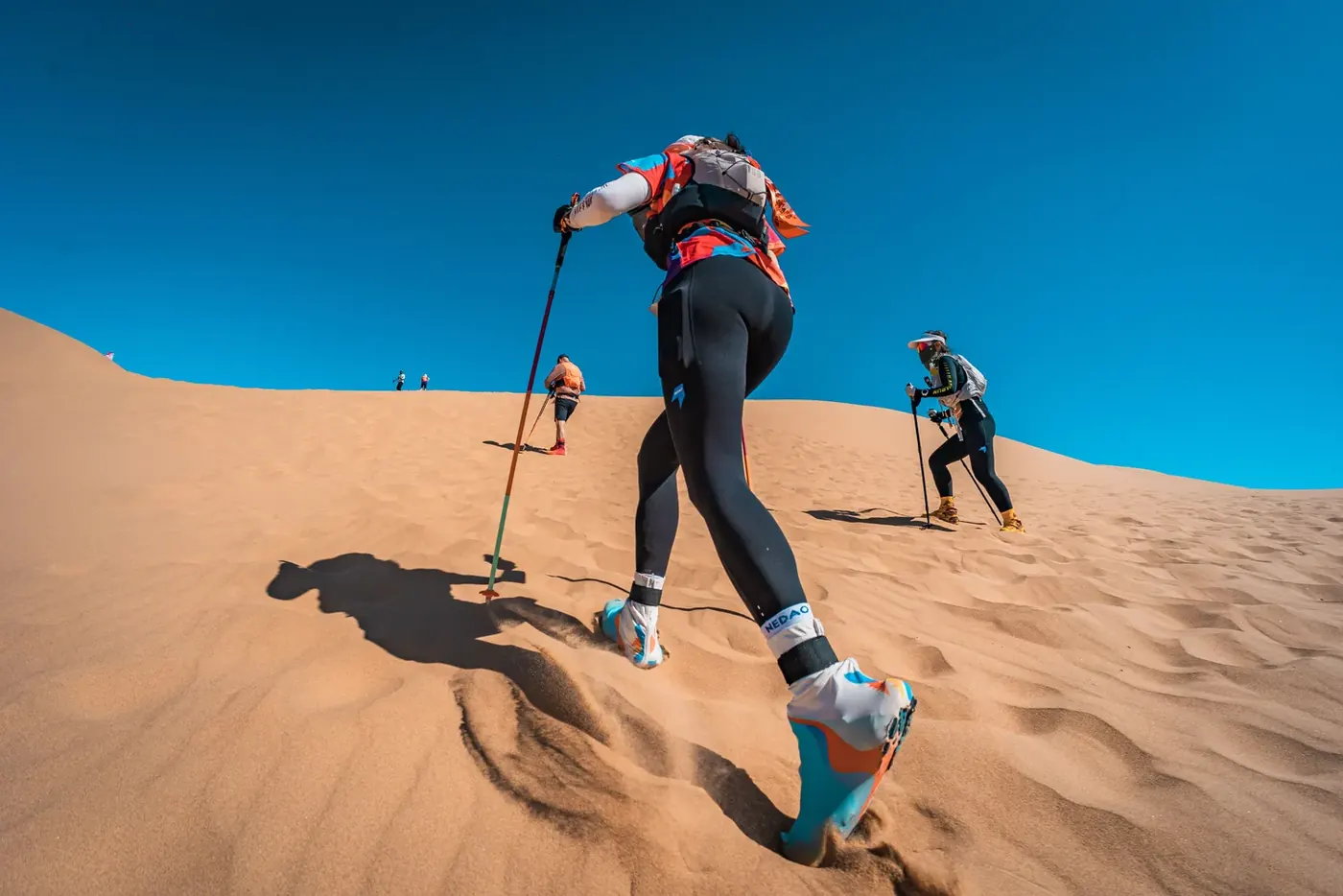
AI video
Common problems and how to fix them
| Problem | Likely cause | What to try |
|---|---|---|
| Face changes or looks like a different person | Too much motion requested, or a small, blurry face | Ask for subtler motion ("slight smile, blinks"), use a sharper, closer photo, keep the camera static |
| Hands or fingers look strange | Hands are hard for every video model | Crop hands out of frame, or avoid prompts that make hands move |
| Barely anything moves | Prompt is too vague, or the model played it safe | Name a specific action and a camera move, e.g. "waves crash, slow push-in" |
| Background warps or melts | Busy background, or a fast camera move | Use a slower camera move or "static camera", or simplify the background in the image editor first |
| Text or logos distort | Moving text is difficult to keep stable | Keep the camera static and the motion away from the text, or add the text later in an editor |
| Motion looks too fast or chaotic | Several actions crammed into a short clip | Cut the prompt down to one action, add "slow" or "calm", or pick a longer duration |
| Wrong framing on social media | Aspect ratio doesn't match the platform | Re-generate in 9:16, 1:1 or 16:9 to match where you'll post |
Ideas to try
- Animate an old family photo for a birthday or anniversary: a blink and a smile is often enough to be moving.
- Turn a product photo into a turning view for a store listing or ad. Check that brand details stay accurate, especially on sides the original photo doesn't show.
- Bring a travel photo to life with drifting clouds and a slow push-in for Reels or Shorts.
- Animate artwork or an illustration with gentle, looping motion.
- Try a portrait performance with a model that supports the movement and audio you need, then check faces, voice and mouth movements before sharing.
FAQ
Can I turn a photo into an AI video for free? You can start for free. New accounts get some free credits with no subscription, so you can try settings that fit within them. Each generation uses credits, the cost depends on the model and settings, and the Make Video button shows it before you generate. You can buy more credits if you need them.
How long can an AI video made from a photo be? It depends on the model. Most are designed for short clips of a few seconds up to around 15 seconds. Some models support longer clips, and the available lengths appear after you choose a model.
Do I need to write a prompt? No, but it helps. Without a prompt, the model decides what moves. A short prompt that names one action and one camera move gives you much more control.
Can the video have sound? Yes, on models that support audio. Turn on Generate Audio to create sound together with the video.
What resolution and format will I get? Videos download as MP4. Resolution depends on the model, and you can upscale a finished clip to 4K.
Can I animate an old or scanned photo? Yes. Scan or photograph the print straight on, crop the border, and request subtle motion such as blinking or a slight smile for the most natural result.
Ready to try it? Upload a photo and make your first AI video, free to start, no subscription.
Product options and screenshots were reviewed on October 19, 2026. Interfaces and supported settings may change. Prompt templates are suggestions, and generated results vary.