On this page
Free Image-to-Video AI: Credits, Limits & a First-Test Plan
 Photo to Video
"Free image to video AI" can mean very different things depending on the site: a watermark, a daily allowance, a queue, or a handful of credits to try it out. This page explains exactly what "free" means on Photo to Video, why the same photo can cost a few credits or a few hundred, and how to plan a first test so your free credits go to learning what works rather than to one expensive clip.
If you want the step-by-step upload walkthrough, see How to Turn a Photo into an AI Video. If you want help with what to type, see Image-to-Video Prompts. This guide is about credits, costs and limits.
Quick answer: Sign in on Photo to Video. Eligible new accounts receive one-time welcome credits, with no card and no subscription; check your balance in the top bar after signing in. Every video costs credits, and the Make Video button shows the quoted cost for your current model and settings before anything is spent. Start with a short, low-resolution clip on a cheaper tier, then spend more only on the settings that worked.
What "free" means here
- Welcome credits, once. Eligible new accounts get a one-time batch of welcome credits when they first sign in. The sign-up screen shows the current amount. It is not a daily or monthly allowance, and it doesn't refill.
- No subscription. When you need more, you buy a one-time credit pack. Nothing renews automatically.
- No watermark is added by Photo to Video, including on videos made with welcome credits.
- Not unlimited. Every generation uses credits. How many depends on the model and your settings.
Who gets welcome credits
Welcome credits are for new accounts, and a few conditions apply:
- You need to sign in on the website. Visitors who aren't signed in can explore the models and see prices, but they don't receive credits. Pressing Make Video asks you to sign in first.
- One account, one welcome. Credits are tied to your sign-in identity. Deleting an account and signing back in with the same Google or Apple account doesn't grant them again.
- There are anti-abuse limits. Welcome credits are limited per network to stop people farming free accounts, so on a shared network (an office, a school, some mobile carriers) a new account may not receive them straight away.
So the safe rule is: eligible new users receive welcome credits; check your actual balance after you sign in, and plan your first test around that number.
Your welcome allowance is not a fresh grant each time you sign in on another device. Check the balance on the account you intend to use.
Why the same photo costs different amounts
The price is worked out from five things, and the Make Video button updates as you change any of them:
| Setting | Effect on cost |
|---|---|
| Model | Each model has its own pricing. Compare the displayed quote rather than assuming a newer model costs more. |
| Tier (e.g. Fast / Pro / Prime) | Changing tier can change both the underlying model and the price. Compare quotes at the same duration and resolution. |
| Duration | Longer clips can cost more. Check each supported length; do not assume the cost scales exactly with seconds. |
| Resolution | Changing resolution can change the rate or the model variant. Check the updated quote before generating. |
| Audio (on some models) | On models with a Generate Audio switch, turning sound on can raise the price. Models that always add sound include it in the price. |
To see how much these settings matter, here are three readings from one photo on Wan, taken on 23 October 2026. Prices change, so treat the numbers as an illustration, not a price list.
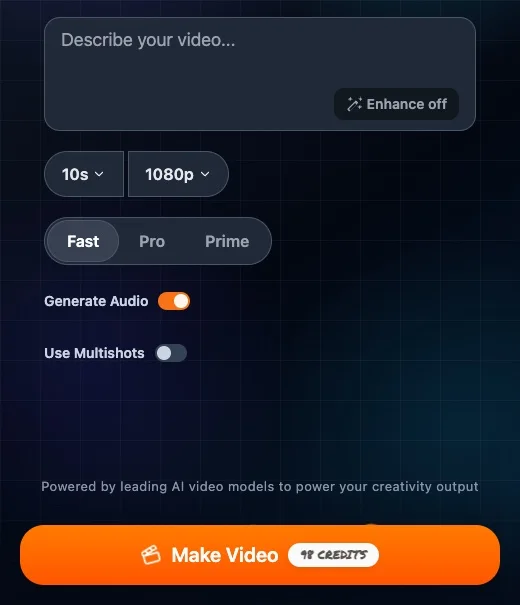
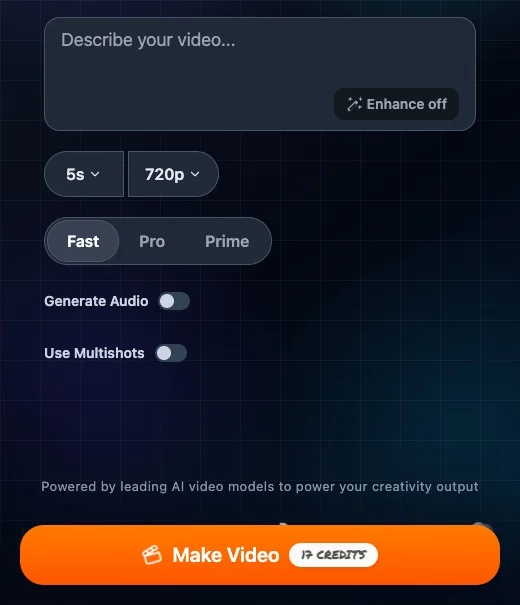
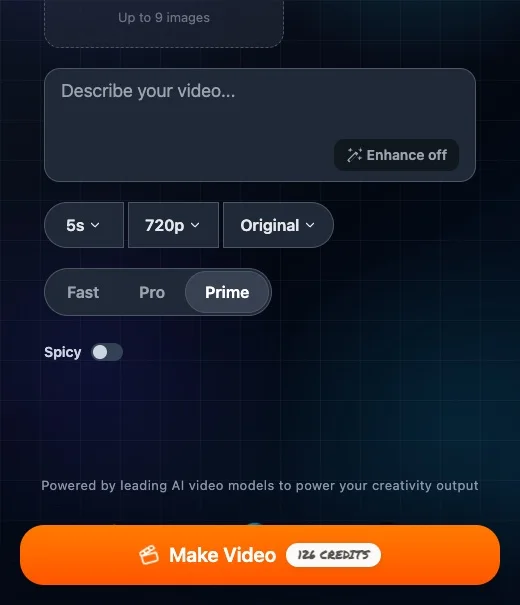
The point isn't which option is "best". It's that the button is the only reliable price. Always read it after your last change and before you press it.
Budget with the button, not with guesses
A simple method that works for any balance:
- Check your balance in the top bar after signing in.
- Set up the clip you want: model, tier, duration, resolution, audio.
- Read the number on Make Video. That's the full cost of one try. Nothing is charged until you press it.
- Divide your balance by that number and round down to a whole number. That's how many tries you can afford at these exact settings. For example, if the button shows 20 credits and you have 50, 50 ÷ 20 = 2.5: round down to two tries, with 10 credits left.
- Leave room to retry. You may need more than one attempt to get the motion you want. If a setup only fits once in your balance, pick something cheaper for the first attempt.
To look for a lower quote, try shorter + lower resolution + audio off (where it's a switch). These are options to compare, not a guarantee of the lowest price across models. Change one setting at a time and watch the button.
A first-test plan
Use your welcome credits to find out what works for your photo before spending on a long, high-resolution clip.
Before you press Make Video
- Pick a clear photo. One main subject, sharp, well lit, not heavily cropped. Choose an image where the intended subject and its edges are easy to see.
- Write one simple motion. One thing the subject does plus one camera move, e.g. "She turns her head toward the camera and smiles. Slow push-in." See the prompt guide for more.
- Go short. Choose the shortest duration on offer (often 5 seconds or less). A shorter test limits the amount of movement you need to review.
- Go low. Choose an available lower resolution for the test; the options depend on the selected model.
- Start on the lower tier (Fast, Standard) where the model has one.
- Audio off, if the model has a Generate Audio switch and you don't need sound yet.
- Read the button, and make sure the cost fits in your balance at least twice.
After the first result
- Motion is wrong: first try simplifying the prompt while keeping the settings fixed, so you can compare one change. If it still fails to follow the motion, consider a different supported model.
- Motion is right but it looks soft: now raise the resolution or move up a tier, and keep the same prompt.
- You need it longer: extend the duration last, since length multiplies the cost of everything else.
- You like it: download it straight away (see below). If you only need a sharper version of a clip you already like, Upscale is a separate step that costs extra credits.
This order helps you limit the cost of experimenting. A new generation at higher resolution, a different tier or a longer duration can still produce different motion, even with the same prompt; it is not a guaranteed copy of the first result.
When a generation fails, or you don't like the result
These are two different situations.
The generation fails. Credits are deducted when a generation request is accepted for submission. If the job then fails, for example the model returns an error or the request can't be completed, the credits are returned to your balance automatically. The refund happens when the failure is reported back, which isn't always instant, so check your balance again after a little while. An exception applies to Grok Imagine requests rejected for content-policy violations: those failures are not automatically refunded. Follow the selected model's content rules. If an ordinary failed job remains charged after its status updates, keep its task details and contact support@josephworks.app before paying for repeated retries.
The video finishes, but you don't like it. A completed video has used the model's time, so its credits aren't refunded. Treat it as a test: change one thing (the prompt, the tier, the duration) and try again, using the plan above.
When you run out of credits
If your balance is too low for the settings you've picked, Photo to Video opens a screen to buy a credit pack, and your video starts automatically once the purchase goes through. You can also tap your credit count in the top bar to buy credits at any time. Packs are one-time purchases; there's no subscription and nothing renews. Before buying, it's worth checking whether a shorter or lower-resolution version would fit your current balance.
Downloading and keeping your videos
- When a video is done, use Download to save it. Most models produce an MP4 file.
- If a direct download fails, try the Download action in History; it can open the source file in a new tab. Browser restrictions or an expired provider file may still prevent saving. A failed download is not, by itself, a failed generation.
- Save the videos you want to keep promptly. Your History on the website shows finished videos from the last 7 days, and generated files aren't stored permanently.
- Photo to Video doesn't add a watermark.
FAQ
Is Photo to Video free? You can start for free. Eligible new accounts receive one-time welcome credits with no card and no subscription. After that, you buy one-time credit packs when you need more.
How many free videos can I make? It depends on the settings. Credits are spent per video, and a short low-resolution clip costs far less than a long high-resolution one. Divide your balance by the number shown on the Make Video button and round down to see how many tries fit at those settings.
Do free credits refill every day? No. Welcome credits are a one-time gift for new accounts.
Do I need to sign in to get free credits? On the website, yes. You can browse models and see prices without an account, but credits are only given to signed-in accounts.
I signed up but didn't get welcome credits. Why? Welcome credits only go to eligible new accounts, and there are limits per network to prevent abuse. You may not receive them if the account was previously deleted and recreated with the same sign-in, or if many new accounts were recently created on the same network.
Will I get my credits back if a video fails? Ordinary failed generations are automatically refunded once the failure is reported, although it may take time. Grok Imagine content-policy failures are an exception. A video that completes successfully isn't refunded, even if you don't like how it turned out.
Do free videos have a watermark? No. Photo to Video doesn't add a watermark, including on videos made with welcome credits.
Which model is cheapest? Prices differ by model, tier, duration, resolution and sometimes audio, and they can change. The reliable answer is the number on the Make Video button for the exact settings you've chosen. To spend less, shorten the clip, lower the resolution and use a lower tier.
Ready to try? Upload a photo and make your first AI video. Eligible new accounts start with free welcome credits, and there's no subscription.