On this page
Image-to-Video Prompts: Examples, Camera Moves & Fixes
 Photo to Video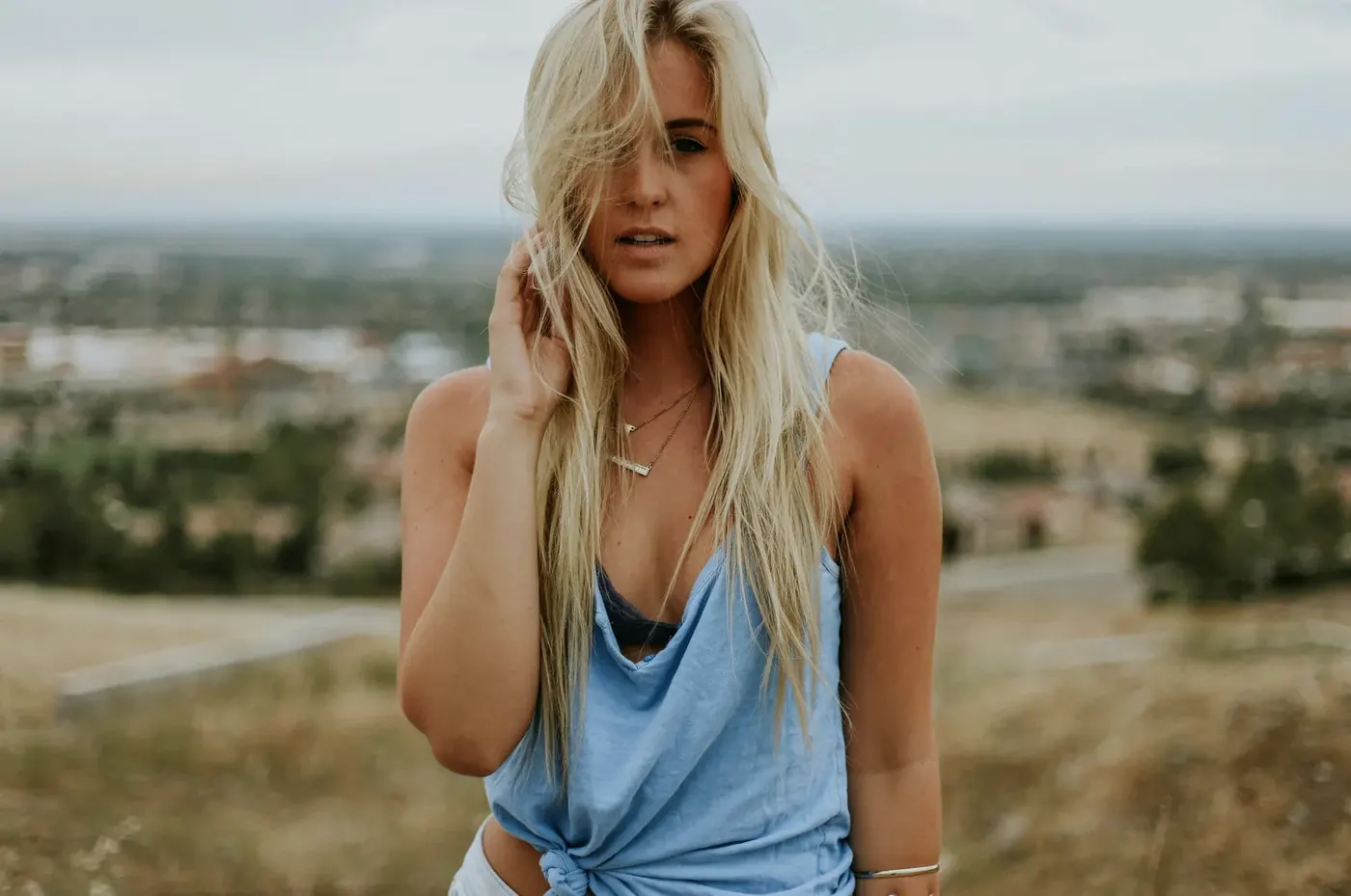
You already have the photo. The question is what to type in the box so the video moves the way you pictured it. This guide is about that box: how to split a prompt into subject motion and camera motion, how to choose between a static shot, a push-in and a pan, and how to turn a vague prompt into one the model can follow.
If you haven't made a video yet, start with How to Turn a Photo into an AI Video. It covers uploading, picking a model and ready-made templates for portraits, products, pets and more. This page focuses on writing and revising the motion instructions.
A note on expectations: every model interprets prompts a little differently, and the same prompt can give different results on two runs. The advice below explains why a prompt is written a certain way. It doesn't guarantee a result.
What the prompt controls, and what it doesn't
The prompt describes what moves and how the camera behaves. It can't change what a model is able to do. Several things that people try to ask for in the prompt are actually settings, and on Photo to Video they sit below the prompt box:
| You want… | Where it's controlled |
|---|---|
| A longer or shorter clip | The duration menu (e.g. 5s, 10s). Writing "a 15-second video" in the prompt won't extend it. |
| Higher resolution | The resolution menu, where the model offers one |
| Vertical or square framing | The aspect ratio menu, on models that have one. Some models only follow the shape of your photo. |
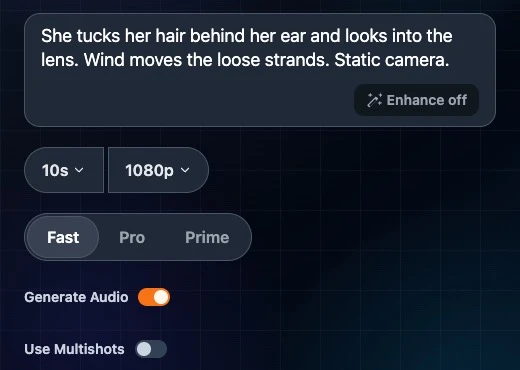
| Sound | A Generate Audio switch on models that offer it. Some models always add sound, some never do. Describing a sound in the prompt doesn't turn audio on. |
| A specific last frame | End frame, on models that support it |
| Extra visual guidance for a character or product | Add references, on models that support it. References guide appearance; they do not guarantee consistency. |
| Several shots in one clip | A dedicated control such as Use Multishots, where offered. A prompt can describe a sequence, but supported shot behavior still depends on the model. |
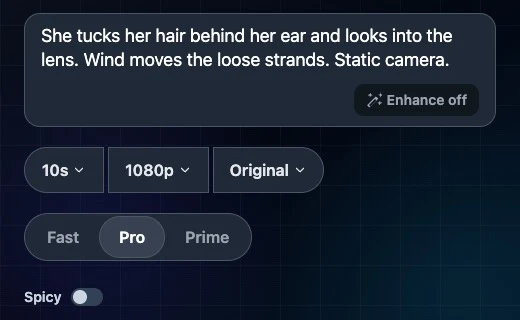
The available settings change with the model and tier, so check what appears after you pick one. On Wan, for example, switching from Pro to Fast swaps the aspect-ratio menu for a Generate Audio switch and a Use Multishots switch.
There's no negative prompt box. Some tools have a separate field for things to avoid. Photo to Video doesn't, so write what you do want instead: "the camera stays still" rather than "no camera movement", "her face stays calm" rather than "don't distort the face". Treat positive wording as a clear starting point, not a guarantee: negation and camera instructions can be interpreted differently by different models.
Enhance. Some models (Wan, for example) show an Enhance pill inside the prompt box. Turned on, it rewrites a short prompt into a longer one before generating. You can try it when you only have a few words. If you want to compare your own wording without this prompt expansion, leave Enhance off. The model can still interpret the words differently from what you intended. On Wan Fast, turning on Use Multishots locks Enhance on, because multi-shot needs the expanded prompt.
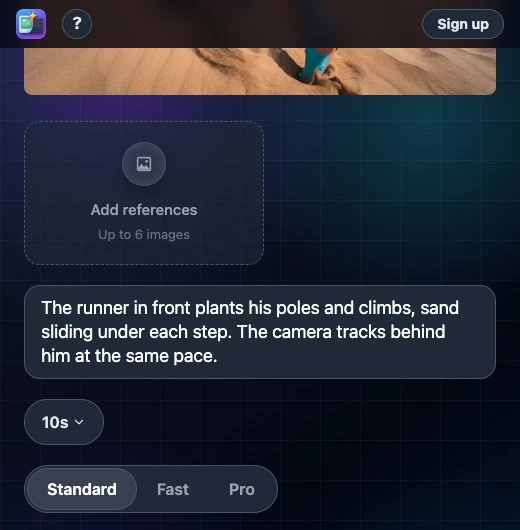
Pointing at reference images. After adding images on models with an Add references slot, typing @ in the prompt opens a list of those images, so you can say which picture you mean: "the jacket from @image2".
Split the prompt in two: subject motion and camera motion
One useful prompt review is to separate two different things: what the subject does and what the camera does. Keep them in separate sentences.
Subject motion is everything inside the frame: a person turning, hair moving, steam rising, water flowing, a car driving off.
Camera motion is how the viewer's point of view moves: staying still, moving closer, sliding sideways, following someone.
Compare:
❌ The woman zooms toward the camera with her hair blowing.
"Zooms" is ambiguous. Does she walk forward, or does the camera move in? The model has to guess.
✅ She takes one step toward the camera, her hair lifting in the wind. The camera stays still.
Now the subject motion (one step, hair lifts) and the camera motion (still) are each stated once, in their own sentence.
A simple order that keeps them apart:
- Who or what moves, and how (one main action)
- Secondary motion in the scene (optional: wind, light, background people)
- What the camera does (one move)
Camera moves: when to use which
For a simple single-shot clip, start with one camera move. More complex combinations can work, but they make it harder to identify which instruction caused an unwanted result.
Static camera
The camera stays still.
Try this when a face, product label or existing composition is the focus. Give the subject a small action if you want visible movement; a fixed camera alone can leave the clip close to a still image.
Push-in
The camera slowly moves closer to her face.
A push-in moves the camera toward the subject. A zoom changes magnification from a fixed viewpoint; models may blur that distinction. Describe the intended view in plain language and check whether the perspective changes as expected.
Pull-out
The camera slowly pulls back to reveal the whole room.
Use a pull-out when revealing context is the point. Areas outside the original image must be invented, so check new objects and the edges of the room.
Pan
The camera pans slowly to the left from a fixed position.
A pan turns the camera left or right without moving its position. It is different from sliding sideways. Both can reveal unseen parts of a scene; keep the requested movement modest if matching the original environment matters.
Sideways slide or truck
The camera slides slowly to the right, keeping the table in view.
The camera moves sideways. Nearby and distant objects may shift against one another, which differs from a pan. This can suit interiors or product scenes, but newly revealed details need checking.
Tracking
The camera follows behind the cyclist at the same pace.
Use tracking when staying with a moving subject is the goal. A starting image with a clear walking, riding or running pose can make the intended action easier to describe. Check both the subject and background for drift.
Orbit
The camera makes a short, slow arc around the sculpture.
An orbit moves around a subject. A single photo does not show every side, so the model invents hidden surfaces. A full rotation is a larger request than a short arc; inspect shape, logos and newly visible details.
Static vs. push-in in practice. Take a portrait. "She smiles. The camera stays still." keeps the framing of your photo and puts all the motion into her face. "She smiles. Slow push-in toward her face." makes the same moment feel more intimate, but the face gets larger, so any small distortion becomes more visible. If the face matters most (an old family photo, a headshot), start static.
Push-in vs. pan. A push-in moves toward something and says "look at this". A pan turns to look across a scene; a sideways slide moves the camera through it. For one focal subject, try a push-in. For a wide scene with several details, try a pan or a short sideways move. The choice depends on what you want the viewer to notice.
Four vague prompts, rewritten
Each rewrite below goes through the prompt sentence by sentence and explains the change.
1. Portrait: "make her move"
Before: make her move
After: She turns her head slowly toward the camera and smiles. A few strands of hair move in the breeze. The camera stays still.
- "She turns her head slowly toward the camera and smiles." "Move" could mean anything: walking, dancing, waving. This names one small action that fits a portrait and a direction (toward the camera). "Slowly" asks for restrained pacing. It does not guarantee facial consistency, so check the result.
- "A few strands of hair move in the breeze." A secondary motion makes the scene feel alive without asking the face to do more. "A few strands" keeps it subtle.
- "The camera stays still." Without a camera instruction, the model may add its own move. For a face, a static camera is a simple starting point to compare with a moving shot.
2. Landscape: "cinematic epic video"
Before: cinematic epic video of the mountains
After: Low clouds drift across the peaks and their shadows slide over the valley. The camera pans slowly to the left.
- "Low clouds drift across the peaks…" "Cinematic" and "epic" describe a feeling, not a motion. They do not identify which part of the picture should change. Clouds and shadows are things in the photo that can realistically move.
- "…and their shadows slide over the valley." This links the second motion to the first, so the scene moves as one. Several unrelated movements can make the intended focus less clear.
- "The camera pans slowly to the left." A wide landscape suits a pan. "Slowly" limits how much new scenery the model has to invent at the edge of the frame.
3. Product: "show the product nicely"
Before: show the product nicely, 4K, high quality, no blur
After: The perfume bottle stays still on the marble counter while soft light slides across the glass. The camera moves slowly closer to the label.
- "The perfume bottle stays still on the marble counter…" Asking the product to stay still reduces the number of moving parts; its shape and label can still change in the output. Text on a product is one of the hardest things to keep stable, and you can't name what not to do in a separate box.
- "…while soft light slides across the glass." The motion comes from the light, not the object. That asks for a changing reflection rather than a rotating object, though the generated product still needs checking.
- "The camera moves slowly closer to the label." A slow push-in focuses attention on the brand. "4K, high quality" are removed: resolution is a setting, and quality words don't add motion.
- "No blur" is removed. There's no negative prompt field, and the positive version ("stays still", "slowly") already asks for a steady shot.
4. Street scene: "people walking, car driving, camera zooming in and spinning"
Before: people walking, car driving, rain falling, camera zooming in and spinning around
After: Rain falls on the street and people under umbrellas walk past. The camera stays still at eye level.
- "Rain falls on the street and people under umbrellas walk past." The original asks for four motions plus two camera moves in a few seconds. This keeps the motions that belong together (rain, people with umbrellas) and drops the car.
- "The camera stays still at eye level." "Zooming in and spinning" are two camera moves that pull against each other. A busy scene already has plenty of motion, so a still camera keeps it readable. If you want the car, make a second clip just for it.
10 example prompts
These are original, untested starting points written for this guide, not demonstrated generation results. Change the subject and setting to fit your photo. Use visible subjects and plausible actions; if a prompt needs a person or object absent from the image, edit the image first or choose another example. (For the basic portrait, old photo, product, landscape, pet and artwork templates, see the first guide.)
Coffee shop interior
Steam rises from the cup on the table and the barista behind the counter wipes the espresso machine. The camera pushes in slowly toward the cup.
Sneaker on a plain background
The sneaker stays in place as the camera circles slowly around it, keeping the shoe in the center of the frame.
Couple on a beach
They walk side by side along the waterline, leaving footprints in the wet sand. The camera follows behind them at walking pace.
Wedding photo
The bride lifts her veil slightly and laughs. Petals drift down around them. The camera stays still.
City skyline at dusk
Lights switch on one by one in the office windows as the sky fades from orange to blue. The camera stays still.
Food plate
Sauce is poured slowly over the pasta from the top of the frame. The camera stays still, looking down at the plate.
Real estate living room
Sunlight shifts across the sofa and the curtains move slightly in the breeze. The camera slides slowly to the right, revealing the window.
Cyclist on a road
The cyclist pedals steadily up the hill, leaning forward. The camera tracks alongside him at the same speed.
Children's drawing
The drawn sun spins slowly and the crayon flowers sway from side to side. The camera stays still.
Bookshop window
Snow falls past the shop window and the string lights flicker. The camera pulls back slowly to show the whole storefront.
Troubleshooting
| What you see | Possible prompt issue | What to change |
|---|---|---|
| The motion pulls in two directions (the person walks left while the camera pans right and everything smears) | Several directions or camera actions make the intended framing unclear. Opposing subject and camera movement is not inherently wrong. | Keep one camera move. For a simpler comparison, try matching their direction ("he walks right; the camera follows to the right"), or keep the camera still. |
| Too much happens, or it looks chaotic | Several actions in one clip | Keep one main action and at most one background motion. Split the rest into separate clips. |
| The camera doesn't move | The camera move is buried in a long sentence, or uses vague words like "dynamic" | Put the camera move in its own short sentence at the end, using a plain description: "The camera moves slowly closer to her face." |
| The camera moves but you wanted it still | No camera instruction, so the model chose one | Add "The camera stays still." as its own sentence. |
| The subject barely moves | The prompt describes how things look ("beautiful sunset, golden light") instead of what changes | Replace appearance words with verbs: "the sun sinks below the horizon and the waves roll in". |
| The face or product changes shape | Large motion or a fast camera move near the subject | Use smaller actions ("blinks and smiles slightly"), a slower move or a static camera. |
| You asked for sound, a longer clip or a vertical video and didn't get it | These are settings, not prompt instructions | Use the Generate Audio switch, duration menu or aspect ratio menu, if the model has them. If it doesn't, try a model that does. |
| Your long prompt got rewritten | Enhance is on | Turn Enhance off to compare your own wording. If Use Multishots forces it on, turn that mode off first. |
FAQ
Do I need a prompt at all? No. The prompt is optional on Photo to Video. Without one, the model decides what moves. A prompt gives you more control over the action and the camera.
How long should an image-to-video prompt be? Usually two or three short sentences: one for the main action, optionally one for background motion, one for the camera. Longer prompts tend to add actions that compete.
Should I describe what's in the photo? Only as much as you need to say who or what moves ("the man on the left", "the bottle"). The model can already see the image, so spend the words on motion.
Can I write things to avoid? There's no separate negative prompt box. Describe what you want instead: "the camera stays still", "the label stays readable".
Does the same prompt work on every model? The structure works across models, but each model interprets the words differently. If a prompt gives you a result you don't like, change one thing at a time (the action, the camera move or the model) so you can see what made the difference.
What does Enhance do? On models that show it, Enhance rewrites your prompt into a longer, more detailed one before generating. Try it for short prompts, or switch it off to compare your own wording. On the Wan Fast setting shown above, Use Multishots keeps Enhance on.
Keep reading
- How to Turn a Photo into an AI Video: the full walkthrough, from upload to download
- Kling AI Image to Video: Kling's tiers, settings and reference images
- Hailuo AI Image to Video: Hailuo's resolutions and lengths
Product controls and screenshots were checked on October 22, 2026. Available controls depend on the selected model and tier. Prompt examples are editorial suggestions; no generation was submitted for this guide.