On this page
Hailuo AI Image to Video: Settings, Free Credits & Prompts
 Photo to Video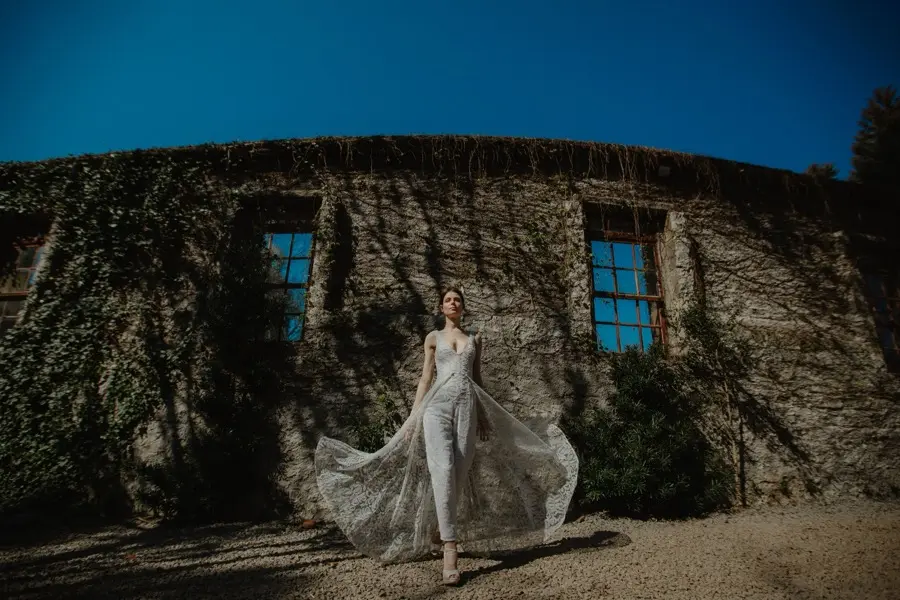
Hailuo is a family of video models from MiniMax. In Photo to Video, it animates one starting photo using three settings: Fast or Pro, resolution, and length. Those three choices quietly decide which Hailuo version you get, how long the clip can be, and how many credits it costs.
This guide shows how to turn a photo into a Hailuo video in Photo to Video: what each setting really does, which combination to start with, how the free credits work, prompt ideas that suit Hailuo, and what to change when a result goes wrong.
New to photo-to-video in general? Start with our step-by-step guide to turning a photo into an AI video. This page covers what is specific to Hailuo.
Quick answer: Open the Hailuo AI video generator, upload one photo, and add a short motion prompt (optional). Leave it on Fast · 512P · 6s for a low-resolution first test, or choose 768P to use Hailuo 2.3. Check the credit cost on the Make Video button, then generate. 1080P clips are always 6 seconds.
How Hailuo's settings work
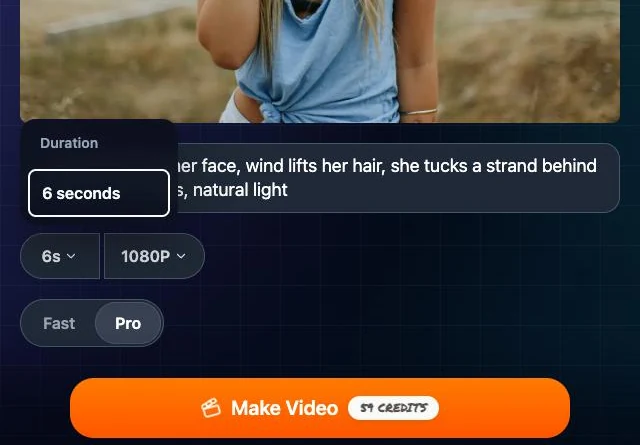
Under the photo you get three controls: Duration (6s or 10s), Resolution (512P, 768P or 1080P) and a Fast / Pro switch. There is no separate version menu. The resolution you pick decides which Hailuo generation runs:
| Resolution | Lengths | Fast | Pro |
|---|---|---|---|
| 512P | 6s or 10s | 02 Fast | 02 Standard |
| 768P | 6s or 10s | 2.3 Fast | 2.3 Standard |
| 1080P | 6s only | 2.3 Fast | 2.3 Pro |
MiniMax's official image-to-video parameters also list 6-second clips at 1080P and 6- or 10-second clips at 768P for Hailuo 2.3. The table above maps those versions to Photo to Video's own controls.
Three things to take from this table:
- 512P is the older Hailuo 02. It is the cheapest way to test a photo and a prompt, and it uses a different model from the higher-resolution settings. If a 512P clip looks stiff or warped, you can compare the same prompt at 768P; the model changes as well as the output size, so a better result is not guaranteed.
- 768P and 1080P are Hailuo 2.3. Moving between these two resolutions keeps you in the 2.3 family but changes the available clip length.
- 1080P is 6 seconds only. If you pick 10s and then switch to 1080P, the length drops back to 6s on its own. Need 10 seconds? Use 768P.
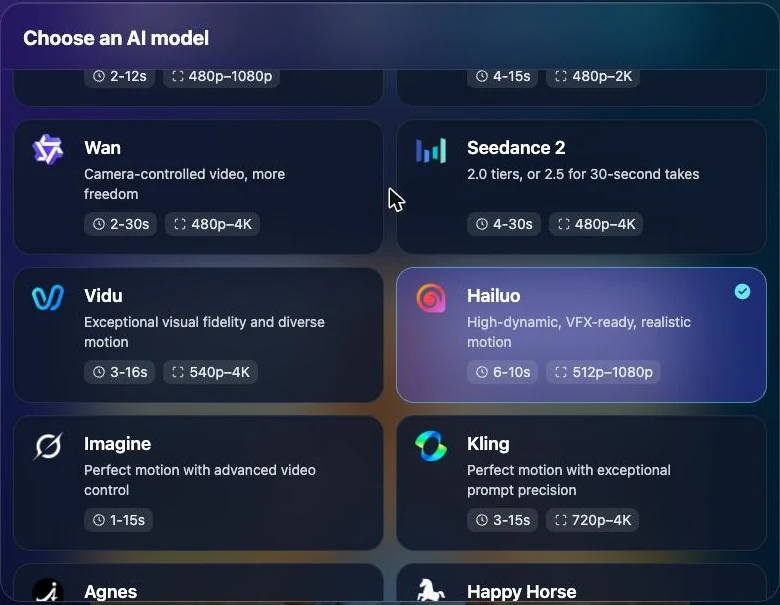
Fast or Pro: which should you pick?
Fast is the default. At 768P and 1080P it runs Hailuo 2.3 Fast, the variant designed for quicker drafts. At the settings checked for this guide, Fast used fewer credits than Pro at the same resolution; compare the current number on Make Video before choosing.
Pro runs the full Hailuo 2.3 model at 768P and 1080P. Choose it when you want to compare the full model with a Fast draft. The Pro label does not guarantee a better result for every photo or prompt.
At 512P, Fast and Pro both stay in the Hailuo 02 family. Switching to Pro at that resolution does not move you to Hailuo 2.3; check the displayed cost rather than assuming the tier label tells you the price.
A practical way to compare settings:
- Fast · 512P · 6s to check that the photo and prompt work at all.
- Fast · 768P once the motion looks right, to compare the newer Hailuo 2.3 model.
- Pro · 768P or 1080P to compare the full variant before choosing the version to keep.
How to turn a photo into a Hailuo video
- Open the generator. Go to the Hailuo page. Hailuo is already selected; you can also pick it from the model menu at the top on any page.
- Upload one photo. Click Tap to select image and choose a clear photo. Hailuo has no aspect-ratio menu, so frame and crop the photo the way you want the video to look before you upload it.
- Write a motion prompt (optional). Describe what should move and how the camera behaves. You can leave it empty, but a short prompt usually gives more controlled results.
- Choose length, resolution and tier. Pick 6s or 10s, then 512P, 768P or 1080P, then Fast or Pro.
- Check the cost and generate. The Make Video button shows the exact number of credits for your settings before anything is spent. Changing settings does not spend credits; submitting a generation does.
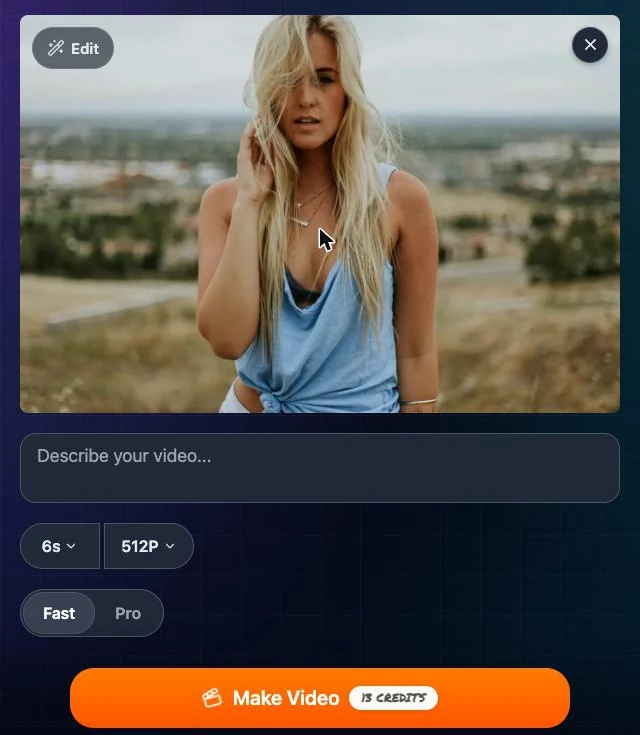
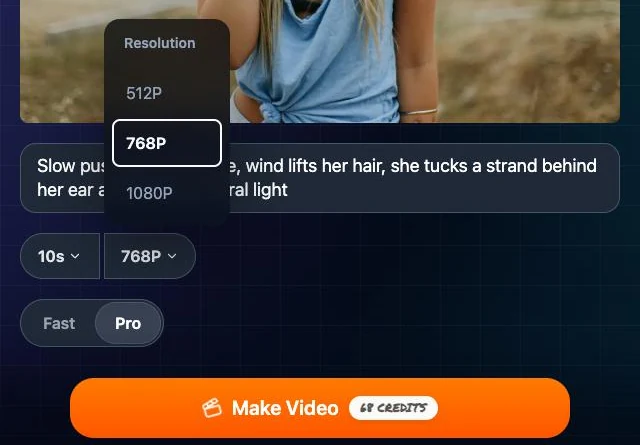
When the clip is ready, preview it before sharing. Look for changes to faces, hands, clothing and product labels, and check that the motion matches your request. Use Download to save a copy of the result.
Credit amounts visible in these screenshots were captured on October 21, 2026; use the current button value when you generate.
Is Hailuo AI free? How credits work
Eligible new Photo to Video accounts receive free welcome credits to try generation. The offer depends on account eligibility; check the credit balance available to you. It is not unlimited: every clip uses credits, and after the welcome credits run out you buy credit packs. There is no subscription.
To make free credits go further:
- Start at 512P and 6 seconds. It is the cheapest Hailuo setting and is enough to see whether a photo and prompt work.
- Change one setting at a time. Going from 6s to 10s, or from 512P to 768P, each raises the cost. Check the number on Make Video after every change.
- Use Pro last. At 768P and 1080P, Pro costs noticeably more than Fast. At 512P both stay in the Hailuo 02 family; compare the displayed cost.
The credit number on the Make Video button is always the current price for your exact settings.
Things Hailuo does not do here
Knowing the limits saves a wasted generation:
- No sound. Hailuo makes silent video. If you need audio, choose a model with sound in the same menu, such as MiniMax H3 or Kling; your photo and prompt carry over.
- No end frame or extra reference images. Hailuo on Photo to Video animates from one photo. For a clip that ends on a chosen image, use a model with an end-frame option, such as Kling Pro (see our Kling image to video guide).
- No clips longer than 10 seconds. For longer takes, pick a model with a longer range in the menu.
Hailuo vs MiniMax H3: both come from MiniMax, but they are separate models with separate cards in the menu. MiniMax H3 has its own lengths, resolutions and native sound. Everything in this guide applies to Hailuo only.
Prompt ideas for Hailuo
Photo to Video sends your Hailuo motion description without automatic prompt expansion. Be explicit about the action and camera movement you want, rather than relying on the tool to invent a detailed description.
A useful pattern is subject + motion + camera + mood, kept to one or two sentences. Describe what moves and how, then check the result against that request.
These prompts are suggestions written for this guide, not official Hailuo presets or the recorded prompts behind a tested example video:
Portrait
Slow push-in on her face, wind lifts her hair, she tucks a strand behind her ear and smiles, natural light.
Full-body or dance
He spins once on the spot and lands in a confident pose, jacket swinging with the turn, camera steady at waist height.
Product
The bottle rotates slowly on the table, light glides across the glass, soft studio background, camera still.
Landscape
Clouds drift across the peaks, grass ripples in the wind, slow pan from left to right, golden hour.
Illustration or anime art
The character's cape and hair flow in the wind, cherry blossoms drift past, gentle camera push-in, keep the drawn style.
Tips:
- Name the camera move in plain words: push in, pull back, pan left, orbit, handheld, camera still. MiniMax's own documentation also describes bracket commands such as
[Pan left]; you can experiment with them, but the bracket form has not been tested for this guide, so start with plain-language directions. - Give one main action. Start with "turns her head and smiles" instead of a list of five things, so it is easier to judge what needs changing.
- Say what should stay still when it matters: "background stays still", "camera still".
Fixes for common problems
| Problem | What to try |
|---|---|
| Motion looks stiff or warped at 512P | Run the same prompt at 768P (Hailuo 2.3) before rewriting it |
| Face or body changes too much | Use a sharper photo with the face clearly visible, describe smaller movement, add "camera still" |
| Not enough happens | Add one clear physical action and a camera move to the prompt |
| Too much happens / chaotic | Shorten the prompt to one action; try 6s instead of 10s |
| Can't choose 10 seconds | You are on 1080P, which is 6s only. Switch to 768P |
| The video has no sound | Hailuo is silent. Pick a model with sound, such as MiniMax H3 |
| Wrong framing or shape | There is no aspect-ratio setting for Hailuo. Crop the photo before uploading |
FAQ
Is Hailuo AI image to video free?
Eligible new accounts can start with welcome credits, and a 6-second 512P clip is the cheapest Hailuo setting. After that you pay per clip with credits. There is no subscription.
What is the difference between Hailuo Fast and Pro?
At 768P and 1080P, Fast runs Hailuo 2.3 Fast (quicker, fewer credits) and Pro runs the full Hailuo 2.3 model. At 512P both run Hailuo 02; check the current credit number on Make Video for the price.
Which Hailuo version am I using?
The resolution decides: 512P runs Hailuo 02; 768P and 1080P run Hailuo 2.3.
How long can a Hailuo video be?
6 or 10 seconds at 512P and 768P. 1080P is 6 seconds only.
Can Hailuo add sound to my video?
No. Hailuo makes silent video. Choose a model with sound, such as MiniMax H3, in the same menu.
Is Hailuo the same as MiniMax H3?
No. Both are made by MiniMax, but MiniMax H3 is a separate model with its own settings and native sound.
Is this the official Hailuo website?
No. Photo to Video is an independent product that runs Hailuo, MiniMax's video model, through API partners. It is not affiliated with or endorsed by MiniMax.
Try Hailuo with your photo
Ready to try it? Upload a photo on the Hailuo AI video generator and start with Fast · 512P · 6s.