On this page
Kling AI Image to Video: Models, Settings & Prompts
 Photo to Video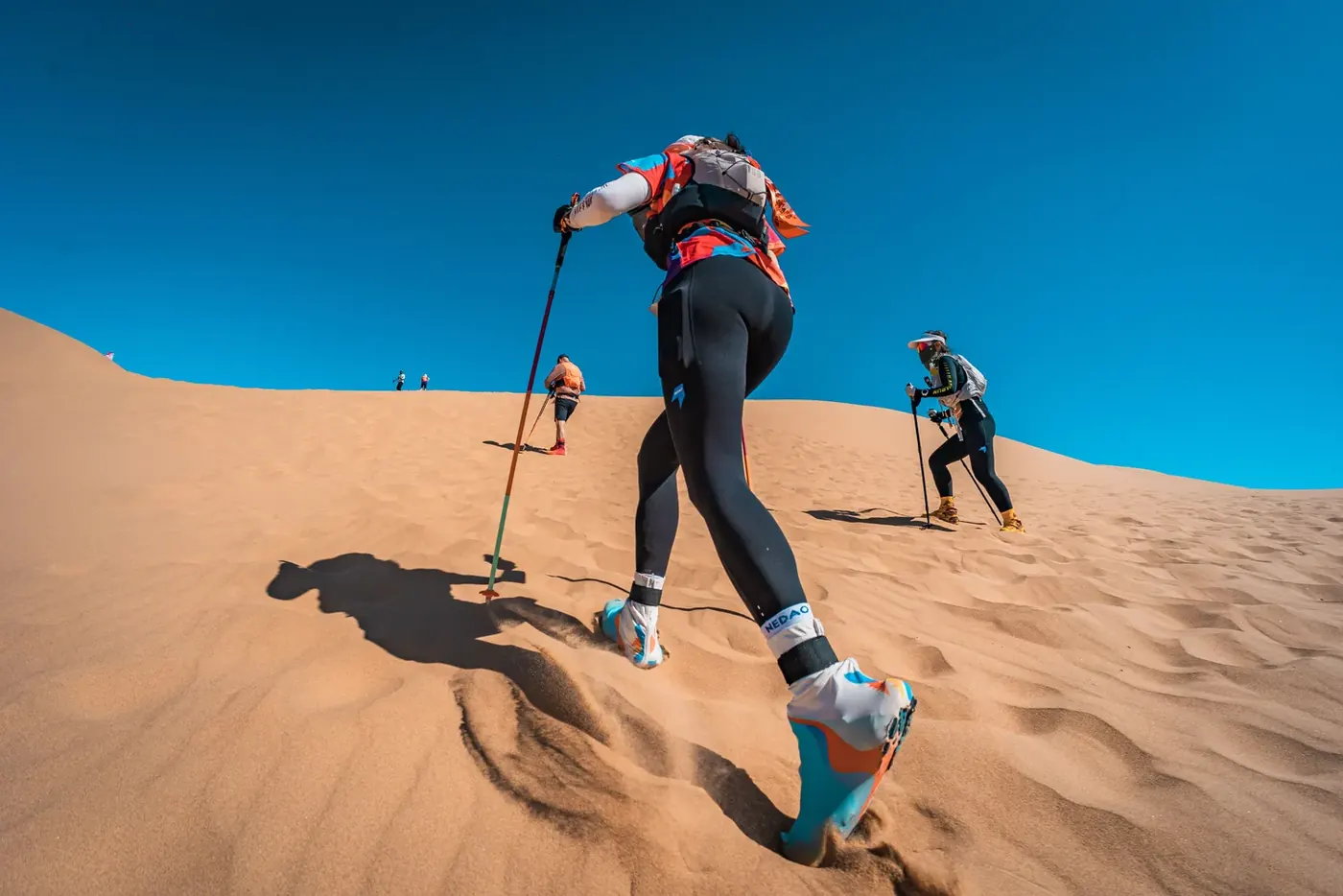
Kling offers several versions for turning a still photo into a short video. Your choice affects the resolution, clip length, sound options and credit cost. Check those settings before you generate, especially if you need sound or a particular output size.
This guide shows how to use Kling image to video in Photo to Video: which version to choose for your goal, what every setting does, how to check the credit cost before you generate, prompt ideas for portraits, products and landscapes, and what to change when a result goes wrong.
If you are new to photo-to-video in general, start with our step-by-step guide to turning a photo into an AI video. This page covers what is specific to Kling.
Quick answer: Open the Kling AI video generator, upload one photo, and choose a tier: Standard (Kling 2.6, the lowest-cost option, no sound), Fast (Kling V3 Turbo, with sound) or Pro (Kling 3.0 at 1080p or 4K). Set the length, write a short motion prompt, check the credit cost on the Make Video button, then generate.
Kling versions at a glance
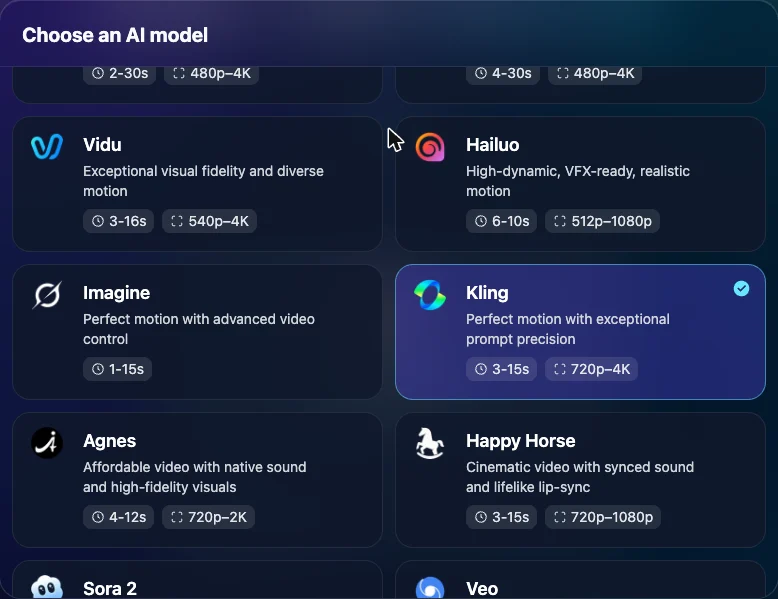
The Kling generator has three tiers: Standard, Fast and Pro. Each tier maps to a different Version, and the options you see change with it. The table below applies when you start from one photo. Adding more images switches Kling to a different mode with its own options (see Using reference images).
| Tier | Version | Resolution | Length | Sound |
|---|---|---|---|---|
| Standard | Kling 2.6 Standard | 720p | 5 or 10s | None |
| Fast, 720p | Kling V3 Turbo | 720p | 3–15s | Included |
| Fast, 1080p | Kling V3 Turbo (1080p) | 1080p | 3–15s | Included |
| Pro, 1080p | Kling 3.0 Pro | 1080p | 3–15s | Optional |
| Pro, 4K | Kling 3.0 4K | 4K | 3–15s | Included |
A few things the table makes clear:
- Only Pro at 1080p lets you turn sound off. Fast and Pro 4K always include sound, and Standard never does. If you plan to add your own music, use Pro 1080p with Generate Audio off, or Standard.
- Standard only offers 5 or 10 seconds. For any other length, such as 3, 7 or 15 seconds, use Fast or Pro.
- Standard has no resolution menu. Fast lets you pick 720p or 1080p. Pro lets you pick 1080p or 4K.
How to make a Kling video from a photo
Step 1: Open the Kling generator and upload a photo
Go to the Kling AI video generator. Kling is already selected in the model menu. Click Tap to select image and choose your photo.
Choose a photo with one clear subject, sharp focus and even light. If you will post the video on a specific platform, crop the photo to that shape first, because there is no separate aspect-ratio menu when you start from one photo.
Step 2: Pick a tier
Use the Standard / Fast / Pro switch under the prompt box. Use the table above to decide. If you are unsure, start with Standard: it is the lowest-cost way to find out whether your photo and prompt work with Kling.
Step 3: Set the length, resolution and sound
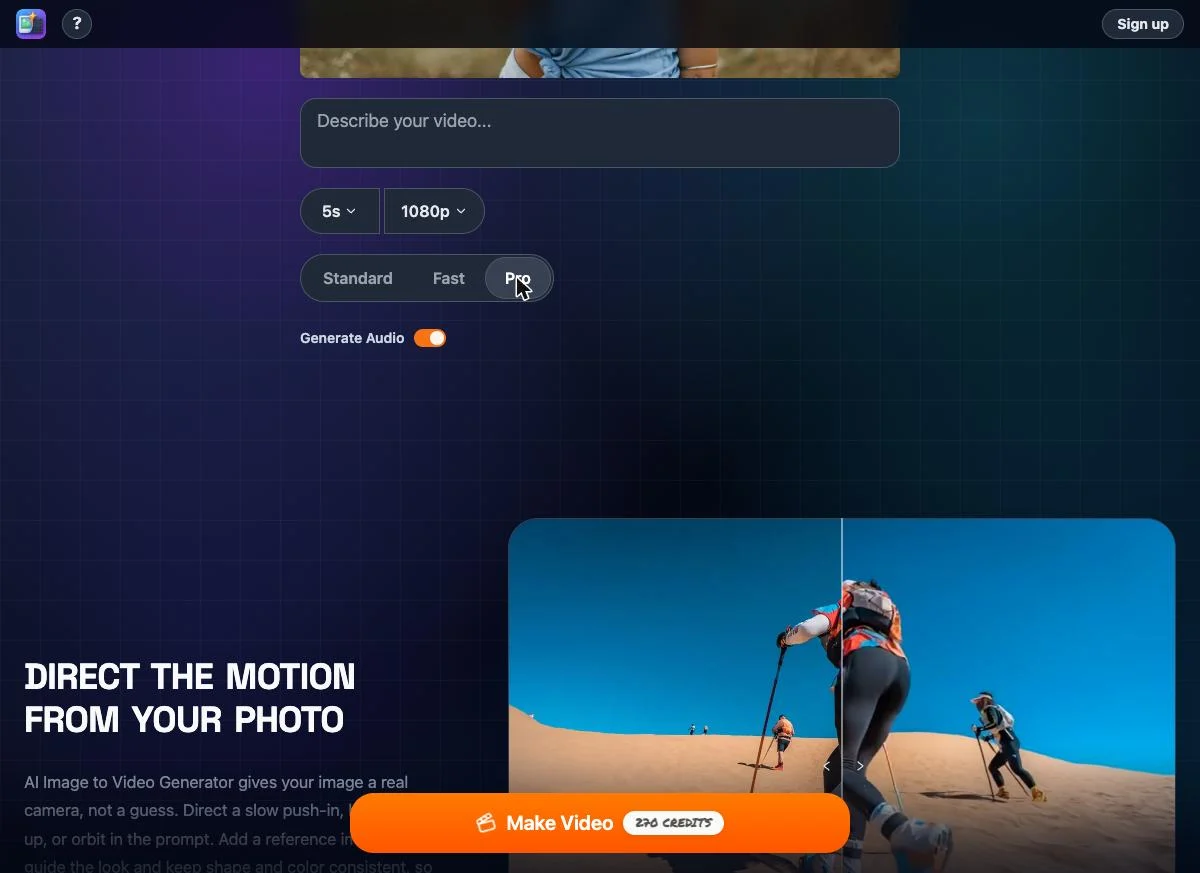
- Length: the first menu, for example 5s. Standard offers 5 or 10 seconds. Fast and Pro offer every length from 3 to 15 seconds.
- Resolution: appears for Fast (720p or 1080p) and Pro (1080p or 4K).
- Generate Audio: appears only for Pro at 1080p. Check whether it is on before generating. Turn it off for a silent clip, which also lowers the cost.
Step 4: Write a motion prompt
Describe what should move and how the camera should move. You don't need to describe what is already in the photo. You can request camera movement in plain language, such as push in, orbit or handheld. The website has no separate camera control. See the prompt ideas below.
Step 5: Check the credits, then generate
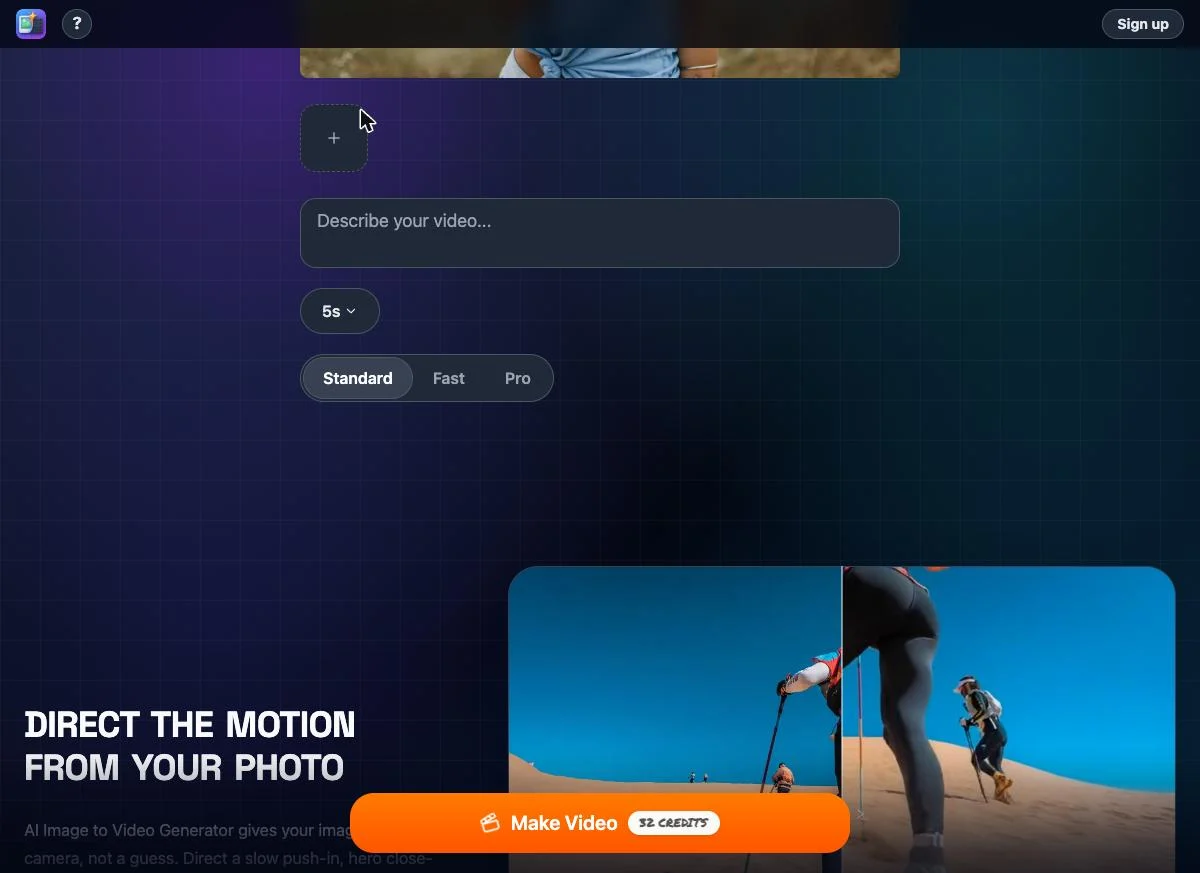
The Make Video button shows the exact credit cost of your current settings, and it updates every time you change the tier, length, resolution or sound. Nothing is charged until you press it. Make it a habit to look at the button after every change, because moving from Standard to Pro 4K, or from 5 to 15 seconds, raises the cost a lot.
A low-cost starting setting: Standard at 5 seconds is the cheapest Kling option. New accounts get free credits on sign-up, and a 5-second Standard clip fits within them, so you can try Kling before buying anything. After that, Kling is pay-per-video with credits, with no subscription.
Step 6: Review and download
When the clip is ready, compare it with your original photo. Check faces, hands, text and product details. Then download the MP4. Videos are not watermarked. If something is off, use the troubleshooting section below rather than starting over at random.
Using reference images with Kling
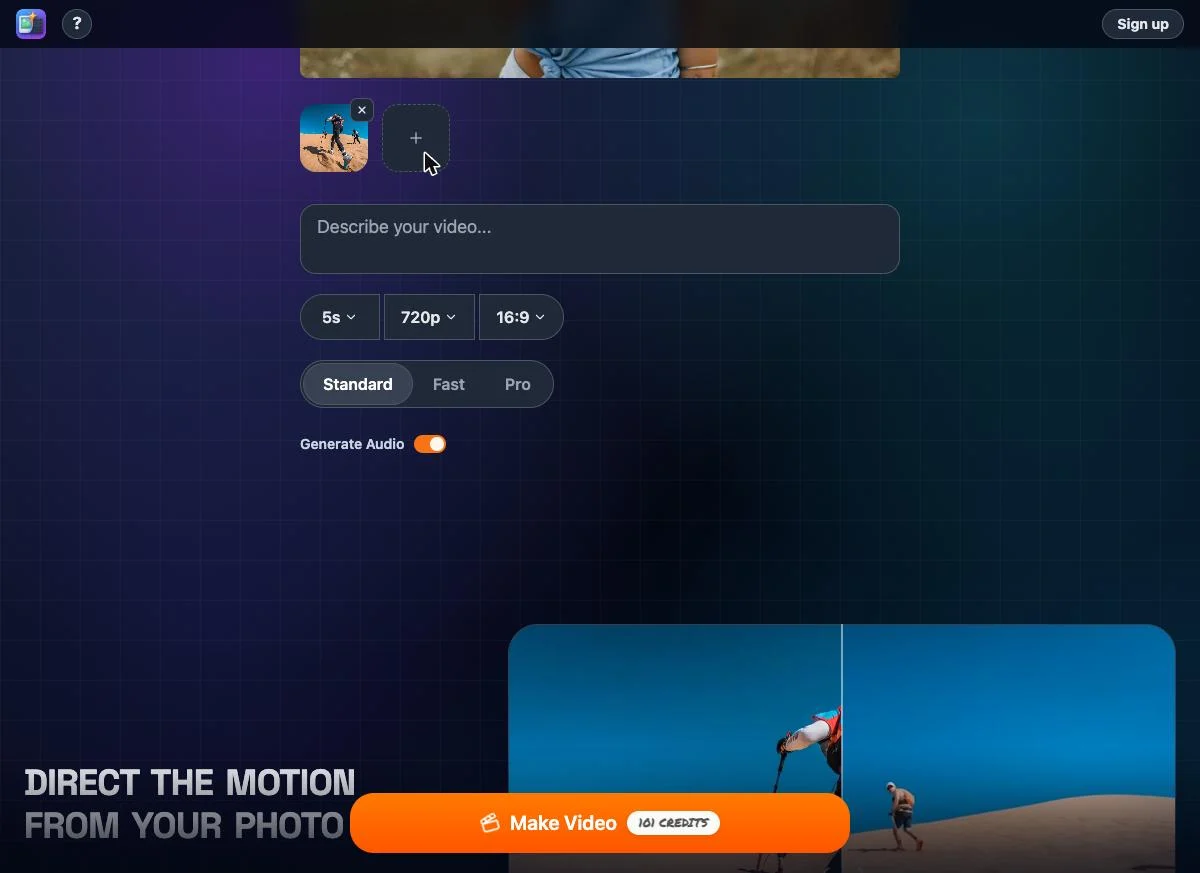
When the Standard tier is selected, a + slot appears under your photo. You can add images there to guide the appearance of a character, outfit or product. Check the result: reference images do not guarantee consistency. Kling accepts up to 7 images in total, counting your first photo.
Adding even one extra image switches Kling to its reference mode, and the settings change:
| Reference mode resolution | Length | Sound | Aspect ratio |
|---|---|---|---|
| 720p | 3–15s | Optional | 16:9, 9:16 or 1:1 |
| 1080p | 3–10s | None | 16:9, 9:16 or 1:1 |
| 4K | 3–15s | Included | 16:9, 9:16 or 1:1 |
Two things to watch:
- Check every setting again after adding an image. A resolution menu and an aspect-ratio menu appear, the length options can change, and the credit cost on the Make Video button changes, often by a lot. The table in the previous section no longer applies.
- Remove the extra images to go back. Click the × on each added image and the generator returns to normal single-photo settings.
Kling prompt ideas
These are starting points written for this guide, not the prompts behind any example video. Results depend on your photo, so expect to adjust them.
Portrait
She turns slightly toward the camera and smiles. Hair moves gently in the breeze. Slow push-in, soft natural light.
How to adjust: If the face changes too much, make the motion smaller ("a slight smile, blinks once") and use "static camera". If almost nothing happens, name one clear action. For a talking clip, choose a tier with sound and put the line in quotes, then check that the mouth and the words match before you use it.
Product
The bottle rotates slowly on the table. Static camera, clean studio lighting, soft reflections.
How to adjust: Kling can only see one side of the product in your photo, so it invents the rest when the product turns. If labels or logos warp, reduce the rotation ("turns a quarter turn") or keep the product still and request a small front-on push-in ("gentle push-in, product stays still"). Check the brand details carefully.
Landscape
Clouds drift across the sky and the grass sways. Slow aerial push-in toward the mountains, golden hour.
How to adjust: If the scene bends or melts, slow the camera down or switch to "static camera, only the clouds move". If the motion feels rushed, try a longer clip with the same simple prompt and compare the result.
Prompt tips specific to Kling
- One action and one camera move per clip. Start with a simple request so you can judge which part needs adjusting.
- Use shot language. Try phrases such as "push in", "pull back", "orbit", "pan left", "handheld" and "static camera", then review the resulting movement.
- Mention sound only when the tier makes sound. On Standard, a prompt about music or speech has no effect on the audio, because Standard clips are silent.
Troubleshooting Kling image to video
Change one thing at a time, in the order listed, so you know what fixed it.
The motion is too big or too fast
- Cut the prompt to one action and add "slow" or "subtle".
- Replace the camera move with "static camera".
- Try a longer length with the same simple prompt and compare the pacing.
- Try another tier on the same photo and prompt, and compare.
A face or product changes shape
- Ask for smaller motion: a blink, a slight turn, a quarter rotation.
- Use a sharper, closer photo where the face or product fills more of the frame.
- Keep the camera static, so only the subject moves.
- Try reference images on the Standard tier to guide the appearance (see above), and check the result for remaining changes.
The sound is missing or not what you expected
- No sound at all: check the tier. Standard never has sound, and on Pro 1080p the Generate Audio switch may be off.
- Sound you didn't want: Fast and Pro 4K always add sound. Use Pro 1080p with Generate Audio off, or Standard.
- Speech doesn't match the mouth: shorten the spoken line, keep the face toward the camera, and review the clip before you publish it. Lip sync is not guaranteed.
The settings or the cost don't fit
- Too expensive: go back to Standard at 5 seconds, or lower the resolution or length, and watch the number on the Make Video button.
- The length you need isn't listed: Standard only offers 5 or 10 seconds. Switch to Fast or Pro for 3 to 15 seconds.
- Settings changed unexpectedly: you may have added a reference image. Remove it with × to return to single-photo settings.
- You need a specific aspect ratio: crop the photo before you upload it, or use reference mode, which offers 16:9, 9:16 and 1:1.
FAQ
Is Kling image to video free?
You can start for free. The free credits you get on sign-up cover a 5-second Kling 2.6 Standard clip. After that, each video costs credits and there is no subscription. The Make Video button shows the exact cost before you generate.
Which Version is best for image to video?
It depends on the clip. Standard (Kling 2.6) is the lowest-cost way to test, Fast (Kling V3 Turbo) adds native sound, Pro at 1080p (Kling 3.0 Pro) offers 1080p with optional sound, and Pro at 4K (Kling 3.0 4K) offers 4K output.
How long can a Kling video be?
From one photo, Standard makes 5- or 10-second clips, and Fast and Pro make clips of 3 to 15 seconds. In reference mode, 720p and 4K go up to 15 seconds and 1080p up to 10 seconds.
Can Kling add sound to my video?
Yes, on Fast, Pro and some reference-mode settings. Fast and Pro 4K always include sound. Pro at 1080p has a Generate Audio switch. Standard clips are silent.
Can I use more than one image with Kling?
Yes. On the Standard tier you can add images in the + slot, up to 7 in total including your first photo. This switches Kling to reference mode, with its own resolution, length, sound and aspect-ratio options.
Is this the official Kling website?
No. Photo to Video is an independent product that runs Kling through official API partners. It is not affiliated with or endorsed by Kling AI or Kuaishou.
Ready to try it? Upload a photo and make a Kling video. Free credits to start, no subscription.