On this page
Create a Video from Photos: Slideshow, AI Clips or References?
 Photo to Video
"Create a video from photos" can mean three different jobs. You might want your photos to play one after another, like a slideshow. You might want each photo to come alive as a short moving clip. Or you might want several photos to guide what one AI video looks like. They use different tools, and choosing the workflow first helps you avoid expecting a slideshow from a reference-image control.
This guide helps you choose, then walks through a plan for turning three travel photos into one short video. If you only need the upload steps, see How to Turn a Photo into an AI Video. For help with what to type, see Image-to-Video Prompts.
Quick answer: Photo to Video makes one clip per generation and has no timeline, so it doesn't put photos in order for you. To make a video from several photos, generate a short clip from each photo you want to move, download the clips, then arrange them with any still photos in a video editor. Add references is a different tool: it uses extra images to guide one clip and doesn't play them as a sequence.
Three ways to make a video from photos
| Your goal | Workflow and limits |
|---|---|
| Show photos in order | Use a video editor with a timeline, such as Clipchamp. Set the order, time on screen, music and transitions. A simple pan or zoom moves the view over a still photograph; it does not generate new action inside the scene. |
| Animate each photo | Generate one AI clip per photo on Photo to Video, then download and arrange the clips in an editor. Photo to Video does not join them automatically. |
| Guide one clip with several images | Use Add references on a supported model. The images guide one generation; they are not a playback sequence, and each image is not guaranteed to appear. |
Most multi-photo videos mix the first two: AI clips for the photos that benefit from motion, plain stills for the rest, joined in an editor. References are for a different job, covered below.
What happens when you pick several photos at once
The upload box lets you select several files in one go, but what happens next depends on the model.
- On a model without references, only the first photo is kept. Nothing is queued for later, and no slideshow is made.
- On a model with references, the first photo becomes the main image and the rest go into the References rail, up to that model's limit.
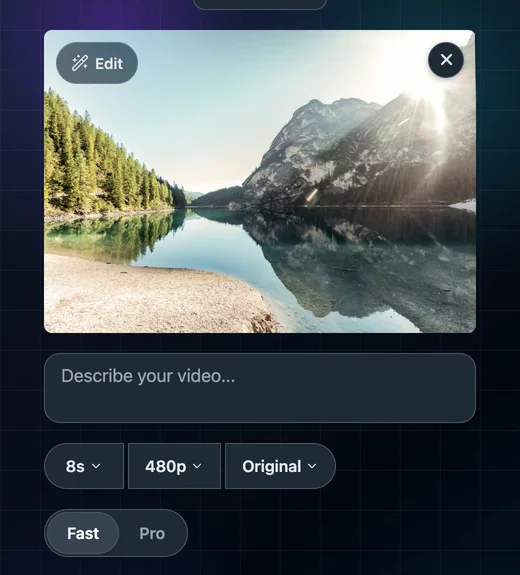
To make one clip per photo, upload one photo, generate, download, then replace it with the next photo.
What Add references does, and doesn't do
On models that support it, an Add references card appears under your photo. The images you add there are sent together with your main photo in one generation, and the model uses them as visual guidance: how a place looks, the colors and light, a product or an outfit. In the prompt, type @ to pick an image, for example "warm light like @image2". The prompts guide covers this in more detail.
Things to know before you use it:
- It isn't a sequence. The images don't play one after another, and the order in the rail isn't a storyboard.
- Not every image will appear. The model interprets the supplied images as guidance, and some references may have little visible effect.
- Your main photo isn't locked as the opening frame. With references added, the generation switches to a separate reference mode where your main photo is the first image in the list.
- References and an end frame don't combine. Some models show References and End frame tabs. Only the tab you're looking at is sent with the generation.
- Limits differ by model and tier. The card's hint shows how many extra images you can add, not counting your main photo. When we checked on October 24, 2026:
- Wan, Pro tier: main photo plus up to 9 references
- Kling, Standard tier: main photo plus up to 6 (see the Kling guide)
- Veo, Pro tier: main photo plus up to 2
Other models and tiers have their own limits, and some have none. Always check the hint on the card.
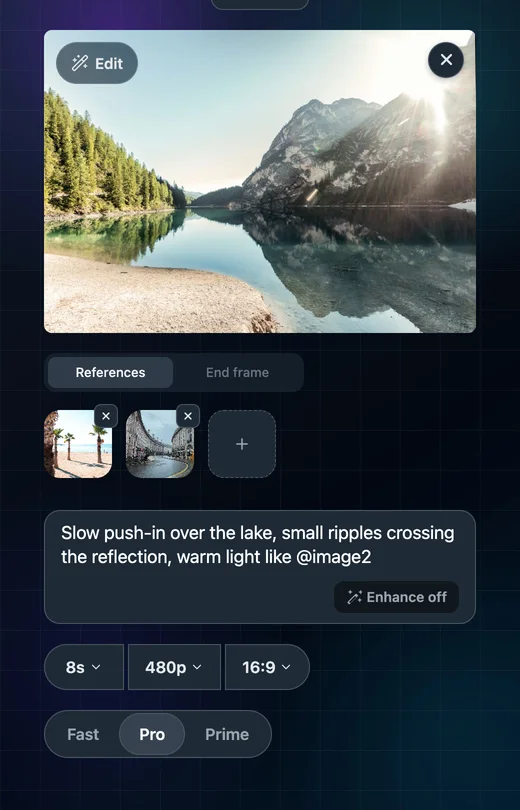
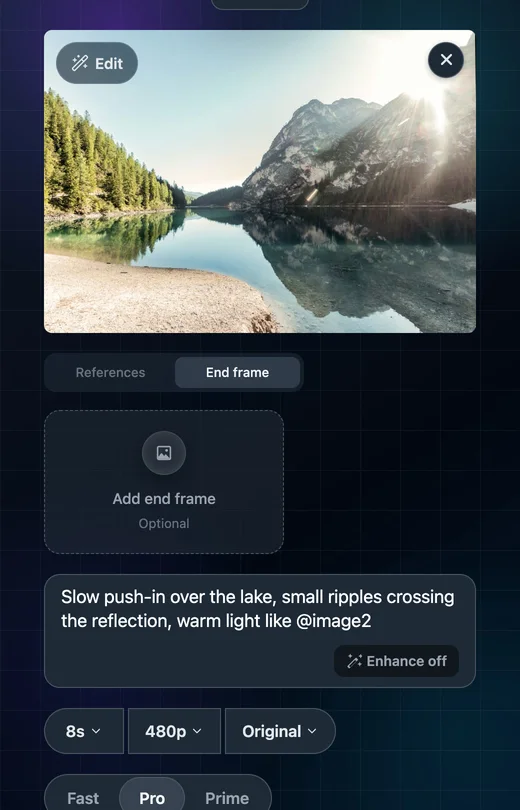
So references help when you want one clip to look a certain way. To show different places in a chosen order, prepare a separate clip or still for each place and arrange them in an editor.
Example plan: three travel photos, one short video
This is a suggested plan, not a finished example. It shows how to decide what to animate and how to put the pieces together. The three photos: a mountain lake with reflections, a beach with palm trees, and a curved city street after rain.
Step 1: decide which photos move
For a first test, consider subtle movement in water, leaves or clouds. Inspect straight lines, text and signs carefully: generation can bend or smear them. These are planning suggestions, not tested results.
Photo 1: mountain lake
Plan: Generate a short clip, around 5 seconds if the selected model offers it. Use the water as the main motion and inspect whether the reflection stays plausible.
Suggested prompt: "Slow push-in over the lake, small ripples crossing the reflection, sunlight flickering on the water."
Photo 2: palm beach
Plan: Generate a second short clip. A fixed camera helps make it easier to compare the movement of the palms and water without also changing the viewpoint.
Suggested prompt: "Palm fronds sway in a light breeze, shadows shift on the sand, small waves in the distance. The camera holds still."
Photo 3: city street
Plan: Keep the photo as a still for roughly 3 seconds, with an optional slow zoom in the editor. This preserves the source photograph's building lines and shop signs rather than asking a video model to redraw them. No generation prompt is needed for this shot.
Step 2: generate each clip on its own
Upload photo 1, write its prompt, generate and download. Then do the same for photo 2. Before you start, decide two things and keep them the same for every clip:
- Aspect ratio. Decide on a shared canvas, such as 16:9 for widescreen or 9:16 for a vertical video. Use the model's aspect-ratio menu where available. If it follows the input photo instead, prepare photos with the same proportions or fit/crop each shot in the editor. Different shapes can otherwise leave bars or require a crop.
- Resolution. Choose a consistent target where supported, then inspect each output. Equal pixel dimensions do not guarantee equal detail or visual quality.
Start with a short, low-resolution test of each photo to check the motion, then consider final settings for the shots you want to keep. A new generation can change the motion or appearance even with the same prompt; a low-resolution test is not a guaranteed preview of a later result. The credits guide explains how to keep test runs cheap. The Make Video button shows the cost before anything is spent.
Step 3: plan how each shot connects
- Lake → beach: a short crossfade (about half a second) moves the viewer from cool mountain light to warm sun.
- Beach → street: a straight cut on a beat of the music, which suits the change of place.
- Ending: hold the street still a beat longer, or fade to black.
Step 4: put it together in an editor
Photo to Video doesn't join clips, so the last step happens in a video editor. Any editor with a timeline will do. In Microsoft's Clipchamp tutorial, you import your photos and videos, drag them onto the timeline in order, add transitions between them, add music, then export. Use audio you have permission to include. If generated clips have sound, review or mute those tracks so they do not clash with the soundtrack. For this plan, that means the lake clip, the beach clip and the street photo, in that order, with the street photo set to about 3 seconds and given a slow zoom.
Two 5-second clips and a 3-second still total 13 seconds before any transition overlap or trimming. A half-second overlapping crossfade would make that about 12.5 seconds. Adjust the edit to the clips you actually receive.
Tips for a multi-photo video
- Not every photo needs AI. A still photo with a slow zoom can be the calmest shot in the edit and uses no additional AI-generation credits. Any editing-tool charges depend on that tool and its features.
- Keep the motion small. Start with restrained motion when you want adjacent shots to feel related, and judge the results together in the edit.
- Match the light. If the photos were taken at different times of day, put them in an order that tells a story (morning to evening) rather than jumping back and forth.
- Trim in the editor. You don't need every second of a 5-second clip; the best two or three seconds are often enough.
FAQ
Can Photo to Video make a slideshow from my photos? No. Each generation makes one clip, and the site has no timeline or tool for joining clips. Generate the clips you need, download them, and arrange them in a video editor.
Can I upload several photos and get one video that shows them all? Not as a sequence. On models with Add references, extra photos guide the look of one clip, but they don't play in order and some may not appear. To show each photo, generate one clip per photo.
How many photos can I add as references? It depends on the model and tier. When we checked on October 24, 2026, Wan Pro took up to 9 extra images, Kling Standard up to 6 and Veo Pro up to 2, each on top of your main photo. Some models don't offer references at all. The hint on the Add references card shows the current limit.
Will my first photo be the first frame when I add references? Not necessarily. With references added, the main photo is used as one of the images guiding the clip, not as a fixed opening frame. If you want to animate one specific starting photo, use the single-image workflow without references and inspect the returned opening frame. Adding references does not lock a particular first frame.
Should every photo be animated? No. Water, leaves and clouds provide simple motions to try. For a photo where exact lettering or straight lines matter, keeping the original as a still with an editor zoom can avoid asking a generation model to redraw those details. Test rather than assuming every photo will animate well.