On this page
How to Extend a Video with AI
 Photo to Video
You have a clip you like, but it ends too soon. Maybe the shot cuts off mid-pour, the dancer stops a beat early or you need a few more seconds to fit the music. An AI video extender fixes that: it looks at the end of your video and generates what happens next, so the clip keeps going instead of looping or freezing.
This guide shows how to extend a video with AI on Photo to Video, step by step: which model to use for how much extra length, how to write the "what happens next" prompt, what it costs and how to fix a visible seam. We also ran one real test on a stock clip and compared the AI's continuation with what the camera actually filmed next.
What extending a video means
Extending is not slowing the video down or looping it. The AI takes the last moments of your clip, keeps the same scene, people and lighting, and generates new footage that starts where yours ends. You describe what should happen next in a short prompt.
You get back one video: your original clip followed by the new part, so you don't have to stitch anything. In our MiniMax H3 test, a 5-second clip plus a 5-second extension came back as one 10.7-second video. You choose how long the new part is: up to 15 seconds on most models, and up to 30 seconds with Kling.
If you want to change what's already in the clip, such as the background, an outfit or the style, that's a different tool: use the AI video editor instead.
How to extend a video with AI, step by step
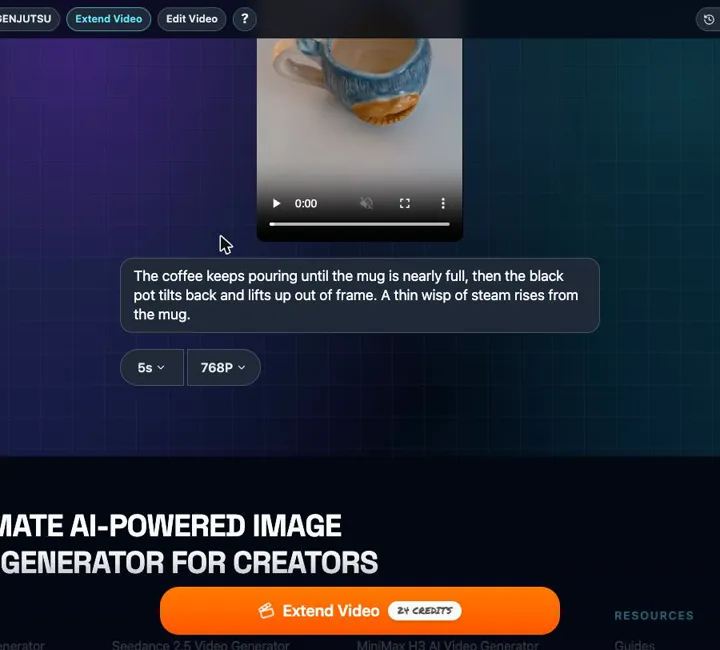
- Open the extender. Go to Extend Video.
- Add your video. Tap to select an MP4 or MOV clip, or drag it onto the page. If you just made a video on Photo to Video, open the More actions menu under the result and choose Extend to bring it straight here. Short clips with a clear moving subject work best.
- Describe what happens next. Write one or two sentences about the action after your last frame, for example "she turns and walks away" or "the camera pulls back". More on this below.
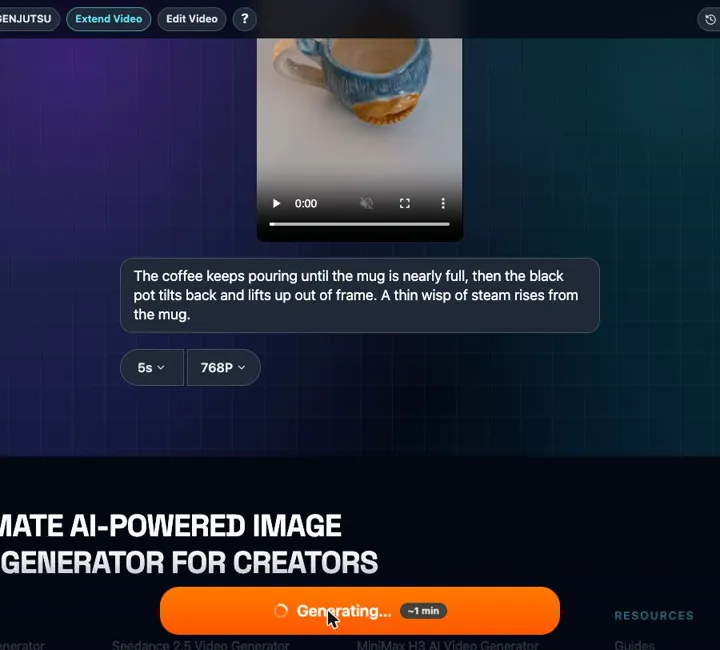
- Pick a model, length and resolution. The page opens on MiniMax H3 Fast with a 5-second extension at its lowest resolution, 480P (15 credits). We switched to 768P, which showed 24 credits on the button. The price updates as you change settings.
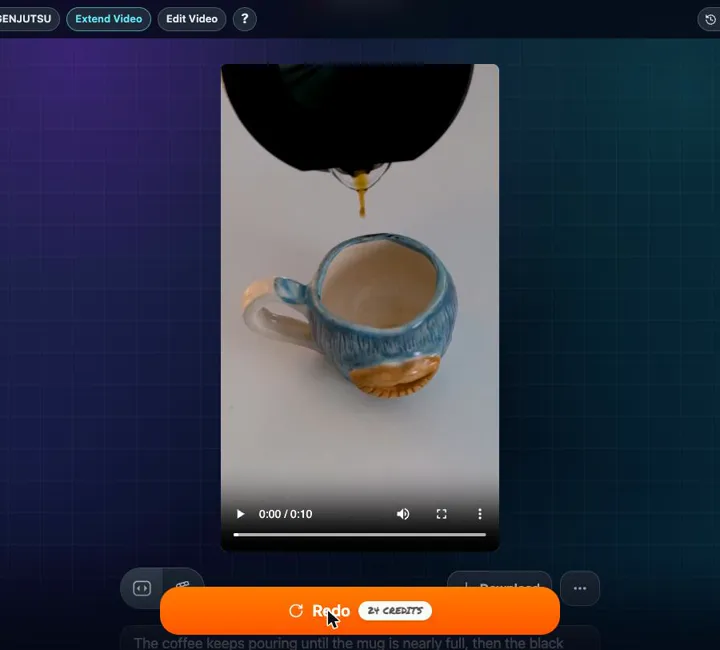
- Click Extend Video and wait. The button shows the upload first, then an estimate. In our test the finished video was back in about a minute.
- Download the longer video, or open More actions under it to extend it again, edit it or upscale it.
Which model should you use?
As of November 3, 2026, the extender offers four model families. All of them keep your clip's framing, and the price is for the new seconds only.
| Model | Extra length | Resolution | Sound | End frame | 5-second price |
|---|---|---|---|---|---|
| MiniMax H3 Fast (default) | 1–15 s | 480P, 768P, 1080P, 2K | Always on | No | 15–96 credits |
| Seedance (1.5 Pro) | 4–12 s | 720p, 1080p | On or off | No | 18–54 credits |
| Seedance 2.0 Mini / Fast / Pro | 4–15 s | 480p, 720p, 1080p, 4K | Always on | Yes | Mini 36–360, Fast 65–650, Pro 84–840 credits |
| Kling | 3–30 s | 720p, 1080p | Always on | Yes | 118 (720p) or 177 (1080p) credits |
- Start with MiniMax H3 Fast. It's the cheapest and the quickest: 5 extra seconds at 768P cost 24 credits and took about a minute in our test. Use it to check whether your prompt works. Our MiniMax H3 guide covers the model in more detail.
- Need more than 15 seconds? Only Kling extends up to 30 seconds in one go (30 seconds at 720p is 707 credits).
- Need a specific final shot? Seedance 2.0 and Kling accept an end frame: an image the continuation should end on.
- Need 4K? Only Seedance 2.0 goes up to 4K.
- Want it silent? Only Seedance 1.5 lets you turn sound off, and it's half the price with sound off.
New accounts get 50 free credits: enough for three 5-second MiniMax H3 Fast extensions at 480P (15 credits each) or two at 768P (24 each). See how free credits work.
How to write the "what happens next" prompt
The most common mistake is describing the video you already have. The AI can already see it. Describe the next action instead.
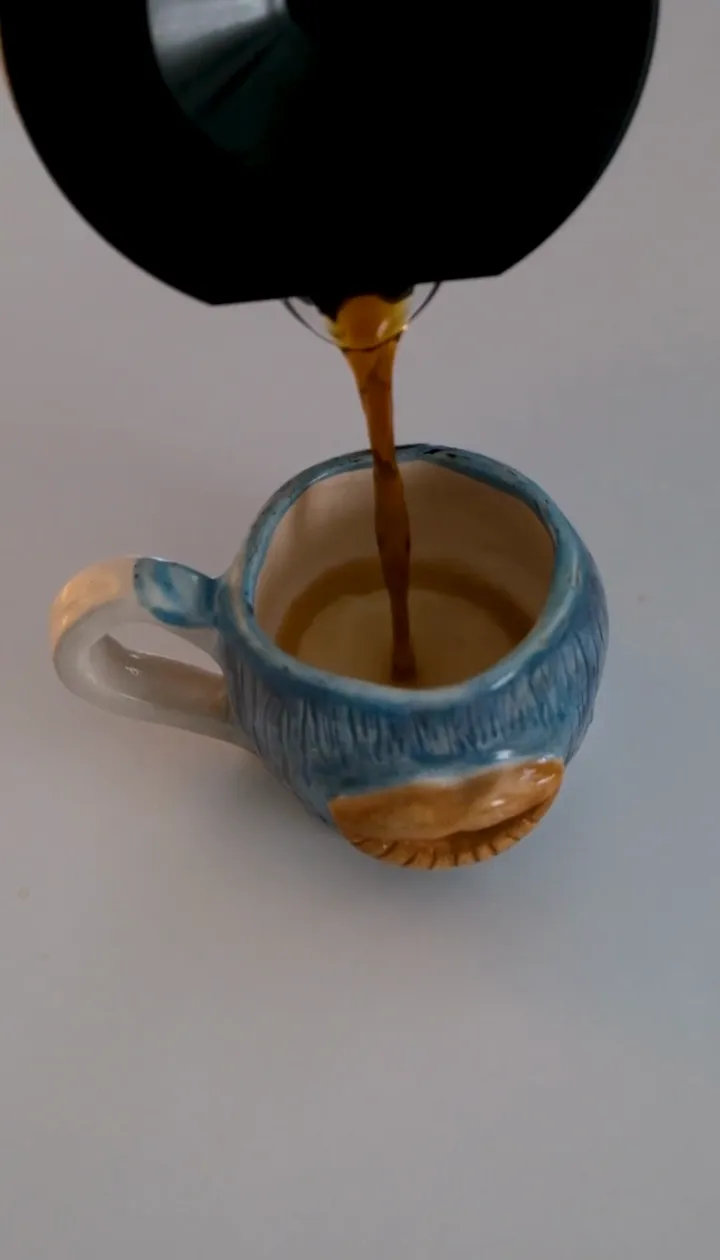
- Start from the last frame. Look at where your clip ends and continue from there: "The coffee keeps pouring until the mug is nearly full", not "A pot pours coffee into a blue mug."
- One or two actions per 5 seconds. "Pours, stops and lifts away" fits. A whole scene change does not.
- Say what the camera does, if anything: "the camera slowly pulls back", "the camera stays still".
- Mention sound if it matters: "steam hisses", "she laughs". Most models here always generate sound.
- Keep new things to a minimum. Every new person or object is something the AI has to invent, and that's where drift starts.
More examples are in our image to video prompt guide; the same rules apply.
Our test: a coffee pour, 5 seconds longer
We ran one extension, with no retries, and kept the result whatever it looked like.
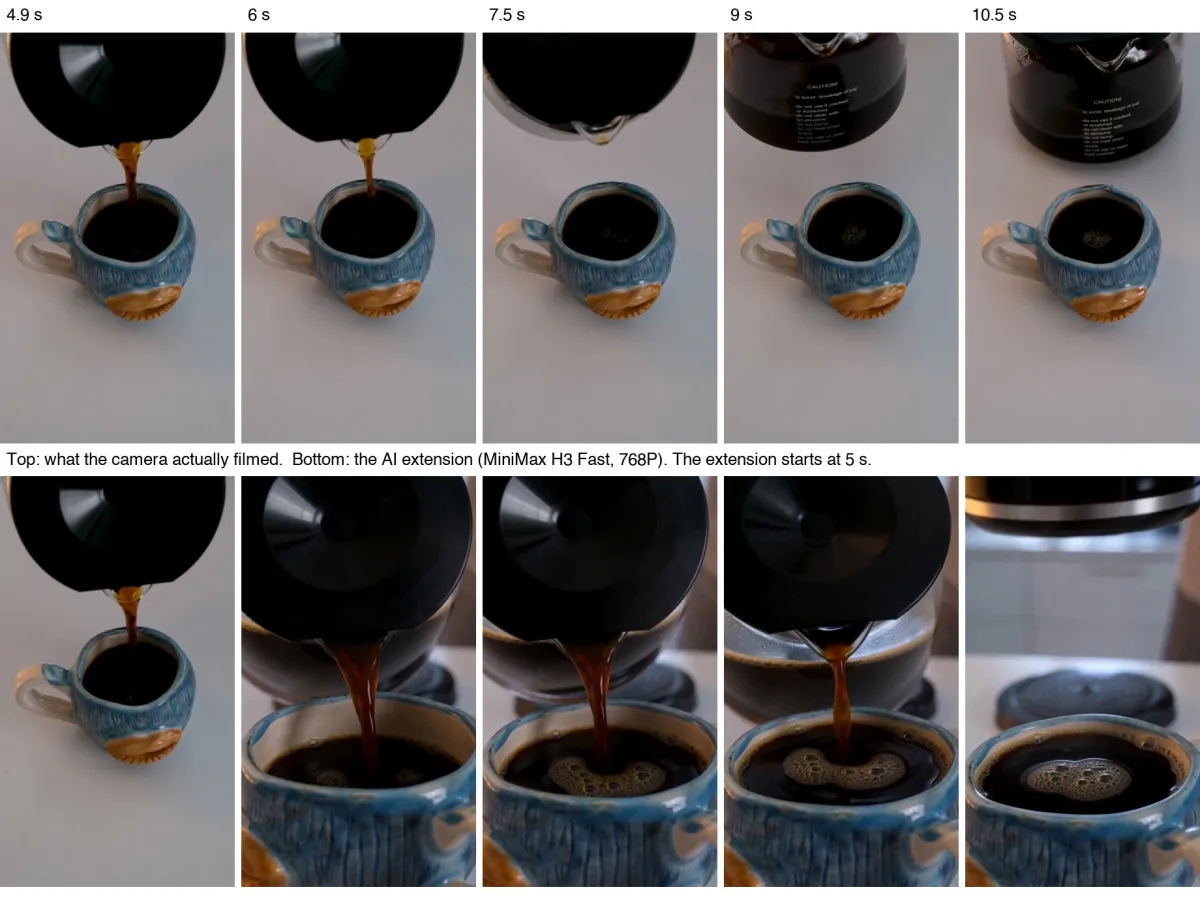
- Source: the first 5 seconds of a stock clip of coffee pouring from a glass carafe with a black lid into a blue ceramic mug (1080×1920, portrait, no sound). We cut it there on purpose: the real clip keeps going for almost 9 more seconds, so we can compare the AI's guess with what the camera actually filmed.
- Settings: MiniMax H3 Fast, 768P, 5 seconds.
- Cost: 24 credits.
- Time: about 1 minute from click to finished video.
- Output: one 10.7-second video at 768×1344, 24 fps, with a sound track. The original 5 seconds are included, re-encoded at 768P.
MiniMax H3 Fast at 768P: a coffee pour extended by 5 seconds
Prompt used: The coffee keeps pouring until the mug is nearly full, then the black pot tilts back and lifts up out of frame. A thin wisp of steam rises from the mug.
What it got right. The coffee keeps pouring, the mug fills almost to the top with foam on the surface, and at the end the carafe lifts up and out of the frame, as the prompt asked. The mug keeps its blue glaze and orange base.
What it got wrong.
- The seam is a cut, not one continuous shot. At exactly 5 seconds the picture jumps from our top-down view of the whole mug to a close-up from a lower angle, and the plain white background becomes a kitchen counter with a stovetop. Nothing stutters or freezes, but it looks like the next shot in an edit, not the same camera rolling on.
- No steam. The wisp of steam we asked for never appears.
- Very quiet sound. The new part has only a faint pouring sound. Our source had no sound, so the first 5 seconds are silent.
Compared with the real footage. In the real clip the pour stops within about two seconds and the carafe lifts away, all from the same top-down angle. The AI pours for longer, moves the camera closer and only lifts the carafe in the last moment. The story is right; the camera isn't.
What we'd change next time: ask for the same shot explicitly, for example "Same camera angle, same shot, no cut. The coffee keeps pouring…". We haven't tested whether that removes the cut, but it's the first thing to try if your extension jumps to a new angle.
Fixing common problems
- The extension starts with a new camera angle. This happened in our test: the AI treated the extension as the next shot. Start the prompt with "Same camera angle, same shot, no cut", and make sure your clip ends on a clear, sharp frame rather than mid-blur.
- A visible jump in colour or position where the new part starts. Usually the clip ends mid-motion with blur, or the last frame is dark. Trim the clip so it ends on a clear frame, then extend again.
- The person or object changes. Long extensions drift more. Extend in shorter steps, keep the prompt focused on one action and avoid introducing new people.
- Nothing much happens. The prompt is too vague. Name the action and where it ends: "she walks to the door and opens it".
- The wrong thing happens. Describe the next action, not the existing scene, and keep it to what can happen in the seconds you chose.
- Still too short at the maximum. Use Kling for up to 30 seconds, or extend the result again from More actions.
FAQ
How long can I extend a video?
Up to 15 extra seconds with MiniMax H3 Fast or Seedance 2.0, up to 12 with Seedance 1.5, and up to 30 seconds in one go with Kling.
Can I extend the same video more than once?
Yes. When an extension finishes, open More actions under the result and choose Extend to carry it on again. Each pass can add a little drift, so check the result before the next one.
Is the AI video extender free?
New accounts get 50 free credits, enough for three 5-second extensions with MiniMax H3 Fast at 480P (15 credits each) or two at 768P (24 credits each). After that you pay per extension with credits: one-time packs, no subscription.
Does it keep my video's sound?
With MiniMax H3 Fast, your clip keeps its original sound and the new part gets newly generated sound. Seedance 2.0 and Kling also always generate sound for the new part; Seedance 1.5 lets you turn it off.
Does it change the aspect ratio or quality of my clip?
The extension keeps your clip's shape, so a portrait clip stays portrait. The whole result comes back at the resolution you pick: in our test the original 1080×1920 clip came back at 768P together with the new part. If you need your original at full quality, pick a higher resolution or keep the original file.
Is Photo to Video the official MiniMax, Seedance or Kling site?
No. Photo to Video is an independent product that runs these models through official API partners. You don't need an account with any of them.
Ready to make your clip longer?
Sources
- Photo to Video Extend Video page: models, lengths, resolutions and prices, checked November 3, 2026.
- One test extension on the live site, November 3, 2026, described above.