On this page
Make a Memory Video from a Photo: Gentle Motion & Face Checks
 Photo to Video
A memory video from a single photo is a short clip where one picture you care about moves a little: a blink, a breath, a child turning toward the camera. Done gently, it can be a lovely opening for a birthday, an anniversary or a family gathering. Done carelessly, it can change a face just enough that the people who knew that person notice straight away.
This guide is about doing it gently. It covers preparing the photo, keeping the original safe, choosing a small motion, checking the clip frame by frame, and turning the clip into a short memory video. If you need the basic upload steps, see How to Turn a Photo into an AI Video. If you have several photos, see Create a Video from Photos.
Quick answer: Keep the original file, upload a copy, ask for one small motion with a still camera, and start with a short clip. Then check the eyes, mouth, hands and overall likeness frame by frame against the original. Photo to Video makes the moving clip; titles, dates and music go on in a separate video editor, because the site has no timeline.
What the AI adds, and what it can't
The source photo shows one still view of a moment. Animation does not recover the movement that happened before or after the shutter clicked. The model generates how the scene might move from the supplied image; a photograph alone does not provide a recording of that motion. If the source was already edited or composited, animation does not verify its authenticity either.
So keep these in mind:
- A generated smile is not a recorded moment. If the clip shows someone laughing, that laugh was made by the AI, not recorded. Treat the clip as an animated portrait, not a historical record.
- Generated sound is not their voice. Some models can add audio. Any voice or sound they make is invented.
- It doesn't restore a face. Animating a blurry or damaged photo doesn't reveal what the person really looked like; the model fills gaps with guesses.
When you share the video, a short line such as "photo animated with AI" helps family members who might otherwise wonder where the footage came from.
Step 1: Keep the original, then prepare a copy
Save the original first. Before you crop, edit or upload anything, keep the original scan or file untouched. The Library of Congress advises making at least two copies of important photos and keeping them in different places, with descriptive file names and the names of the people in them. Do that before you start, and work only on a copy.
Prepare the copy. Scan or photograph the print straight on and crop away the border (the first guide has more on this). Then:
- Make sure the face you care about is big enough. If the most important person is a small face at the back of a group, crop closer, or plan to keep the photo still.
- Remove what isn't part of the picture, such as the edge of a frame or a scanner lid, so the AI doesn't try to animate it.
Optional: edit before animating. The Edit button on your uploaded photo opens an image editor. You describe a change, such as brightening the shadows, and an image model makes a new version of the picture.
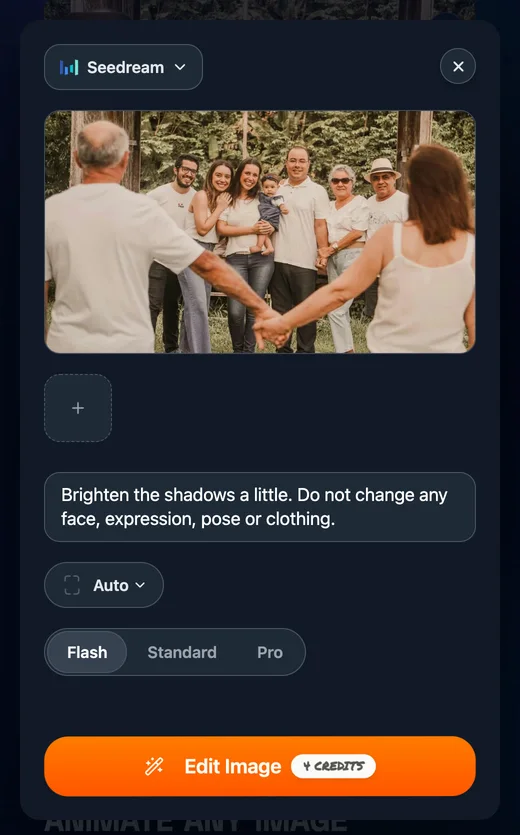
An edit creates a new image; it isn't a lossless repair of the old one. Even when you ask it to leave faces alone, small details can shift. Compare the edited version with your original at full size, especially the eyes, mouth and hairline, and keep it only if the person still looks like themselves. Your original file on your device is not changed. The standalone AI Image Editor works the same way, and after an edit it offers Make a video from this image to send the result to the generator.
Step 2: Decide whether it should move at all
Some photos are better as stills. Keep the photo still (or add only a slow zoom in your video editor) when:
- The face is tiny, blurry or damaged. The model has little to work with and is likely to invent features.
- The expression is the point. If everyone loves that exact half-smile, any movement risks changing it.
- There are many faces. In a crowded group, every face needs review, including the small or partly obscured ones.
- Someone in the family may find it upsetting. Seeing someone who has died move or "smile" can be moving for one person and hard for another. Ask before you share.
A still photo next to a moving clip in the same video is perfectly fine. Not every memory needs to move.
Step 3: Choose one small motion
A simple starting point is one small action, a still camera and a short clip. Limiting the instructions makes the result easier to compare with the original; it does not guarantee that a face will stay unchanged. These three suggestions are original starting points written for this guide. We haven't tested them, so check every result.
One person: a portrait
Try: a slow blink and a slight breath, while asking to retain the existing expression.
A slow, natural blink and a small breath. The expression stays the same. Static camera.
Keep it still instead if the face is soft or damaged, or the exact expression is what people remember.
Two people: side by side
Try: a small head turn by one person, with the camera fixed.
The person on the left turns their head slightly toward the person on the right. Both keep their expressions. Static camera.
Keep it still instead if their faces overlap or an important face is turned away or hidden in shadow.
A group or family photo
Try: asking most people to stay in place and directing a small action toward one clearly visible subject.
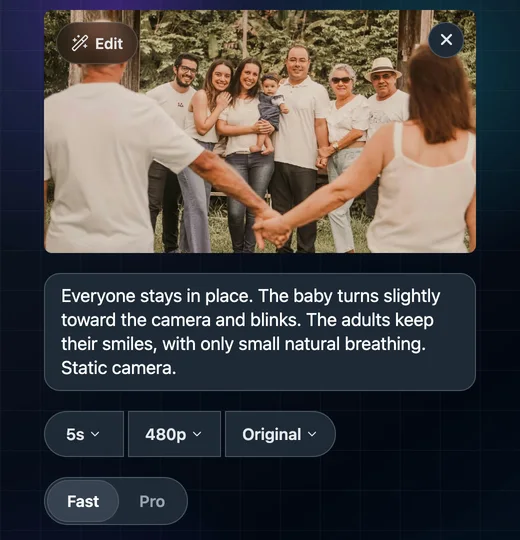
Everyone stays in place. The baby turns slightly toward the camera and blinks. The adults keep their smiles, with only small natural breathing. Static camera.
Use this example only when the photo actually includes a baby in view; otherwise name the person you intend to move. Keep it still instead if there are many small faces or important faces are hard to inspect.
Why they are written this way: the suggestions name who should move, describe what you want to retain, and keep the camera instruction separate. These instructions are requests, not a guarantee of likeness. A push-in makes faces larger, so any small change becomes easier to see; the prompts guide explains this in more detail.
Settings for a first try:
- Length: start short. The Seedance setup checked here offers 2–12 seconds. A short test gives you fewer frames to inspect; review it rather than assuming short clips preserve faces.
- Aspect ratio: Original asks the workflow to follow the source image's proportions. The provider may map them to a supported ratio, so inspect the edges and framing; this is not an uncropped-output guarantee.
- Resolution: a lower resolution can help preview broad movement, but fine facial details may be harder to judge. Review the final-resolution clip too. A new generation can change movement or likeness even with the same prompt; it is not an identical rerender.
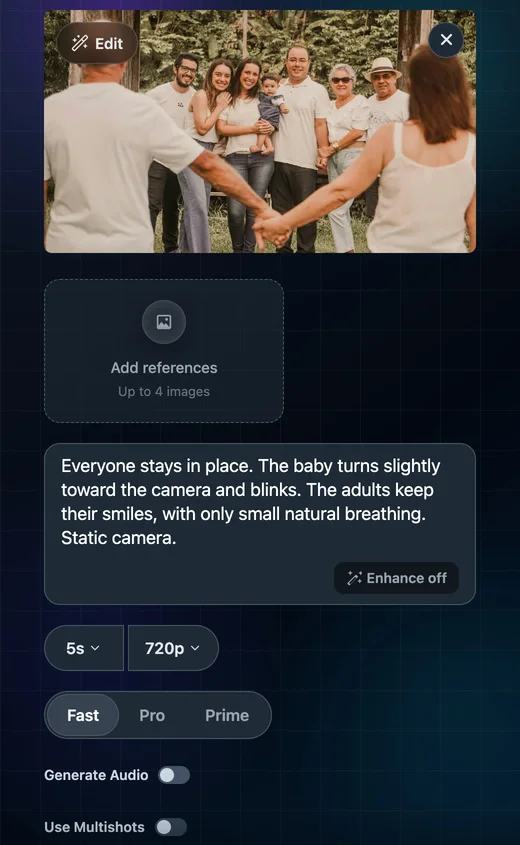
About sound. The Seedance setup shown here makes silent clips. Some other models offer a Generate Audio switch; turn it off if you plan to add your own music or a real recording later. Some models always add sound and have no switch. Check the settings before you press Make Video.
Step 4: Check the clip frame by frame
Watching once at normal speed isn't enough. Small changes often appear for only a few frames. Download the clip, open it in a video player that can step through frames (or pause and drag slowly), and keep the original photo open beside it.
Face checklist
- Eyes: watch for unexpected changes in shape, color or gaze, and compare with the source. Do not treat an asymmetry already present in the photograph as an AI error.
- Mouth and teeth: does the mouth stay the same shape when it isn't meant to move? Watch for teeth appearing, changing or blurring.
- Hands and fingers: inspect visible fingers for changing counts or impossible merges with sleeves or other hands. Some fingers may already be hidden in the original; compare what is actually visible.
- Likeness: compare the first and last frames with the original. Has the face shape, age, hairline, nose or glasses changed?
- Everyone else: in a group, check every face, not only the main person. Include faces at the edges and in the back rather than assuming only the main face matters.
- Details: jewelry, buttons, patterns and any writing in the background should stay the same.
Consider a second opinion. If they are comfortable reviewing it, someone familiar with the person may spot changes you missed. Familiarity is useful context, not proof that generated motion is historically accurate.
If something is wrong: ask for less movement, make the clip shorter, or remove the part of the prompt that moves the problem area. If the face still changes after a couple of tries, keep the photo still. That is a good result, not a failure.
Step 5: Turn the clip into a memory video
Photo to Video makes the moving clip. It has no timeline, so titles, dates, music and the final edit happen in a separate video editor. A simple plan for one photo:
- Open on the original photo, still, for two or three seconds. This shows the real picture first.
- Cut or crossfade into the clip, so the photo appears to come to life.
- Add a title card with the name and date, or put the text over the still photo rather than the moving clip, where it won't distract from the face.
- Add music or a real voice recording in the editor, if you have one.
- End on the still photo again, or fade to black.
For example, a 2.5-second opening still, a 5-second clip and a 2.5-second closing still total 10 seconds before transition overlap. Longer holds or a separate title card can extend the edit toward 15 seconds. Adjust this suggested plan to the clip you actually receive. To combine several photos into a longer video, see Create a Video from Photos.
Keep the finished video alongside the original photo, and name it so it's clear which one is the original and which one was animated.
FAQ
Can AI show what my grandmother really looked like when she smiled? No. The model invents the motion. A generated smile can look natural, but it isn't a recording of her smile. If the photo is blurry or damaged, the AI fills in details with guesses, so the face may look less like her, not more.
Will the faces stay exactly the same? There's no guarantee. Small motion, a still camera and a short clip are starting points to test. They do not lock identity or expression; you still need to inspect every face in the returned video.
Can I add music, a title or a date in Photo to Video? Not on the site. Photo to Video makes the clip; add titles, dates and music in a video editor. If you plan to add your own music, turn off Generate Audio on models that offer it.
Should I edit or restore the photo before animating it? Only if you need to. The Edit tool creates a new version of the image, which can fix things like dark shadows, but it can also change small details. Compare it with your original before you use it, and always keep the original.
Is it OK to animate a photo of someone who has died? That's a personal decision. Many families find a gentle animation moving; some people find it uncomfortable. Ask close family before you share it, and say that the photo was animated with AI.