On this page
Product Photo to Video: Motion, Labels & Export Checks
 Photo to Video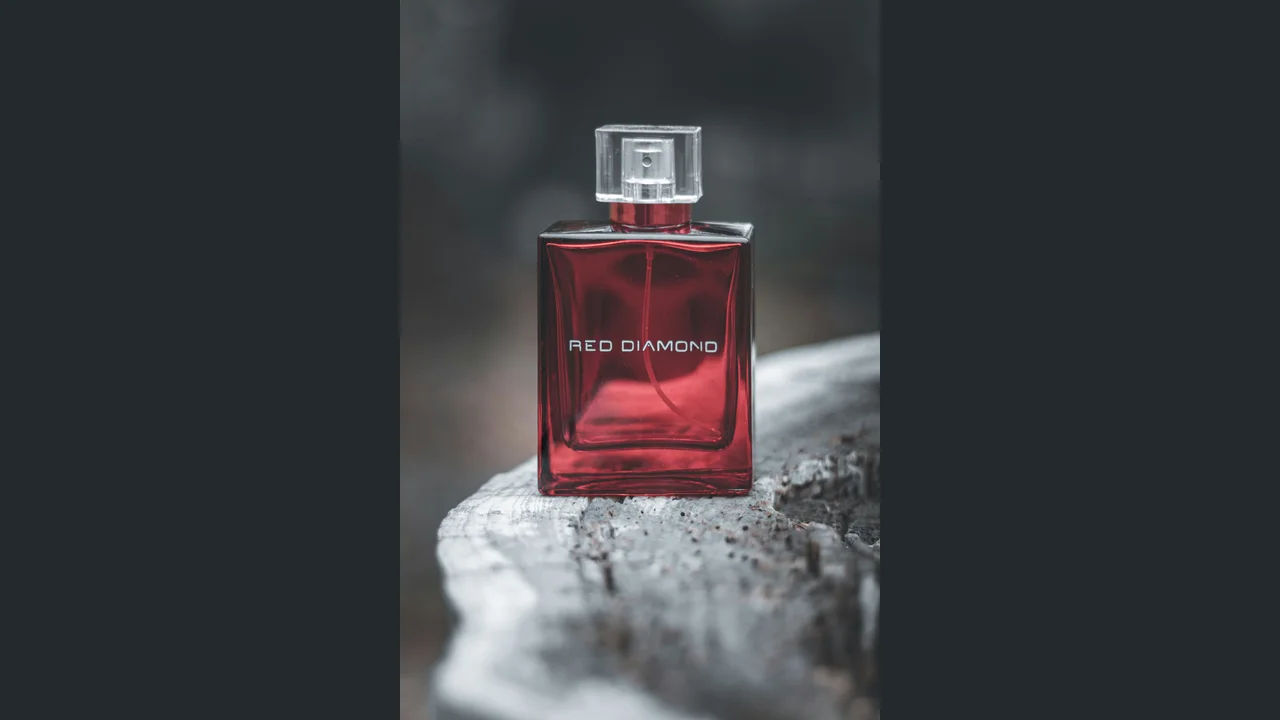
A product video made from one photo is a short clip where your product sits in its own photo while something moves: light slides across the glass, the camera eases closer, steam rises from a cup. It can give a product page or an ad some life without a shoot. It can also quietly change the thing you are selling: a letter on the label, the shade of the bottle, the size of the cap.
This guide is about making a clip and deciding whether it still represents the product accurately. It covers checking the source photo, choosing a restrained motion, four example prompts, a frame-by-frame check against the original, and the settings that decide the shape of the video. For the basic upload steps, see How to Turn a Photo into an AI Video. For how prompts are put together, see Image-to-Video Prompts.
Quick answer: Start from a sharp photo where the label is large and readable. Ask for the product to stay still and let the light, the camera or the background do the moving. Generate a short clip, then compare it with the original photo: every letter, the logo, the colors, the proportions, and anything that wasn't there before. If something changed, don't use that clip on a product page.
Open the Photo to Video generator when your source photo and motion plan are ready. Check the quoted credits before submitting a test.
What the AI keeps, and what it invents
Your photo guides the generated clip, but the output is not a recording of the physical product. Even the opening view needs checking: the model can change details while generating motion.
That has three practical consequences:
- Text and shapes are not guaranteed to hold. Small lettering, fine logos and thin lines can blur or change. A prompt asking to preserve them does not guarantee an exact match.
- The hidden sides are not documented by this photo. One photo shows one side. If the camera circles the product or the product turns, the model invents the sides it can't see. A clip like that is not a real 360° view, and it shouldn't be presented as one.
- New things can appear. A second bottle, an extra strap, a cap that wasn't on the box. Look for additions as carefully as for changes.
Step 1: Check the source photo before you upload
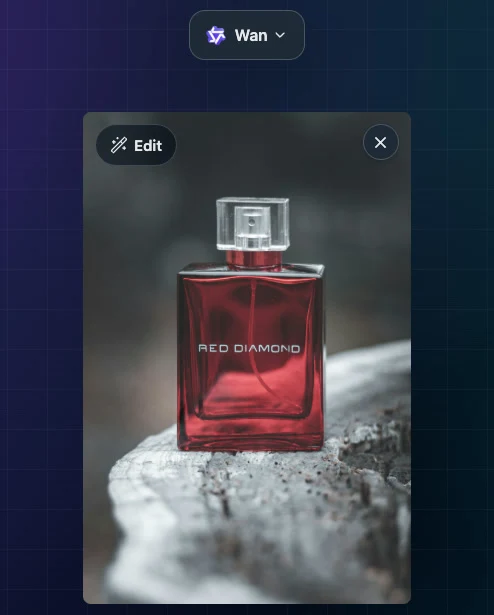
Everything the model gets right or wrong starts from this file, so check it first:
- Is it the current product? Right packaging, right color, right size of bottle or box, the accessories you actually ship. An outdated source photo cannot document the current packaging.
- Is the label large and sharp? The site resizes every upload so its longest side is at most 2,048 pixels. If the label is tiny in a large photo, it gets even smaller. Crop closer so the label takes up more of the frame.
- Is the color right on screen? An inaccurate source color gives you a poor reference for checking the result. Correct it in your own photo editor first.
- Is anything in the frame that you don't want to move? Price stickers, a hand at the edge, a second product half in view. Remove or crop them now.
Keep the original file. You will need it in Step 4 to check the clip against.
The Edit button on the uploaded photo opens an image editor that creates a new version of the picture from a text instruction. That's handy for cleaning up a background, but it is also a generated image: check the label on the edited version before you animate it.
Step 2: Choose a motion that leaves the product alone
A useful starting plan is to keep the product still and ask for one change around it. This simplifies the request; it does not establish which model or motion will preserve your product best. Pick one of these as the main motion:
| What moves | Possible use | What to inspect |
|---|---|---|
| Light sliding across the surface | Glass, metal, glossy packaging | Color shifts, changing reflections, label lettering |
| Slow camera push-in | Drawing attention to a label or detail | Invented close-up detail, logo shape, edges leaving the frame |
| Background or environment (shadows, steam, leaves, water) | Lifestyle shots, food and drink | Motion obscuring the label or changing the product |
| The product itself turning, opening, or being picked up | Showing a feature in use | Invented hidden surfaces, wrong mechanisms, altered shapes or text |
Start with one main motion so you can identify which request caused an unwanted change. If you want a turn and a push-in and steam, make three short clips and cut them together later.
Write it as a plain statement, and say outright that the product stays still: "The bottle stays still on the wood. Soft light slides across the glass. Static camera." There is no separate negative-prompt box, so say what you want, not what you don't.
Step 3: Four example prompts
These four prompts are original starting points. The perfume prompt was tested on October 26, 2026, as shown below; the other three remain untested. Your photo and model will decide the result.
1. Perfume bottle on wood: light only
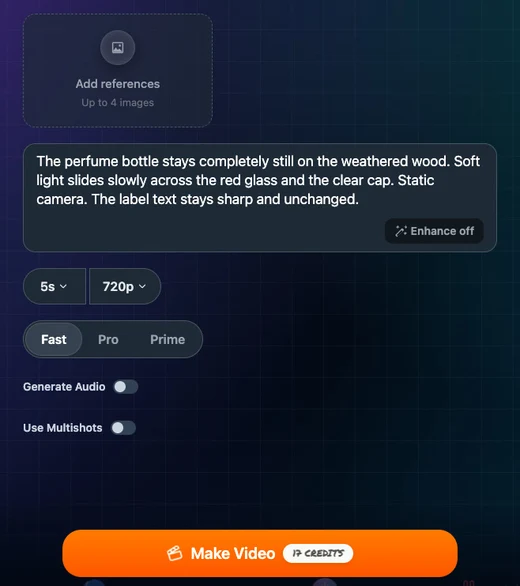
The perfume bottle stays completely still on the weathered wood. Soft light slides slowly across the red glass and the clear cap. Static camera. The label text stays sharp and unchanged.
- Why: the request separates changing light from a stationary bottle, which gives you one clear action to review. The instruction to keep the label unchanged is a request, not a verified capability.
- Check: the color of the glass in the brightest highlight, whether the cap keeps its square shape, and every letter of the label throughout the clip.
2. Sneaker on concrete: slow push-in
A white running shoe rests on grey concrete in soft daylight. The shoe does not move. The camera moves slowly closer to the side logo and stops before the logo fills the frame.
- Why: the push-in focuses attention on the logo without asking the shoe to bend or turn. A modest move asks for less newly revealed detail, though the output can still change the shoe.
- Check: the logo's shape and position, the number of lace eyelets, the sole pattern, and whether the stitching turns into texture that wasn't there.
3. Ceramic mug with a printed logo: steam
A ceramic coffee mug sits on a wooden table by a window. Thin steam rises slowly from the coffee and drifts to the left, away from the printed logo. The mug and the camera stay still.
- Why: steam supplies visible motion while the mug stays still. Asking for it to drift away from the logo describes your intended result; inspect whether the model follows it.
- Check: that the steam never passes in front of the logo, the handle stays the same shape and size, and the print doesn't smear where the steam crosses the rim.
4. Skincare box with a lot of text: moving shadows
A skincare box stands upright on a pale stone shelf. Leaf shadows move gently across the shelf behind the box. The box stays still and fully in frame. Static camera.
- Why: text-heavy packaging gives you many details to verify. Asking for background shadows avoids requesting a turn or opening action, but the front panel can still change.
- Check: every word on the front panel, including small print, the ingredient or size line, and the brand mark. If any word changes, reject the clip for this product rather than hiding the error in a background loop.
Perfume test: a readable label is only one check
We ran the perfume prompt once on Photo to Video on October 26, 2026, using Wan Fast, which runs Wan 2.6 Flash. The selected setup was 5s and 720p, with audio, Enhance and Multishots off and no extra references. It cost 17 credits. No replacement take was generated.
Perfume: light-only prompt, tested
Original image
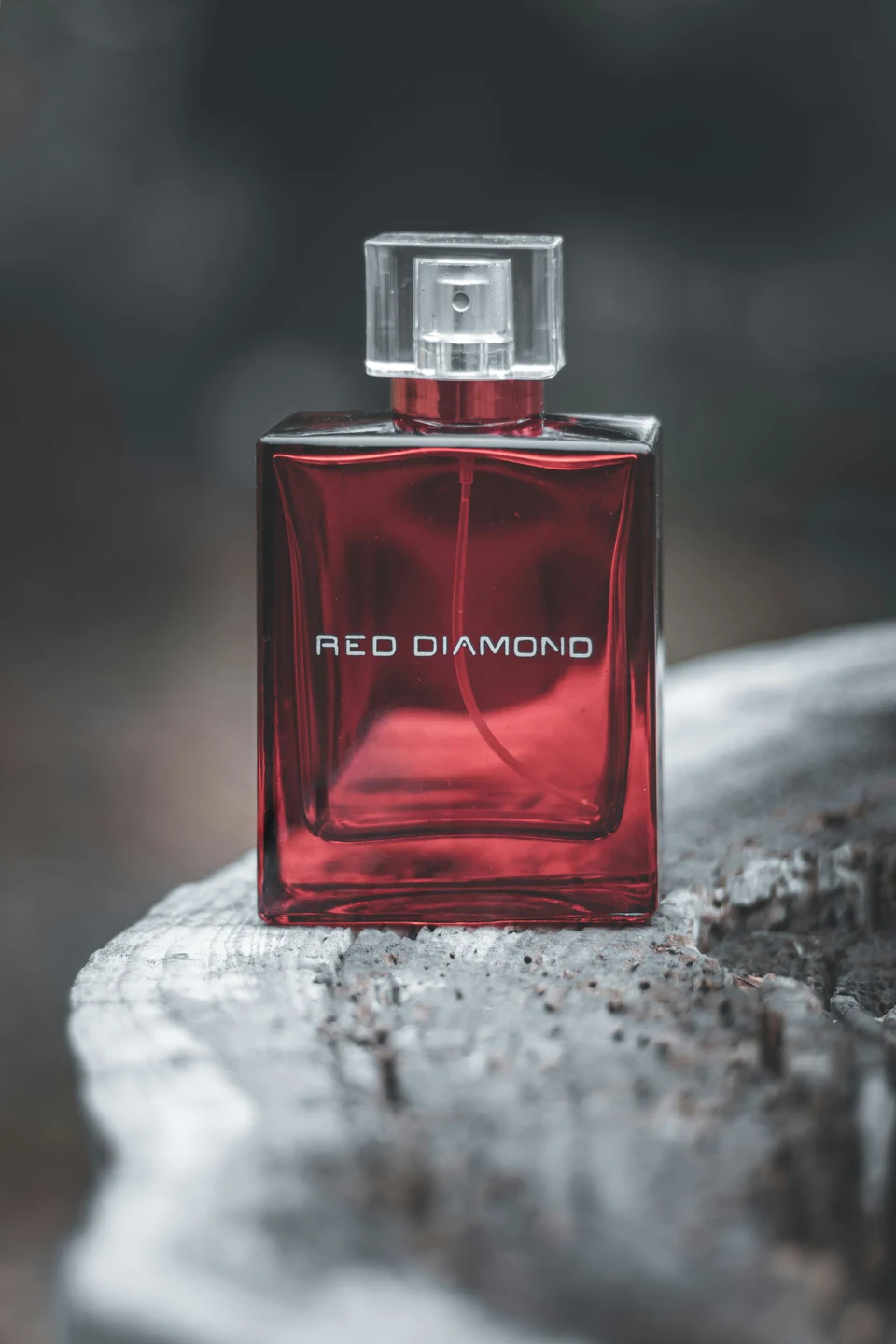
Generated result
Prompt used: The perfume bottle stays completely still on the weathered wood. Soft light slides slowly across the red glass and the clear cap. Static camera. The label text stays sharp and unchanged.
- The bottle stays upright, and RED DIAMOND remains readable in the sampled frames. The clear cap and front outline remain recognizable.
- Light travels across the wood and glass, making the red glass and reflections brighter. Check the resulting shade against the real product.
- The tube-like line inside the bottle becomes more pronounced and its visible curve changes as the lighting shifts. A readable label alone is not enough to approve all of the product details.
We would flag the interior detail for further product review rather than approve this as a faithful listing asset from the label check alone. Use the player to pause and compare it with the original. The other three product prompts in this guide remain untested suggestions.
Step 4: Check the clip against the original photo
Put the original photo and the clip side by side. Inspect the start, middle and last frame, then scrub or step through the transitions in a player or editor that supports frame inspection. Three still frames alone can miss a brief distortion. Check:
- Every letter of the label and logo. Read them out. A single wrong letter in a brand name is enough to drop the clip.
- Colors. Compare the product color in the clip with the photo, especially in highlights and shadows.
- Proportions and size. Cap to bottle, sole to upper, handle to mug. The product shouldn't look taller, thinner or bigger than it is.
- Anything new. Extra items, a duplicated product, an accessory you don't sell, text that wasn't in the photo.
- Anything missing. A part that disappears in the middle of the clip.
- The invented sides. If the camera or product moved enough to show a side the photo didn't show, treat that side as made up, even if it looks convincing.
If the clip fails any of these, change one thing and try again: a smaller motion, a static camera, a shorter clip, or a closer crop of the photo.
Step 5: Settings that decide the shape and length
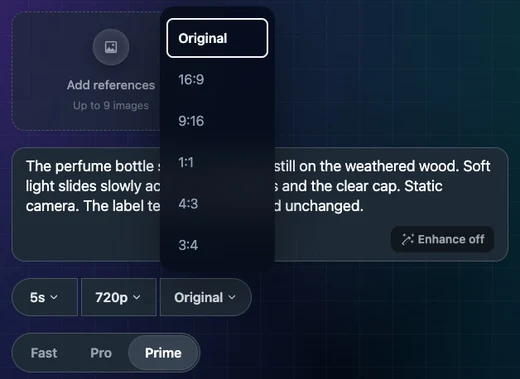
Length, resolution and shape are all set by the model you pick, and they differ from one model and variant to the next:
- Duration and resolution appear as menus under the prompt. Each model offers its own lengths and resolutions. A short test can help you inspect one motion before trying a longer clip. The Make Video button shows the quoted credit cost for your selected settings before generation.
- Aspect ratio appears only on models and variants that offer it. In the screenshots, Wan Fast has no aspect-ratio menu, while Wan Prime does. Where there's a menu, Original keeps a shape close to your photo; the other options ask for a fixed shape such as 9:16 or 16:9. Some models have no Original option at all.
- Cropping versus new areas: the site doesn't crop or extend your photo itself. When you choose a shape that doesn't match the photo, the model decides how to fit it, which can mean cutting off part of the photo or painting in areas that weren't there. Either way, part of the frame may no longer be your real photo. To control the starting composition, prepare a copy in the target shape before uploading, then choose Original or the matching option where available. Cropping removes existing pixels; generated expansion invents new ones. Even a matching ratio does not guarantee unchanged content.
- Generate Audio appears on some models. Any sound it adds is generated. For a product page, you may prefer it off and add your own sound later.
- References on supported models let you add more images. A photo of the back of the product can guide the model, but it doesn't guarantee an accurate back view; check it the same way.
Product page clip vs. vertical ad: export checklist
Photo to Video makes the moving clip and lets you download it. There is no timeline, captions or music editing on the site, so trimming, text and sound go on in a separate video editor. Before you publish, check the requirements of the store or ad platform you're using; they set their own rules for length, size and file type.
For a product page clip
- The clip passed every check in Step 4
- The product looks the same as in your listing photos: color, packaging, accessories
- No invented side is presented as a real view of the product
- The motion is calm enough to loop or play without sound
- The shape matches the space on your product page (crop the photo first if needed)
- Any added text, such as a price or offer, is added in your editor, not generated
For a vertical ad
- The downloaded file has the shape required by your intended placement; for a 9:16 placement, check the actual file rather than relying only on the input photo
- Nothing important sits at the very top or bottom edge, where an app's buttons and captions may cover it
- The product is clear in the first second
- The label is still readable on a phone-sized screen
- Captions, logo end card and music added in your editor
- Any claims in the ad match the real product, not what the clip happens to show
Troubleshooting
| Problem | What to try |
|---|---|
| Label letters change or blur | Keep the product and camera still, use light or background motion only, crop the photo so the label is larger |
| Product color shifts | Correct the photo's color first, avoid strong colored light in the prompt, compare highlights frame by frame |
| A second product or extra part appears | Shorten the prompt to one motion, remove other objects from the photo, try a shorter clip |
| The edges of the frame look invented | A mismatched shape can reveal invented areas. Prepare the target composition first and use Original or a matching ratio where offered; inspect the new output again |
| The product barely moves | If you want visible motion, try one camera move ("the camera moves slowly closer"), not product motion |
| The back of the product looks wrong | One photo doesn't show the back. Avoid turns and orbits, or add a real photo of the back as a reference on a model that supports it, then check it |
FAQ
Can I make a 360° product video from one photo? You can ask for the product to turn, but the sides the photo doesn't show will be invented by the model. Don't present that as a real 360° view. For an accurate one, you need real photos or video of every side.
Will the AI keep my label and logo exactly? Not reliably. Small text and fine logos can change even when you request a stationary product. Keep the product still, keep the label large in the photo, and check every letter.
How do I make a vertical product video? Prepare a vertical copy before uploading, then choose Original or 9:16 where the model offers it. Check the downloaded file's dimensions. If you choose 9:16 for a horizontal photo, the model has to fit it, which can cut off part of the photo or add areas that weren't in it.
Can I add captions or music on the site? No. Download the clip and add captions, music and your logo in a video editor.
Which model is best for product videos? It depends on the photo and the motion. Try the same prompt on two models at a short length and compare them against the original photo using the checks above.
Keep reading
- Image-to-Video Prompts: Examples, Camera Moves & Fixes
- How to Turn a Photo into an AI Video
- Create a Video from Photos: Slideshow, AI Clips or References?
- AI Image Editor
Controls and screenshots were checked on October 26, 2026. A recorded perfume test was added on that date; the screenshot setups themselves did not submit a video or image edit. The other prompts remain editorial suggestions.