On this page
How to Edit a Photo with AI Using a Prompt
 Photo to Video
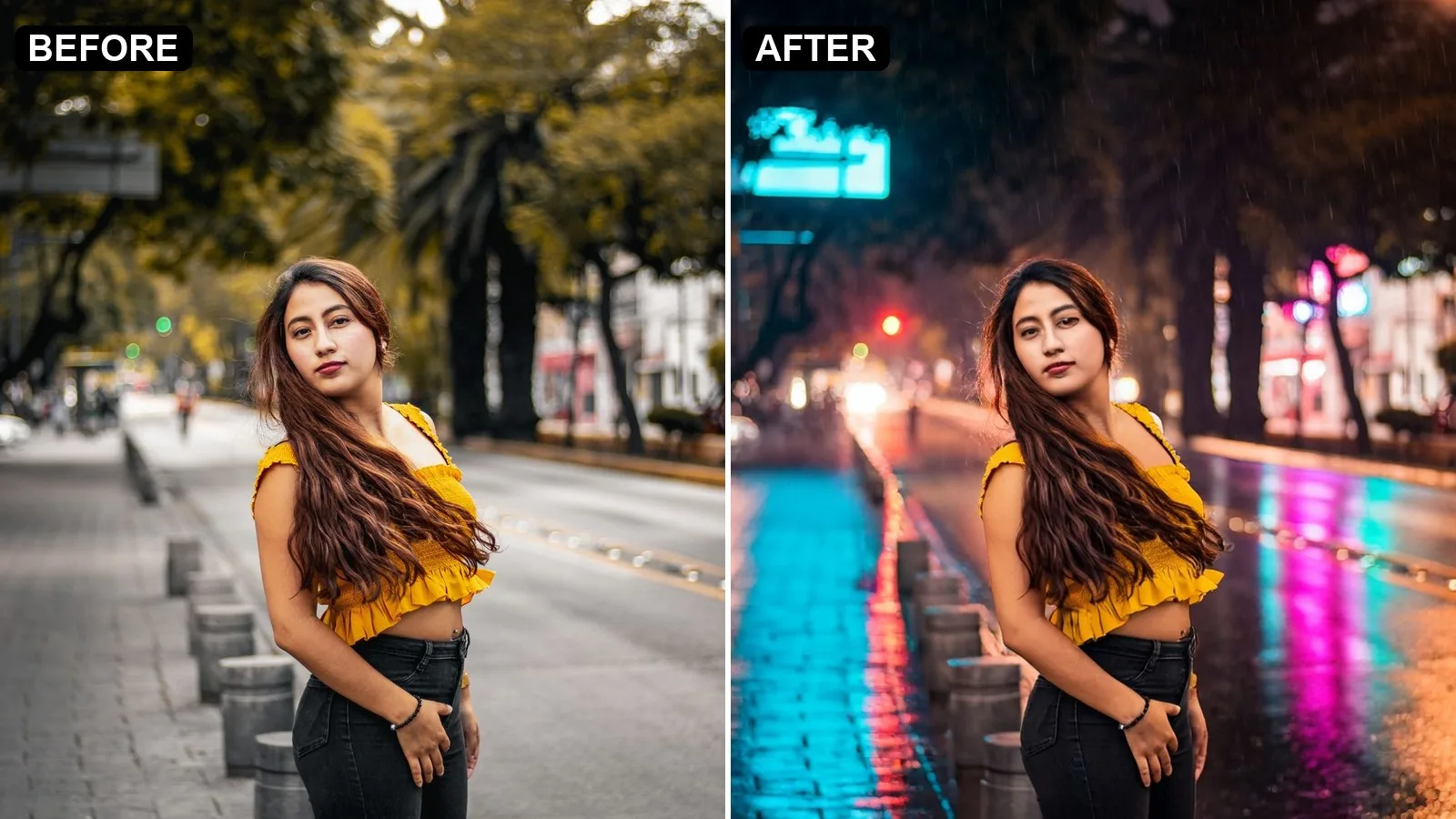
Short answer: upload the photo to the AI image editor, type the change in one sentence, and get a new version back in under a minute for 4 credits, with no watermark. In our test the same prompt took 48 seconds on MiniMax H3 and 26 seconds on WAN 2.7, and the two models gave very different results.
You have a good photo with the wrong setting: a flat grey afternoon when you wanted night, a messy background, the wrong outfit. With an AI photo editor you don't touch a single slider. On Photo to Video you pick from Seedream, Qwen, Hunyuan, MiniMax H3 and WAN models. Below is how to do it, which model to pick, how to write the prompt, what it costs, and what each model actually did in our test.
What "editing a photo with AI" means here
Classic photo editors change pixels you point at: crop, brightness, a brush. A prompt-based AI editor works the other way round. You describe the result, and the model redraws the image to match while trying to keep the rest the same.
Good at:
- Background and setting: a daytime street becomes a rainy night, an office becomes a beach.
- Light and mood: golden hour, neon, overcast.
- Style: watercolor, anime, film look.
- Outfits and objects: a different jacket, your product in someone's hand (a reference image helps).
- Clean-up: remove the background, remove a person or object.
Where it slips:
- Small text and logos. Signs the model invents are usually gibberish (see our test).
- Exact faces. The face usually stays close, but it's redrawn, not copied. Check it before you use the image.
- Precise layout. "Move the cup 2 cm left" is not what these models are good at. Seedream 5 Pro is the best bet when layout or lettering matters.
How to edit a photo with AI, step by step
- Open the editor. Go to the AI image editor.
- Upload your photo. Tap the box and pick the image.
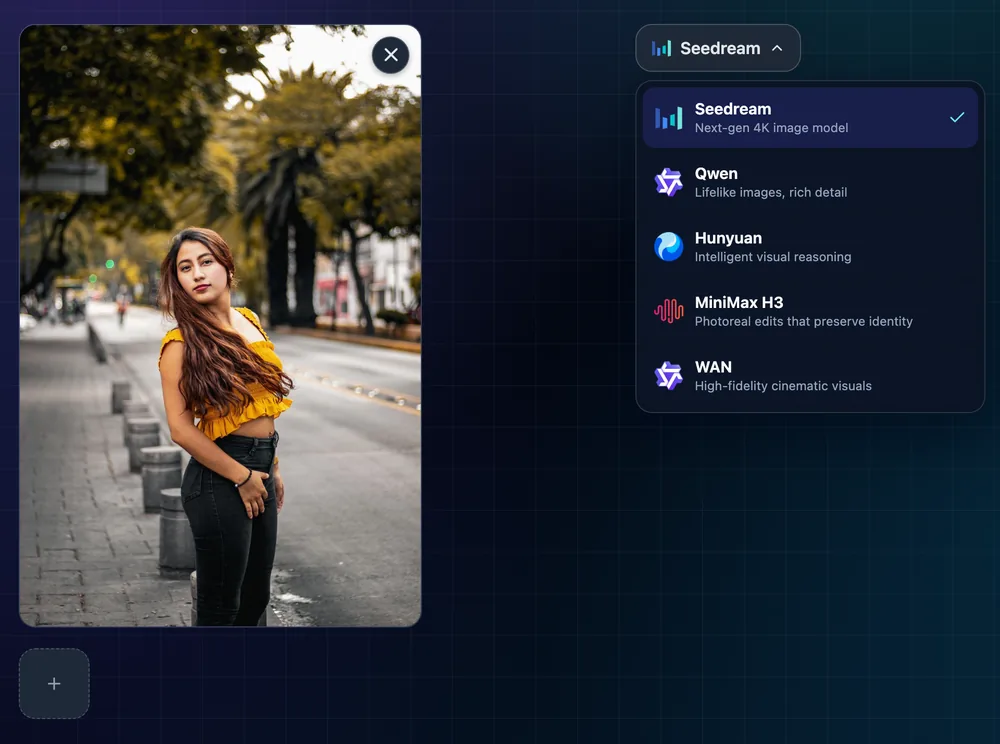
- Pick a model. Seedream is selected by default. Open the menu to switch to Qwen, Hunyuan, MiniMax H3 or WAN.
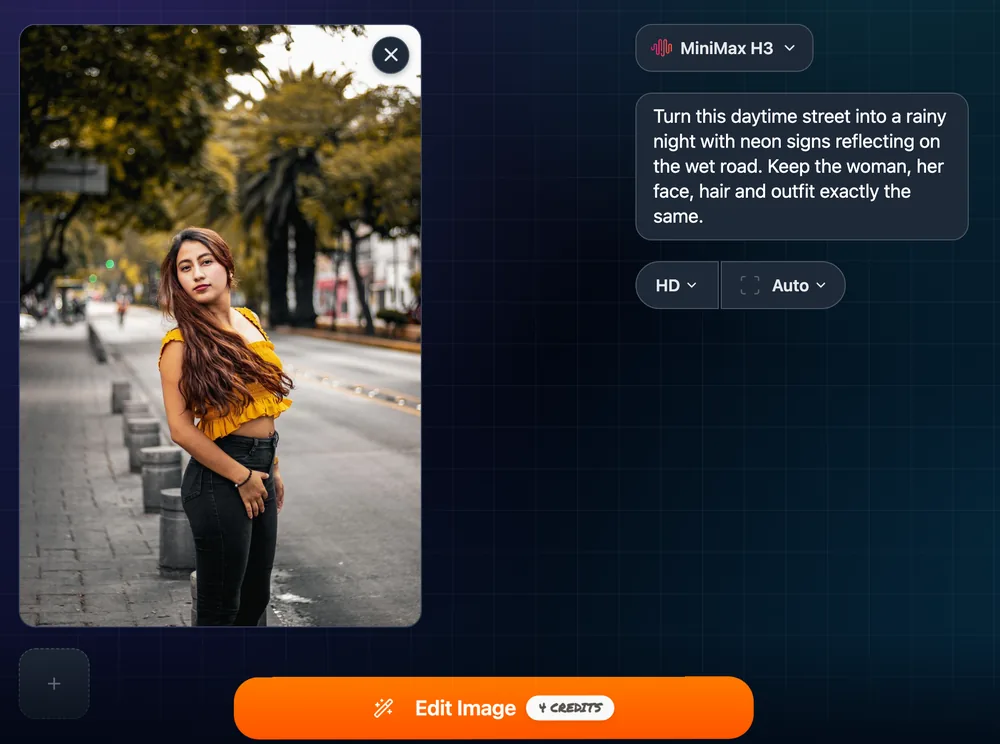
- Type the change. One or two sentences: what should change, and what must stay.
- Optional: add reference images with the + tile under your photo, such as a face, an outfit or a product that has to stay the same.
- Check the price on the button and tap Edit Image. The button shows the credits before you spend them (4 for MiniMax H3 at HD).
- Download it, keep refining, or animate it. The result has no watermark. You can edit it again step by step, or send it to the video generator with one tap.
Which model should you use?
| Model | Output | Reference images | Typical wait | Use it for |
|---|---|---|---|---|
| Seedream 5 Flash (default) | Up to 2K | 10 | ~20 s | Everyday edits at the lowest price |
| Seedream | Up to 4K | 10 | ~30 s | Everyday edits with crisp 4K output |
| Seedream 5 Pro | HD or 2K | 10 | ~50 s | Complex edits, layout or lettering |
| MiniMax H3 | HD or 2K | 9 | ~40 s | Keeping a person's face and the framing |
| Qwen Image 3.0 / 3.0 Pro | HD or 2K | 3 | ~20 s | Lifelike images with rich detail |
| Hunyuan Image 3.0 | Auto | 3 | ~2–3 min | Complex instructions, photorealistic |
| WAN 2.7 / 2.7 Pro | Matches your photo | 4 | ~30 s | Cinematic, high-fidelity looks |
A simple rule from our test:
- The background and framing must stay, only the look changes: MiniMax H3.
- You want a more dramatic new scene and the person relit to match: WAN 2.7.
- Cheapest first draft: WAN 2.7, Seedream 5 Flash or Qwen 3.0 at 4 credits, then finish on a stronger model if you need to.
How to write a prompt that works
1. Say what changes, not what the photo is. Good: "Make it golden hour." Weaker: "A woman on a street at golden hour." The second one invites the model to redraw everything.
2. Say what must stay. Add a sentence like "Keep her face, hair and outfit exactly the same" or "Keep the framing." In our test both models kept the hair, top, jeans and even the bracelet.
3. One big change per edit. "Night + rain + new outfit + anime style" in one go gives the model too much to juggle. Do the scene first, then the outfit on the result.
4. Use a reference image instead of describing a look. A photo of the jacket or the product beats a paragraph about it. That's what the reference slots are for: up to 10 on Seedream, 9 on MiniMax H3, 4 on WAN 2.7, 3 on Hunyuan and Qwen.
5. Don't ask for readable text on invented signs. Both models in our test made up sign lettering that doesn't spell anything. If the words matter, add them in a normal editor afterwards, or try Seedream 5 Pro.
Prompts to start from:
- "Make it golden hour, warm low sun from the left. Keep everything else the same."
- "Remove the background and replace it with a plain light grey studio wall."
- "Turn this photo into a soft watercolor painting."
- "Change her jacket to the one in the reference image. Keep her face and pose."
How much does it cost?
You pay per image, not per month. The price shows on the button before you run the edit.
| Model | Credits per image |
|---|---|
| WAN 2.7, Seedream 5 Flash, Qwen 3.0 | 4 |
| MiniMax H3 (HD) | 4 (11 at 2K; more with extra reference photos, 9 with nine) |
| Seedream 4.5 | 5 |
| Qwen 3.0 Pro (HD) | 8 |
| Seedream 5 Pro (HD) | 13 |
| WAN 2.7 Pro | 14 |
| Hunyuan 3.0 Instruct | 17 |
The free credits you get when you sign up cover around twelve 4-credit edits. If a model declines your edit, the credits come back, so switching to another model only costs you the retry.
Our test: a sunny street into a rainy neon night
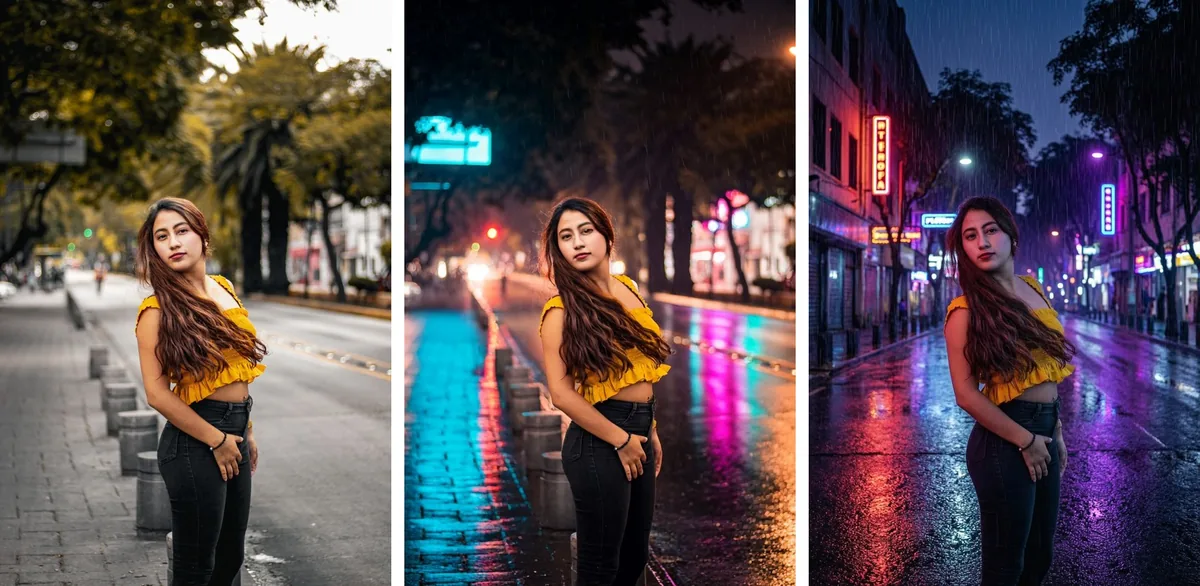
We took one real portrait: a woman in a yellow top and black jeans on a city sidewalk in daylight, 1080×1620. Same prompt on two models, one run each, no retries:
Turn this daytime street into a rainy night with neon signs reflecting on the wet road. Keep the woman, her face, hair and outfit exactly the same.
| MiniMax H3 (HD) | WAN 2.7 (Standard) | |
|---|---|---|
| Credits | 4 | 4 |
| Time, click to image | ~48 s | ~26 s |
| Output size | 832×1248 (smaller than the original) | 1088×1632 |
MiniMax H3 kept the photo and changed the hour. The framing barely moved: her pose, the bollards, the trees and the line of the road are all where they were. The road is wet, with cyan and pink neon reflections. The rain is faint. The weak spot is the light on her: she still has even daytime light, so she looks slightly pasted onto the night. The neon signs are blurry glows with no letters.
WAN 2.7 kept the person and rebuilt the street. It added buildings with neon signs on both sides, dropped the bollards and pulled the camera back. The rain is clearly visible. She is lit in purple and pink neon, so she sits in the night scene more naturally. The sign lettering is gibberish (something like "PTEPOPA").
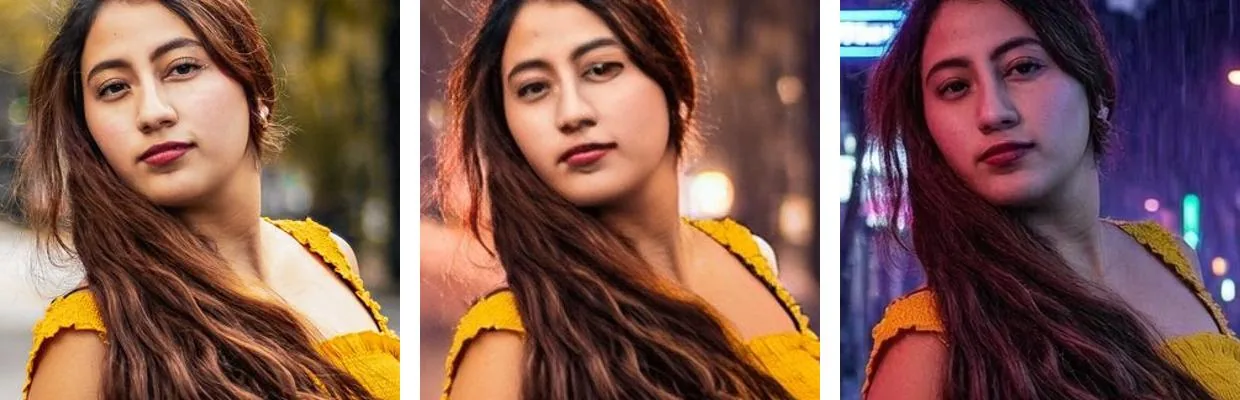
Both kept the long hair, the yellow ruffled top, the black jeans and the bracelet.
Which one we'd use: MiniMax H3 if the photo has to stay recognizably the same shot; WAN 2.7 if you want a new, moodier scene and don't mind losing the original background. WAN was also faster and gave a larger image in this test.
What we'd try next: on MiniMax H3, add "relight her with neon from the signs" to fix the pasted-on look. And if the signs should say something, add the text afterwards instead of asking the model for it.
Turn the edited photo into a video
When the edit is done you can animate it without downloading and re-uploading: one tap sends the image to the photo to video generator, where models like Seedance 2.0, Kling, Vidu and Wan bring it to life, up to 4K and with sound. New to that? Start with how to turn a photo into an AI video. If you already have a video and want to change its look the same way, see how to edit a video with AI. For movement prompts, the image to video prompts guide has examples.
FAQ
Can I edit a photo with AI for free?
Yes, to start. The free credits you get when you sign up cover around twelve edits on the 4-credit models (WAN 2.7, Seedream 5 Flash, Qwen 3.0). After that you pay per image with credits; there's no subscription.
Will the person still look like themselves?
Usually close, but the face is redrawn, not copied. MiniMax H3 is the model built for keeping a person recognizable; adding a reference photo of the face helps on any model. In our test both MiniMax H3 and WAN 2.7 kept the face close to the original.
How long does an edit take?
In our test, 26 seconds on WAN 2.7 and 48 seconds on MiniMax H3. Most models take 20–50 seconds; Hunyuan 3.0 takes about 2–3 minutes.
Is there a watermark?
No. Edits download as plain image files on every model, free credits included.
Can AI remove the background from a photo?
Yes. Type "remove the background", or ask for a new one, such as "replace the background with a plain white wall".
What if the model refuses my edit?
The models have their own content policies, and a declined edit is refunded. Try another model: over the past month Seedream declined about 4% of edits and WAN 2.7 about 5%.
Why is my result smaller than my photo?
It depends on the model and setting. In our test MiniMax H3 at HD returned 832×1248 from a 1080×1620 photo, while WAN 2.7 came back close to the photo's size (1088×1632). Pick 2K on MiniMax H3 if you need a larger file.
Sources
- Photo to Video AI image editor page: models, prices, reference limits, wait times and refusal rates, checked November 6, 2026.
- Two test edits on the live site, November 6, 2026, described above.