On this page
How to Edit a Video with AI (Using a Prompt)
 Photo to Video
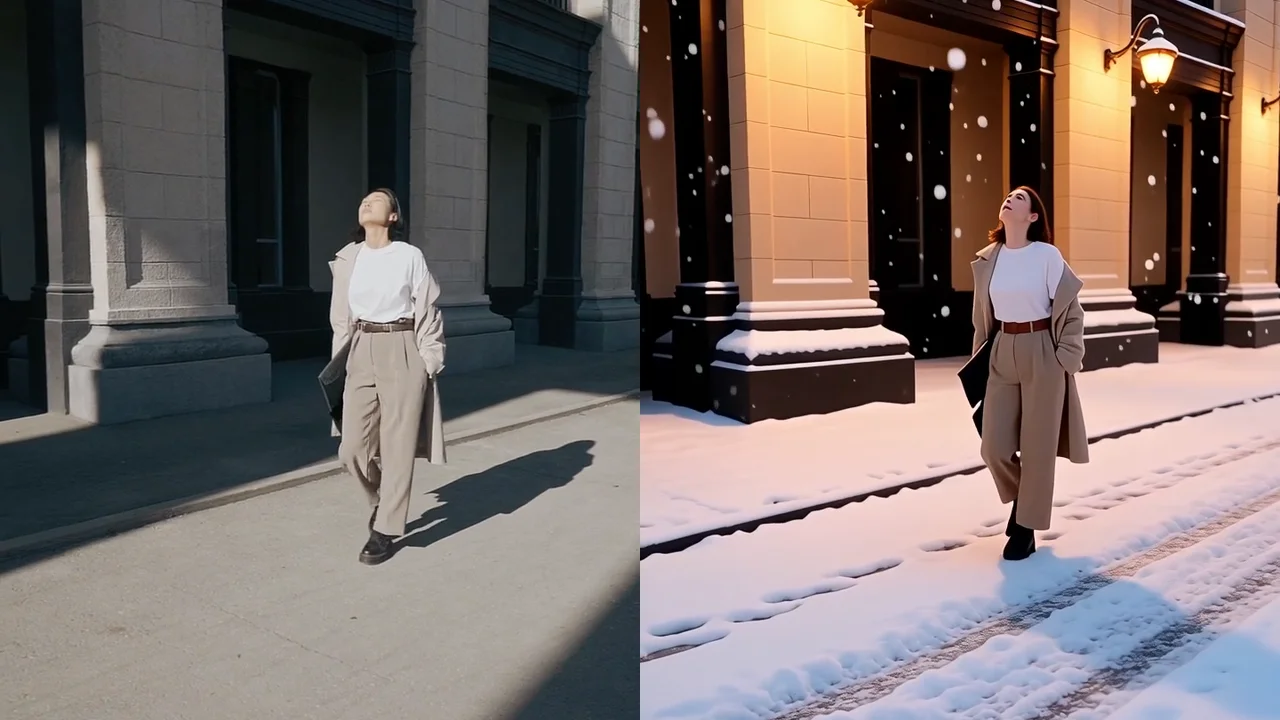
You have a clip that's almost right. The shot is good, the movement is good, but it's a grey afternoon when you wanted snow, or the background is a messy office, or the jacket is the wrong color. Reshooting isn't an option. With an AI video editor you can type the change, for example "turn the street into a snowy evening", and get the same clip back with the new look, the motion still intact.
This guide shows how to edit a video with AI on Photo to Video using only a prompt: what it can and can't change, which of the three models to pick, how to write prompts that work (with good and bad examples), what it costs, and one real test from start to finish.
What "editing a video with AI" means here
Most tools that call themselves AI video editors are timeline editors: you cut clips, add captions and music, and AI speeds up the boring parts. That's not what this guide is about.
Here, the AI redraws every frame of your video to match a sentence. You keep the camera move and the way people move; the model changes what's in the frames. It's sometimes called video to video AI.
Good at:
- New background or location: an office becomes a beach, a street becomes a forest path.
- Weather: snow, rain, fog. Changing the time of day is harder (more in the prompt tips).
- Style: anime, watercolor, claymation, film noir, 3D cartoon.
- Clothes and objects: a different jacket, a hat, a product swapped for yours (a reference image helps a lot here).
Not for:
- Cutting, joining or reordering clips, transitions, captions or music. Use a normal editor for that, before or after.
- Exact, frame-by-frame control. You describe the change once for the whole clip; you can't say "only from second 3".
- Making a clip longer. That's a different tool: see how to extend a video with AI.
Expect details to drift. Faces, hair, text on signs, logos and hands are the first things the model redraws differently (in our test it changed the woman's face). Keep that in mind when the clip has a brand name or a person who has to stay recognizable.
How to edit a video with AI, step by step
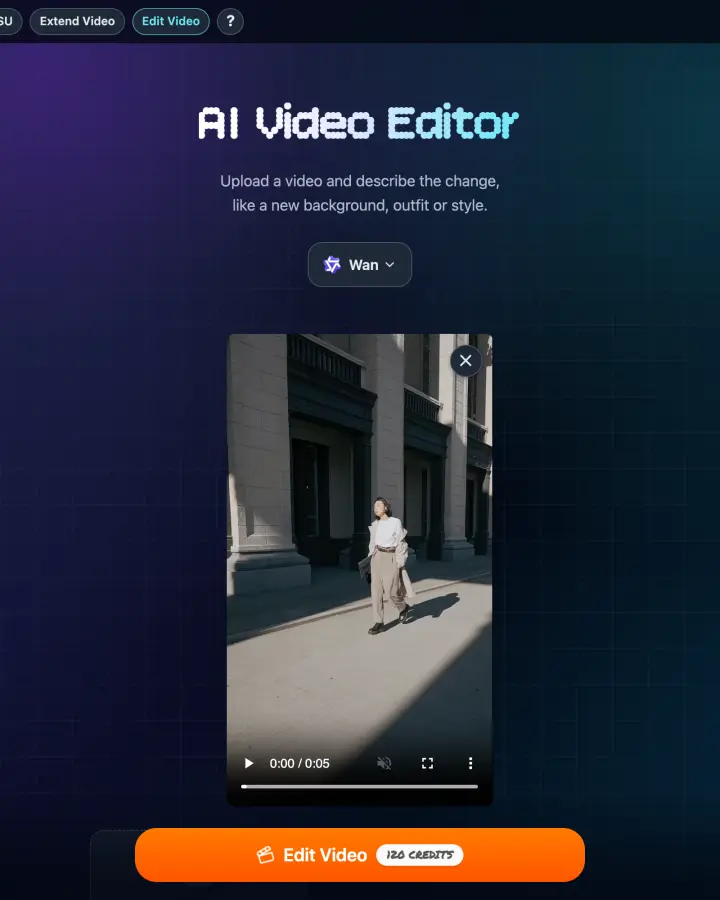
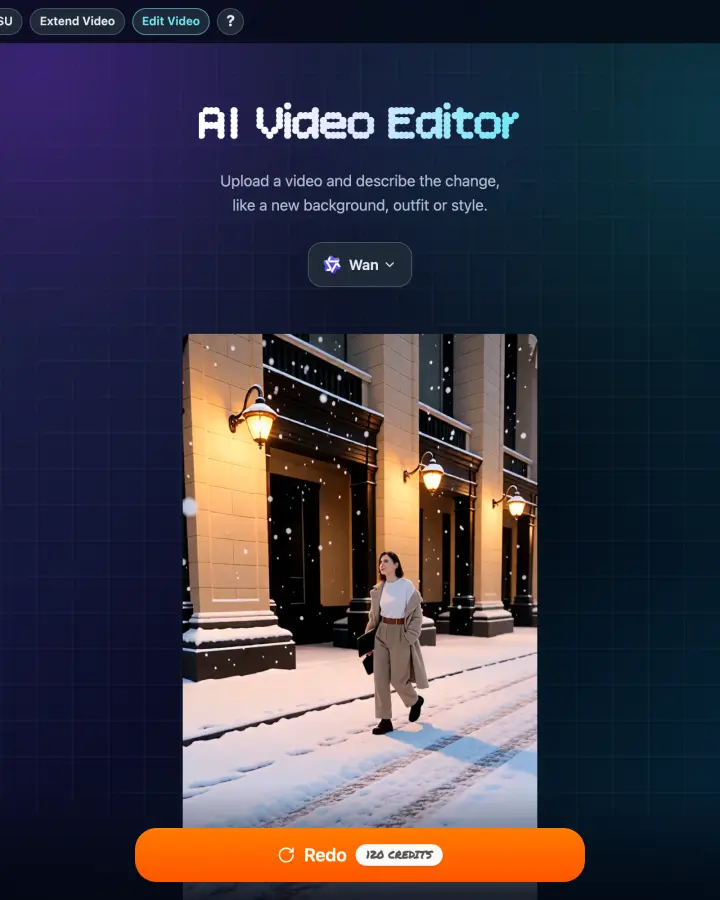
- Open the editor. Go to the AI video editor.
- Upload your clip. MP4 or MOV, up to 200 MB. If you made the video on Photo to Video, open the ⋯ menu under it (on the generator, on Extend Video or in your History) and choose Edit Video; it opens here ready to edit.
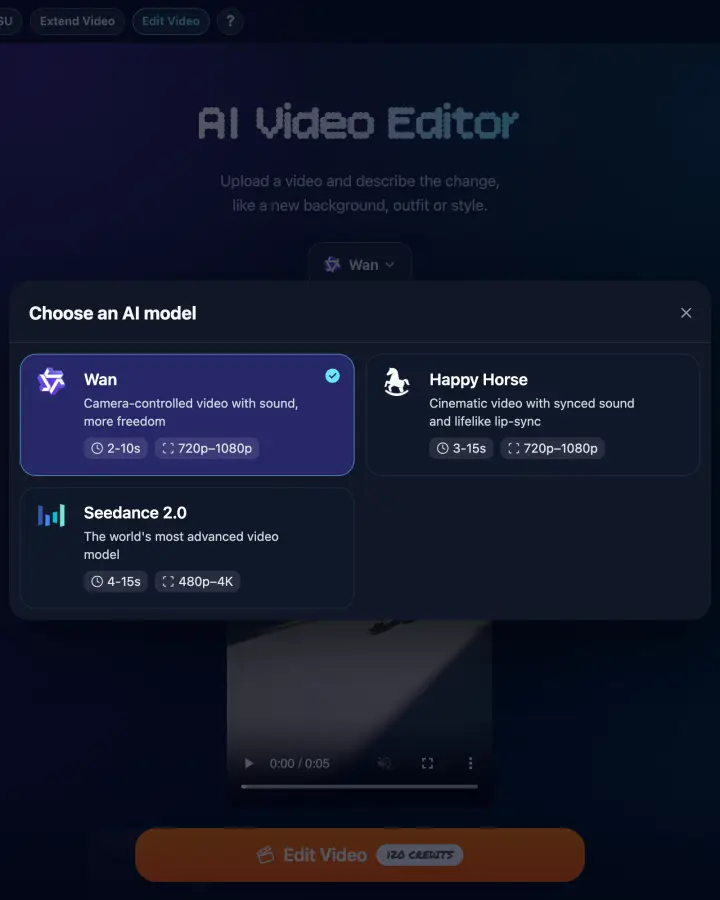
- Pick a model. Wan is selected by default. The table below shows the longest clip each model takes. If your clip is longer than the model allows, the page tells you before you spend anything.
- Describe the change in one or two sentences, for example "Make it snow". Optionally tap Add references to add an image of an outfit, product or style.
- Choose a resolution and check the credit price on the Edit Video button.
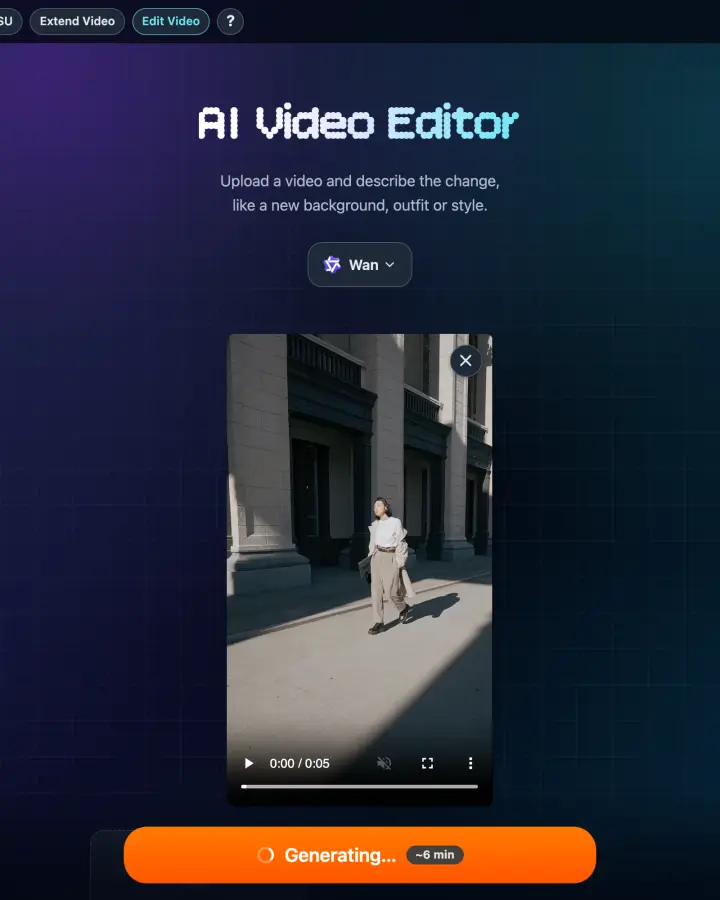
- Click Edit Video and wait. The button shows an estimate (ours said about 6 minutes; it took 5). The finished video also appears in your History.
- Download the result, or open the ⋯ menu under it to extend it, upscale it or edit it again. Not happy? Redo runs the same edit again for the same price.
Which model should you use?
As of November 4, 2026, the editor offers three models. Start with Wan unless your clip is long or you need several reference images.
| Model | Longest clip | Reference images | Resolution | 5-second clip |
|---|---|---|---|---|
| Wan (default) | 10 seconds | 1 | 720p, 1080p | 120 (720p) or 180 (1080p) credits |
| Seedance 2.0 Fast | 15 seconds | Up to 9 | 480p to 4K | 85 (480p) or 169 (720p) credits |
| Happy Horse | 60 seconds | Up to 5 | 720p, 1080p | 168 (720p) or 336 (1080p) credits |
- Wan is the simplest first try for short clips: one prompt, optionally one reference image. It's what we used in the test below. Our Wan guide covers the model for photos.
- Seedance 2.0 Fast is the one to use when the change depends on how something looks: an exact outfit, a product, a character. You can add up to nine reference images and point to each one in the prompt. It also has the widest resolution range, and a Turbo switch at 720p and 1080p.
- Happy Horse accepts the longest clips, up to 60 seconds, and up to five reference images. The editor bills it for at most 15 seconds, so a long clip costs the same as a 15-second one. We haven't tested it for this guide.
How to write a prompt that works
The model already sees your video. Your prompt only has to say what should change and, just as important, what must stay the same. Here are four pairs we'd write differently.
1. Say what changes, not what the video is
- Weaker: "A woman walking down a street in the city."
- Better: "Turn the street into a snowy winter evening, with snow falling and warm streetlights."
The first prompt just describes the clip, so the model has nothing to change, or guesses. Name the change.
2. Protect what has to stay
- Weaker: "Make it a beach."
- Better: "Replace the office behind him with a sunny beach. Keep his face, shirt and gestures the same."
A short prompt gives the model permission to redraw everything, including the person. One sentence about what must not change helps keep the clothes and movement. It is not a guarantee for faces, though: see our test below.
3. One change at a time
- Weaker: "Make it night, add rain, change her dress to red, make it anime and add a dog."
- Better: "Make it a rainy night with reflections on the wet road. (Then, if you like it, edit the result again: "Change her dress to red.")"
Every change competes for the same frames, and stacked edits come out half-done. Two clean edits beat one messy one, and you can edit the result again from its ⋯ menu.
4. Use a reference image instead of describing a look
- Weaker: "Change his jacket to a dark green waxed cotton jacket with a brown corduroy collar and brass buttons."
- Better: (With a photo of the jacket added) Change his jacket to the one in Image 1. Keep everything else the same.
Words can't pin down a specific product or outfit; an image can. On Seedance 2.0 Fast and Happy Horse, name each reference as Image 1, Image 2 and so on, in the order you added them. Wan takes a single reference, so just say "the jacket in the reference image".
A few more habits that help:
- Lighting is the hardest thing to change. The model keeps the shadows it sees. In our test, "evening" turned the lamps on but the hard afternoon shadows stayed. If the time of day matters, say it plainly ("night, no sunlight, dark sky") or start from a clip shot in softer light.
- Style edits need a style word and a medium: "Turn it into a hand-drawn anime scene with soft watercolor backgrounds" works better than "make it artistic".
- Short, steady clips edit best. Fast camera moves, many people and small text are where edits break first.
For more prompt patterns, see our image to video prompt guide; most of the advice on describing light, style and camera carries over.
How much does it cost?
You pay with credits, by the length of your clip, the model and the resolution. The exact price is on the Edit Video button before you start, and changes as you switch settings. There is no subscription.
For a 5-second clip: Wan costs 120 credits at 720p, Seedance 2.0 Fast 85 credits at 480p, and Happy Horse 168 credits at 720p. Longer clips cost more. New accounts get 50 free credits: enough for a very short edit (a 2-second clip on Wan costs 48), but a typical 5-second edit needs a credit pack. See how free credits work.
Our test: a sunny street into a snowy evening
We took a 5-second vertical clip of a woman walking along a sunlit street, 720×1280, and ran one edit on Wan at 720p, with no retries.
- Price: 120 credits, shown on the button before we started.
- Time: 5 minutes from clicking Edit Video to the finished clip. The button estimated about 6.
- Output: 720×1280, 5 seconds, the same length and framing as the original.
Original
Edited with Wan
Prompt used: Turn this sunny street into a snowy winter evening: snow falling, a thin layer of snow on the pavement and warm streetlights glowing. Keep the woman, her outfit and her walk exactly the same.
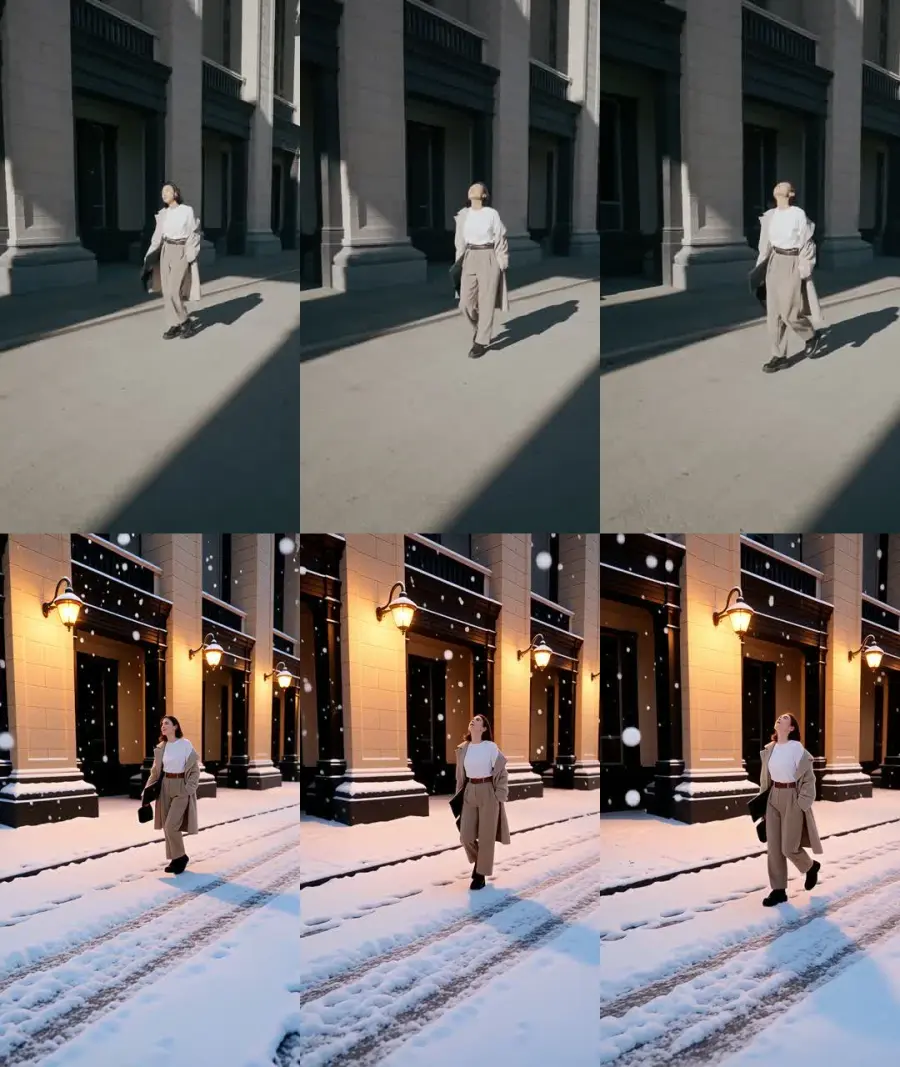
What worked:
- The motion is untouched. Her steps, the swing of her coat and her head tilt line up with the original frame by frame, and the camera move is identical.
- The snow is convincing. Flakes fall across the whole clip, the pavement is covered, and there are tyre tracks and footprints in it. The building, its columns and doors are all still in place.
- Her outfit survived: beige coat, white top, belted trousers, black shoes.
- It added warm wall lamps along the building for the "streetlights".
What didn't:
- Her face and hair changed. She looks like a different person, with a different face and auburn hair, even though the prompt said "keep the woman exactly the same".
- It's not really evening. The hard afternoon sunlight and long shadows from the original are still there; only the lamps say "evening".
- "A thin layer" of snow came out thick. The model went for a fully snowed-in street.
- The result is silent, as our original was.
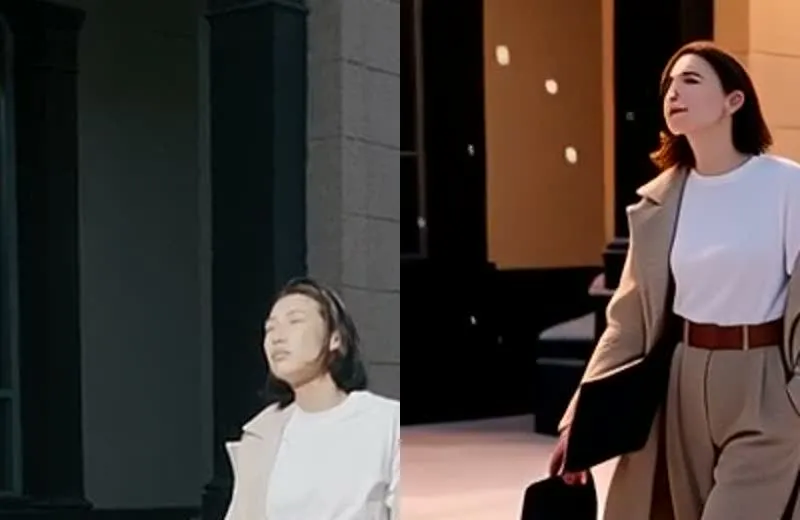
What we'd change next time: ask for a change the light can carry ("an overcast snowy day" instead of "evening" on a sunny clip), and if the person has to stay recognizable, try a short clip first and check the face before editing the full one.
FAQ
Can I edit a video with AI for free?
Partly. New accounts get 50 free credits, which covers a 2-second clip on Wan (48 credits). A 5-second edit costs 85 credits or more, so for longer clips you'll need a credit pack: one-time, no subscription.
How long can my video be?
Up to 10 seconds on Wan, 15 seconds on Seedance 2.0 Fast and 60 seconds on Happy Horse. If yours is longer, the page tells you before you pay.
Will the people in my video still look like themselves?
Not always. In our test the model kept her outfit, pose and walk, but redrew her face and hair even though the prompt asked it to keep her the same. If someone has to stay recognizable, check the face in the result before you use it, and expect small text and logos to change too.
Can AI cut my video or add subtitles?
Not this tool. It changes what's in the frames, not the edit itself. Use a timeline editor for cuts, captions and music.
Can I edit a video I made from a photo?
Yes. Make the video with the photo to video generator, then choose Edit Video from the ⋯ menu under the result.
How long does an edit take?
Several minutes. Our 5-second clip on Wan took 5 minutes; in earlier tests an 8-second clip took about 4 minutes on Seedance 2.0 Fast and about 9 on Wan. The result is also saved in your History.
Ready to change your clip?
Sources
- Photo to Video AI Video Editor page: models, clip lengths, reference limits and prices, checked November 4, 2026.
- One test edit on the live site, November 4, 2026, described above.