On this page
How to Use Grok Imagine for Image to Video
 Photo to Video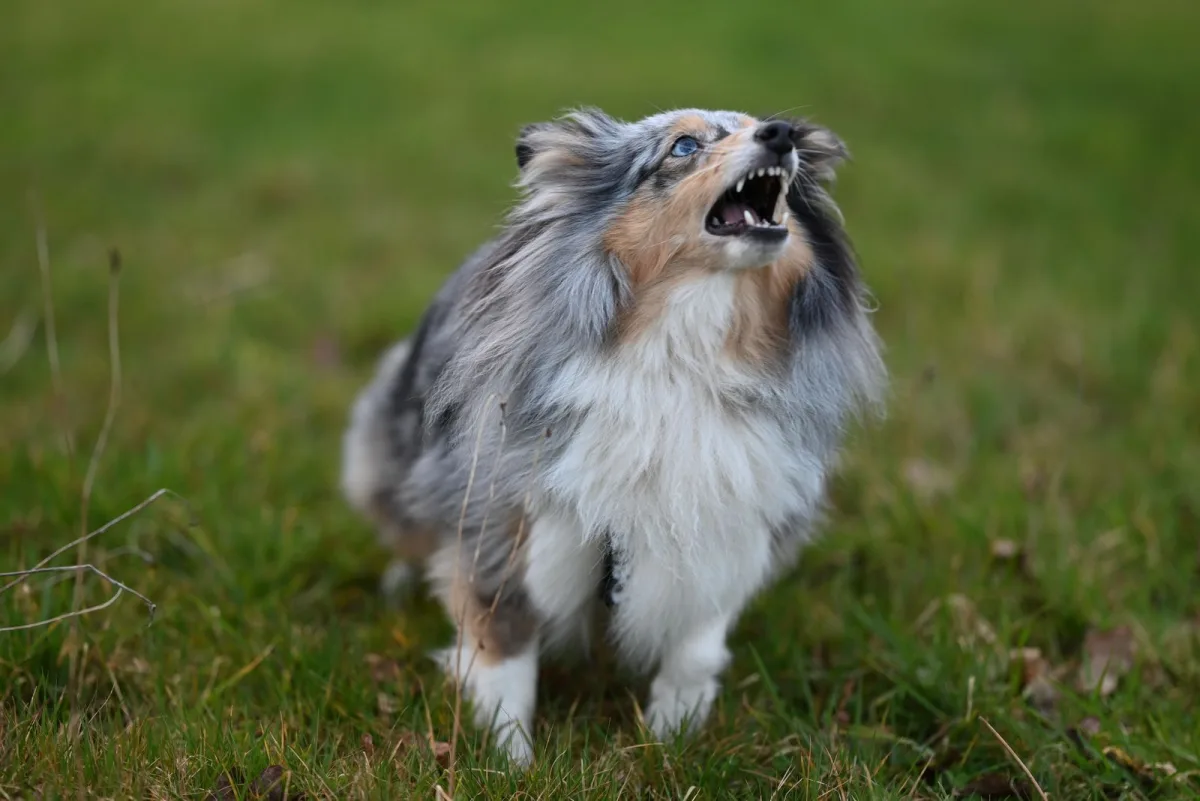
Grok Imagine is xAI's video model, and it does something most image-to-video models still treat as an extra: it makes the sound in the same pass as the picture. Give it a photo of a dog and a prompt that says "barks three times," and you get the movement and the barks together, not a silent clip with audio added afterwards.
This guide shows how to use Grok Imagine on Photo to Video to turn a photo into a video: which photos work best, how to write a prompt that controls both motion and sound, how long to make the clip, what it costs, what it does badly, and one real generation we ran without retries.
You do not need an X account or the Grok app. Photo to Video reaches Grok Imagine through official API partners, so you use it in your browser like any other model on the site.
Grok Imagine at a glance
As of October 31, 2026, this is what you get when you pick Grok Imagine on Photo to Video:
| Setting | What you can choose |
|---|---|
| Length | 1 to 15 seconds, in one-second steps |
| Resolution | No menu; output goes up to 720p |
| Sound | Always on, no switch |
| Aspect ratio | Original (keeps your photo's shape), 16:9, 4:3, 3:2, 1:1, 2:3, 3:4, 9:16 |
| End frame | Not available |
| Reference images | Not available |
| Prompt enhance | Not available; your prompt is used as written |
| Typical wait | About 30 seconds |
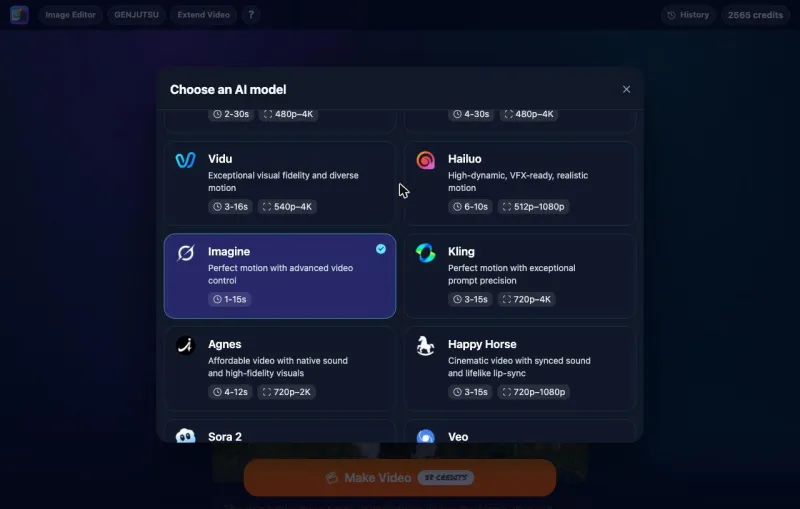
There is only one Grok Imagine option in the model menu, with no Fast or Pro tiers. That keeps it simple: upload a photo, write a prompt, pick a length.
Is Grok Imagine free?
Partly, and it is worth being exact because many people search for "Grok Imagine free unlimited."
- Your first clip can be free. New accounts get welcome credits, enough for one 5-second Grok Imagine video with sound (38 credits).
- After that you pay with credits. There is no subscription and no card needed to start, but it is not unlimited. Each video costs credits.
- You sign in once. You need to sign in with Apple or Google so the free credits are tied to an account. No X account is needed.
The price is shown on the Make Video button before anything is spent. More on how free credits work is in our free image to video guide.
What Grok Imagine costs
Grok Imagine is priced per second, and the rate is the same at every length. Sound is always included.
| Length | Credits |
|---|---|
| 5 seconds | 38 |
| 10 seconds | 75 |
| 15 seconds | 113 |
That works out to about 7.5 credits a second, so a 15-second clip costs exactly three times a 5-second one. Prices can change; check the button before you click.
One thing to know before you spend credits: if Grok Imagine's own content filter refuses to make a video, those credits are not refunded. Other failures, such as a provider error, are refunded automatically. Avoid photos and prompts that are likely to be blocked: nudity, real public figures in compromising situations, violence, or anything involving minors in a sensitive context.
Choose the right photo
Grok Imagine is at its best when the photo has something that can both move and make a sound. Good choices:
- Animals: a dog mid-bark, a cat looking at something off-frame, birds on a branch.
- People doing something with a sound: laughing, clapping, playing an instrument, talking to the camera.
- Scenes with a sound source: a street with traffic, waves on a beach, rain on a window, a campfire.
Tips that help with any model, and especially here:
- Show what you want to keep. If the face or the product is half out of frame, the model has to invent the rest.
- Leave room for movement. A subject cropped tight at the edges has nowhere to go.
- Use a clear, sharp photo. Output tops out at 720p, so a blurry source will not get sharper.
- Pick the aspect ratio on purpose. Original keeps your photo's shape. Choose 9:16 for TikTok or Reels and 16:9 for YouTube, but expect the model to crop or extend the edges to fit.
How to write a Grok Imagine prompt
Because Grok Imagine makes the picture and the sound together, a good prompt covers four things:
- The action, in order. "The dog barks three times, then closes its mouth and looks at the camera." Numbers and sequence help.
- What should not move. "The camera stays still." "The background stays still."
- The camera. Still, slow push-in, slow pan left. One camera move is enough for a short clip.
- The sound. Name the sounds you want and say "No music" if you don't want any. Without a sound line, the model chooses for you.
A simple pattern:
[Subject] [does main action], [secondary detail]. Then [second action]. The camera [stays still / slowly pushes in]. Sound: [main sound], then [second sound], with [background ambience]. No music.
About speech: Grok Imagine can generate voices. If you want someone to say a line, put the exact words in quotes and keep it short, about one short sentence for a few seconds of video. We did not test speech for this guide.
For more prompt patterns, see our image to video prompts guide.
How long should the clip be?
You can pick any length from 1 to 15 seconds. Some rules of thumb:
- 5 seconds is enough for one action and its sound: a bark, a laugh, a wave crashing. Start here; it is also what the free credits cover.
- 8 to 10 seconds suits two or three actions in a row, or a slow camera move.
- 15 seconds is for a small scene with a beginning and an end. Longer clips give the model more time to drift: faces can change and objects can morph. Only go long when you have something for every second to do.
Because the price is flat per second, testing your idea at 5 seconds and only then making a longer version is the cheapest way to work.
How to make a Grok Imagine video from a photo
- Open Grok Imagine on Photo to Video and sign in with Apple or Google.
- Upload your photo.
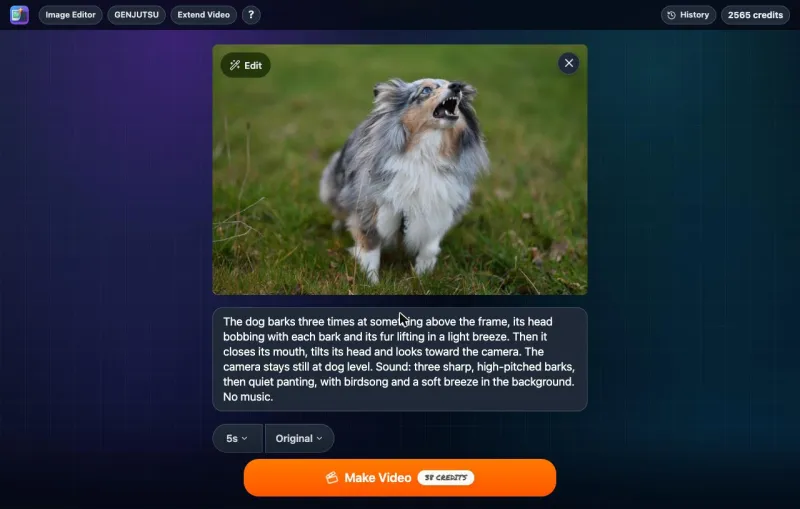
- Write your prompt: the action in order, what stays still, the camera, and the sound.
- Pick a length from 1 to 15 seconds.
- Pick an aspect ratio, or leave it on Original to keep your photo's shape.
- Check the price on Make Video, then click it.
- Watch and listen to the whole result before downloading. Check faces, hands, and whether the sounds line up with the movement.
Try Grok Imagine with your photo
New to image to video? Our step-by-step guide to turning a photo into an AI video covers the basics.
Tested example: a barking dog
To show an ordinary Grok Imagine result, we ran one generation on the live site. We did not retry or pick the best of several. The photo is a Shetland Sheepdog on grass, looking up with its mouth open, 1600×1068 (about 3:2). Turn the sound on when you play the clip.
Grok Imagine: a barking dog with sound
Original image
Generated result
Prompt used: The dog barks three times at something above the frame, its head bobbing with each bark and its fur lifting in a light breeze. Then it closes its mouth, tilts its head and looks toward the camera. The camera stays still at dog level. Sound: three sharp, high-pitched barks, then quiet panting, with birdsong and a soft breeze in the background. No music.
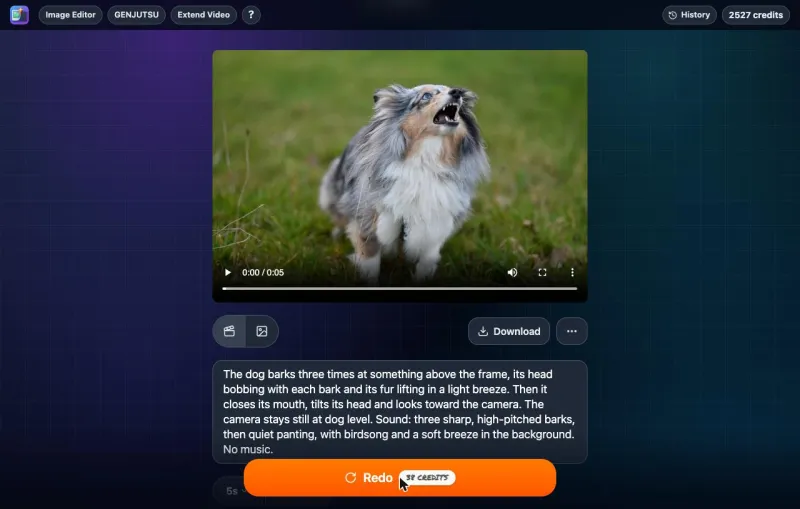
- Cost: 38 credits, the same as the price on the button. It was not blocked by the content filter.
- Time: under a minute from clicking Make Video to the finished video.
- Output: 1168×784 at 24 fps, 5 seconds, with a stereo audio track. The shape matches the photo (about 3:2), and the first frame matches the photo.
What happened:
- The barks worked. There are three short, sharp barks in the first 1.75 seconds, the number the prompt asked for, and the dog's mouth is open and moving while they play. After that the clip goes quiet.
- The action order worked. For about 2 seconds the dog barks upward, then it closes its mouth, turns its head and ends looking straight at the camera.
- The camera stayed still. No noticeable zoom or pan.
- The background sounds were faint. After the barks there is only a quiet, rhythmic sound that may be the panting, and we could not clearly hear birdsong or wind. There was no music.
What to watch out for: the dog changed

The first frame is the photo, but within half a second the dog shifts slightly to the right and a large, raised plume of a tail appears that the photo never showed. By the end, when it faces the camera, its face markings, eyes and ears no longer look like the dog in the photo. It looks like a different dog of the same breed.
This is the most important limit to know before you animate a pet or a person. The photo only shows the dog from one angle, so when the model turns its head toward the camera, it has to invent the face, and it did not keep it true to the original. If the likeness matters, choose a photo where the subject already faces the camera, and ask for less movement. (That advice is our suggestion; we have not tested it.)
This is one generation from one photo at one length. It does not show how Grok Imagine handles people, speech, or 15-second clips.
Prompt ideas for Grok Imagine
These prompts are untested. They follow the same pattern as our test: one subject, actions in order, a fixed camera and a sound line.
| Photo | Prompt idea (untested) |
|---|---|
| Cat | "The cat's ears turn toward a sound on the right, then it turns its head and meows once. Its body stays still. The camera stays still. Sound: one short meow, a quiet room. No music." |
| Laughing friends | "The two friends burst out laughing and one leans on the other's shoulder. The camera stays still. Sound: warm, natural laughter, light café chatter in the background. No music." |
| Beach | "A wave rolls in and washes over the sand, then slides back out. The rocks stay still. Slow push-in toward the water. Sound: the wave crashing, then the hiss of water pulling back, a gull calling in the distance." |
| Street musician | "The guitarist strums three chords and nods along. People in the background keep walking. The camera stays still. Sound: acoustic guitar strums, footsteps and distant traffic." |
| Talking to camera | "She looks into the camera, smiles and says, 'Okay, let's go.' Then she turns and walks out of frame to the left. The camera stays still. Sound: her voice, clear and close, a quiet room." |
What Grok Imagine does badly
- No high resolution. Output tops out at 720p. For 1080p or 4K, use a different model; our Seedance guide covers one that goes up to 4K.
- No end frame. You cannot give it a last frame to finish on, so it is not the right tool for a planned transition between two photos.
- No reference images. You cannot add a second person, outfit or product as a reference. It works from one photo.
- No sound-off option. Every clip has audio. If you only want the picture, mute or replace the sound after downloading.
- Likeness can drift. In our test the dog's face looked like a different dog after it turned toward the camera. Pets and people can stop looking like themselves within a few seconds.
- Invented details. Anything the photo does not show, such as the other side of a face or what is behind the subject, is made up by the model and can look different from the real thing.
- Blocked prompts cost credits. If the content filter refuses a generation, the credits are not refunded.
Troubleshooting
- There is no resolution menu. That is normal. Grok Imagine has one quality setting, up to 720p.
- I can't turn the sound off. Grok Imagine always generates audio. Mute it after downloading.
- The sound doesn't match what I wanted. Name every sound in your prompt and add "No music." Keep the sound line short and specific.
- The video was refused. The content filter blocked it, and the credits are not returned. Change the photo or the prompt rather than retrying the same thing.
- My photo looks cropped. You picked an aspect ratio that differs from your photo. Use Original to keep its shape.
- My pet or person doesn't look like themselves. Use a photo where the face already points the way you want, and keep the movement small: let the subject hold its pose and make one small move rather than turning around. (Untested suggestion.)
- The motion drifts in long clips. Try 5 to 8 seconds, or give the model a clear action for each part of the clip.
- I can't find Grok Imagine on X or in the Grok app. You don't need either. Use it directly on the Grok Imagine page.
FAQ
Is Grok Imagine free?
Your welcome credits cover one 5-second video with sound (38 credits). After that, each video costs credits. There is no subscription, and it is not unlimited.
Do I need an X account or the Grok app?
No. Photo to Video reaches Grok Imagine through official API partners. You sign in with Apple or Google.
How long can a Grok Imagine video be?
From 1 to 15 seconds, chosen one second at a time.
What resolution does Grok Imagine make?
Up to 720p. There is no resolution menu. Our 5-second test from a 3:2 photo came out at 1168×784.
Does Grok Imagine make videos with sound?
Yes, always. The sound is generated together with the picture, and your prompt steers it.
Can I choose the aspect ratio?
Yes: Original (keeps your photo's shape), 16:9, 4:3, 3:2, 1:1, 2:3, 3:4 or 9:16.
How much does Grok Imagine cost?
On October 31, 2026, 38 credits for 5 seconds, 75 for 10 and 113 for 15. The Make Video button shows the current price.
Ready to try it with your own photo?
Sources
- Photo to Video Grok Imagine generator: settings, prices and refund rules, checked October 31, 2026.
- One test generation on the live site, October 31, 2026, described above.