On this page
How to Make a Loop Video from a Photo
 Photo to Video
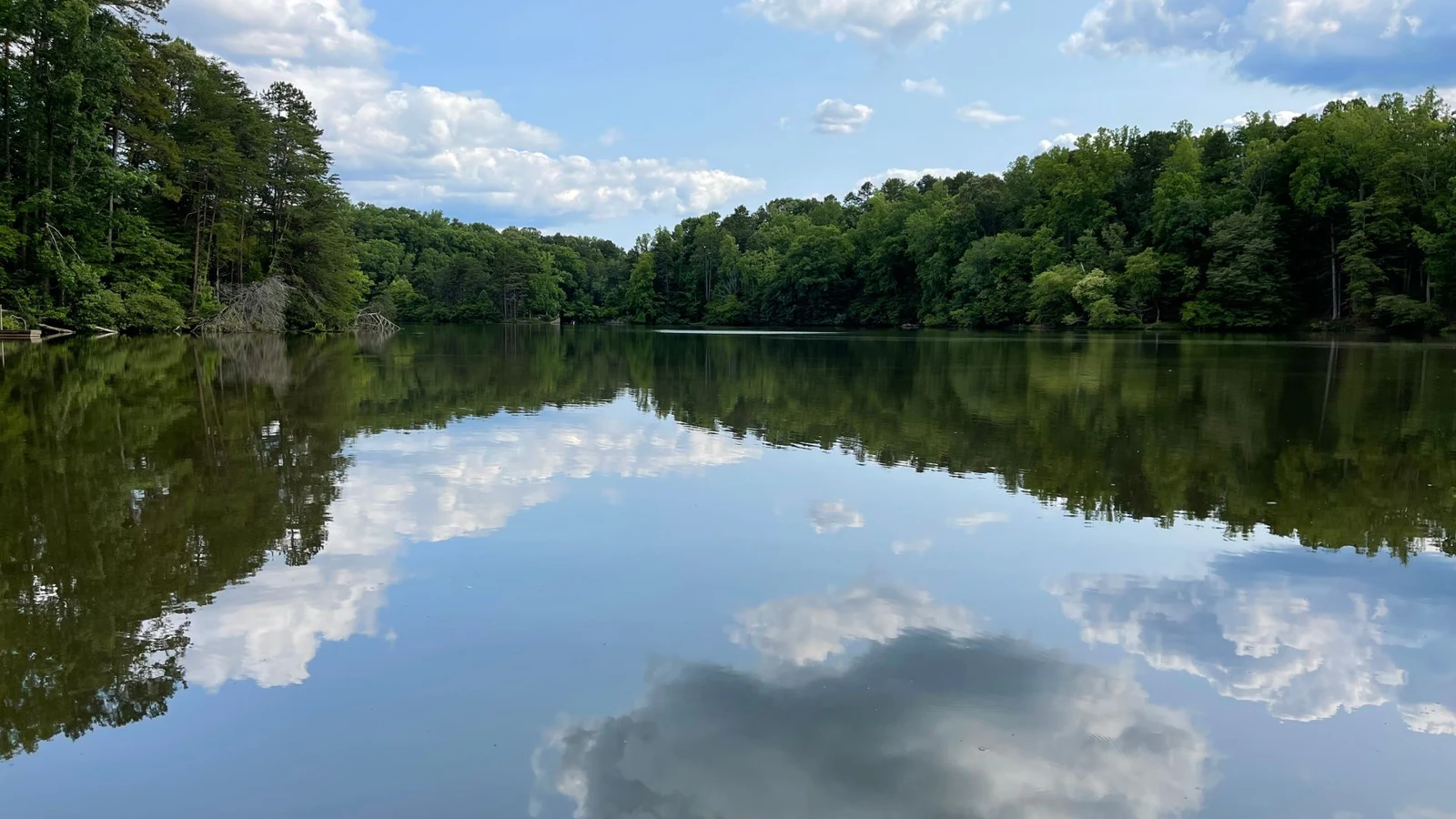
To try making a loop video from a photo, give Kling Pro the same image as both the start and end frame, describe a small repeating movement, then check the transition from the last frame back to the first. Matching the inputs gives the model a target; it does not guarantee a seamless loop.
Our lake test barely moved. The join was subtle, but so were the requested leaves and water ripples. This guide shows the setup, the complete output and how to check both motion and the seam.
Set the same photo as the start and end frame
- Choose a clear photo with room for small movement. Water, foliage or drifting clouds give you specific details to inspect. Use an image you have permission to animate.
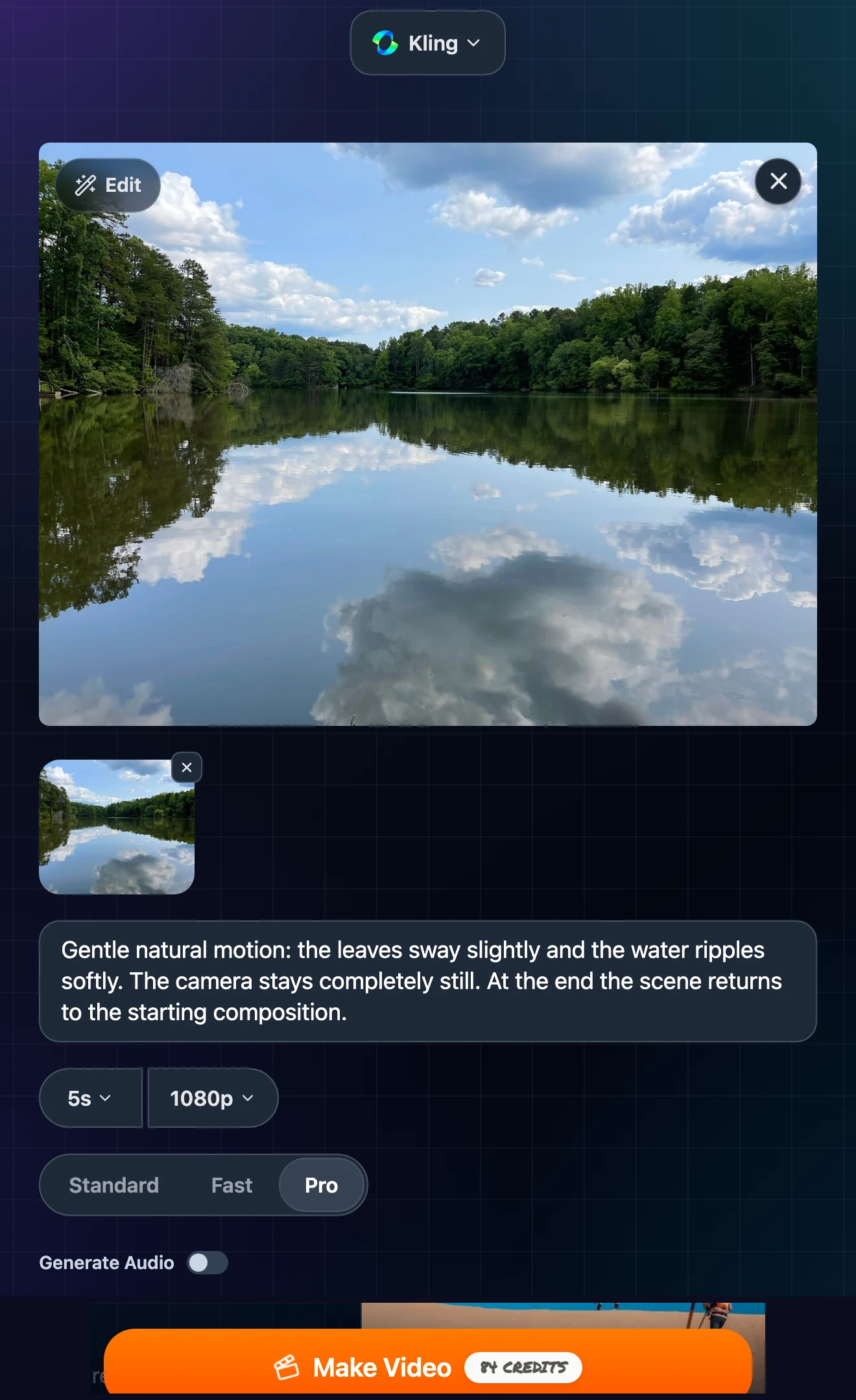
- Open Kling on Photo to Video, upload the photo and choose Pro. Click Add end frame and upload that same photo again.
- Describe the movement and the camera. Ask for a fixed view and a return to the starting composition. Our exact prompt is below.
- Choose settings and check the quote. We used 5 seconds, 1080p and Generate Audio off. The button quoted 84 credits; your balance needs to cover the current price.
- Generate, download and inspect. Play the result repeatedly and compare the last frame with the first before using it as a loop.
Try the same-photo setup with Kling
For the other controls, see the Kling image-to-video guide. For different movement ideas, see image-to-video prompts.
Our settings and complete result
We ran one generation on November 11, 2026, using a lake photo with trees and clouds reflected in the water. There were no retries. The cover is a crop; open the complete 1920 × 1440 source photo to see the framing used for both inputs.
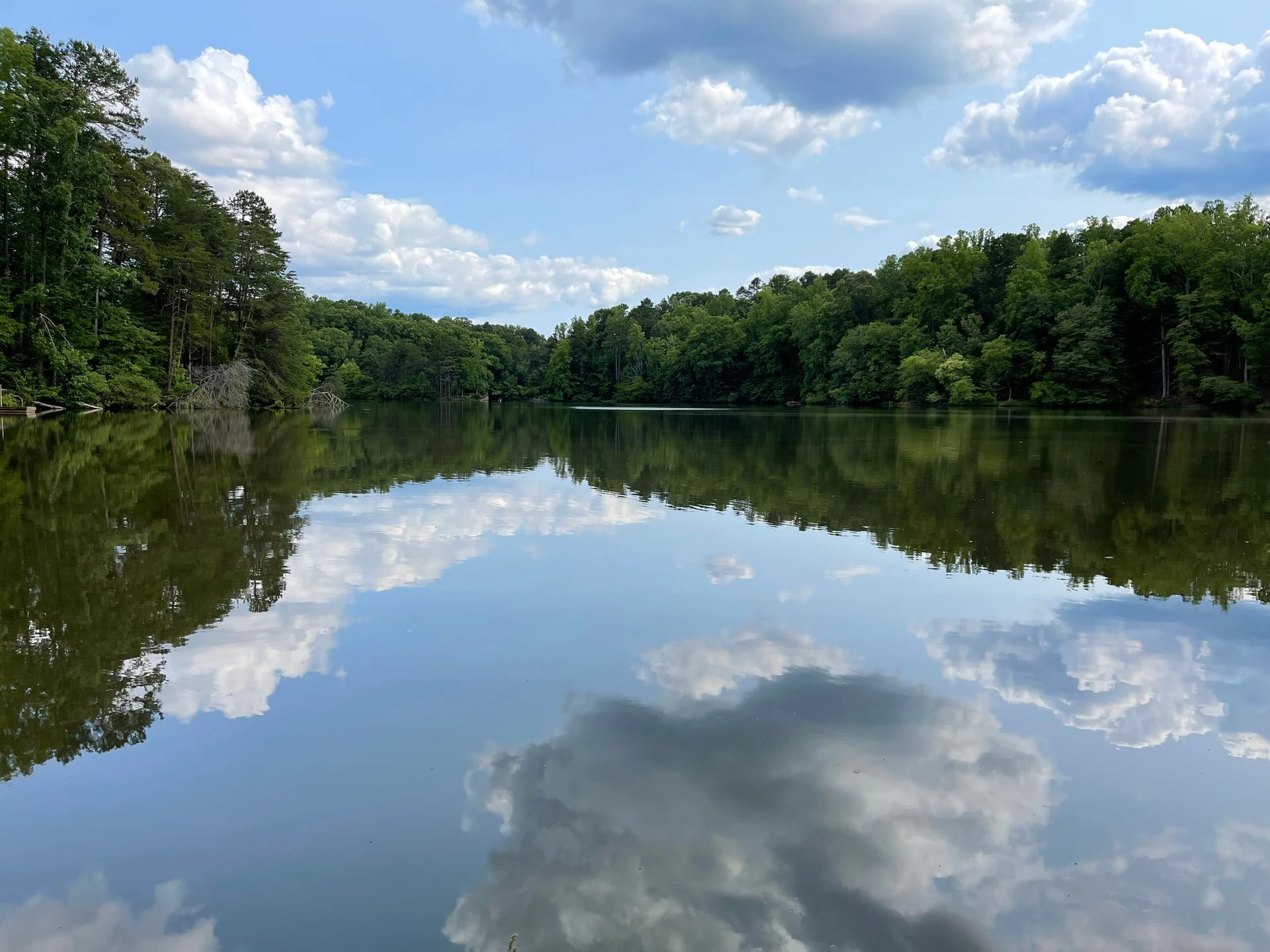
Gentle natural motion: the leaves sway slightly and the water ripples softly. The camera stays completely still. At the end the scene returns to the starting composition.
| Setting | Recorded value |
|---|---|
| Model and inputs | Kling Pro; the same 1920 × 1440 photo as start and end frame |
| Selected settings | 5 seconds, 1080p, Generate Audio off |
| Button quote and actual charge | 84 credits |
| Submission to result on page | 5 minutes 44 seconds |
| Actual output | 1660 × 1244; 5.04 seconds; 24 fps; no audio track |
The selected resolution was 1080p; the downloaded file measured 1660 × 1244. Price and waiting time describe this run, not a promise for another generation.
Check the join and the motion
A loop repeats. A seamless loop also hides the restart. A nearly still clip can make that restart hard to notice without delivering useful animation.
- Play copies end to end. Use a player with repeat enabled or place three copies on an editor timeline without transitions. Watch each restart at normal speed.
- Compare the last frame with the first. Look at fixed edges such as the shoreline and trees. A change in position can create a jump.
- Watch the frames around the join. Similar endpoints can still hide a pause, sudden change in movement or a brightness flash. Two matching stills alone do not prove smooth motion.
- Check the action you requested. Look for water ripples and leaf movement across the entire clip, not just a quiet seam.
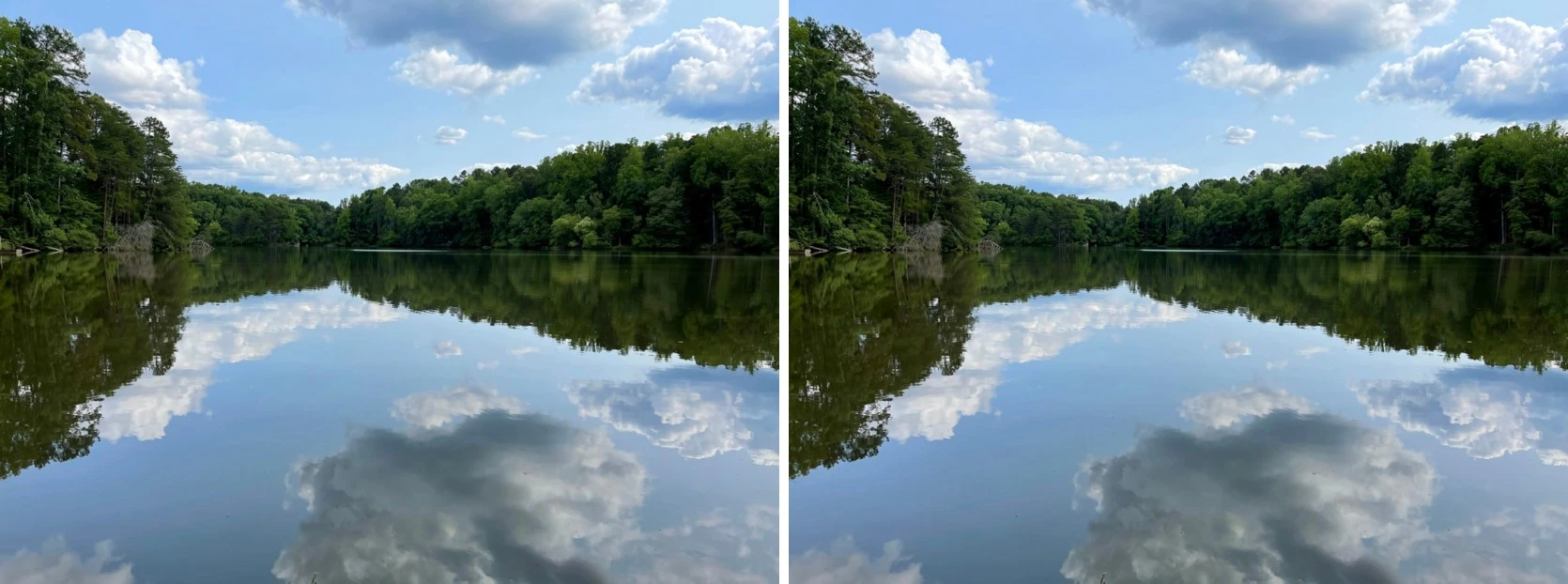
In this attempt, the scene stayed almost still. Small endpoint differences were measurable, and the opening frames changed slightly more than most later frames, but there was no large framing change in our sampled review. We would not present this as a successful example of visibly animated water.
If the result jumps or barely moves
If the join jumps, check whether the camera or scene drifted before changing the prompt. If the clip is nearly static, a more specific visible action is one possible next experiment. We did not test a revised prompt, so we cannot promise either change will fix it. Another generation costs credits.
Keep an unedited copy when comparing attempts. A crossfade can hide a join and reverse playback can create a back-and-forth loop, but those are editing choices rather than evidence that the generated clip was seamless.
This was one photo, one prompt and one Kling Pro run. It does not establish how often matching endpoints work. For a different motion experiment, see our partial-motion photo test. Download the MP4 for use in a player or editor; this workflow does not directly export a GIF.
Test a loop with your own photo
FAQ
Can I make a looping video from one photo?
You can try using the same photo as the start image and end frame on Kling Pro. Matching inputs does not guarantee a seamless result. Our one test barely moved, so the join was subtle but the animation was weak.
Where is the end frame option?
On the Kling page, choose Pro and use Add end frame to upload the same photo again.
How much did this loop test cost?
Our November 11, 2026 run cost 84 credits for Kling Pro, 5 seconds, 1080p and audio off. Check the current Make Video quote before submitting.
How long did it take?
The result appeared on the page 5 minutes 44 seconds after submission in this run. That is one observed wait, not a typical or guaranteed time.
How do I check whether the loop is seamless?
Play copies end to end without transitions, compare the last frame with the first, and look for jumps, pauses and brightness changes. Also check that the requested motion actually appears.
Can I export this as a GIF?
This workflow produced an MP4, not a GIF. Download the video and use a separate converter if you need GIF output; check the loop again after conversion.