On this page
How to Make a Picture Move
 Photo to Video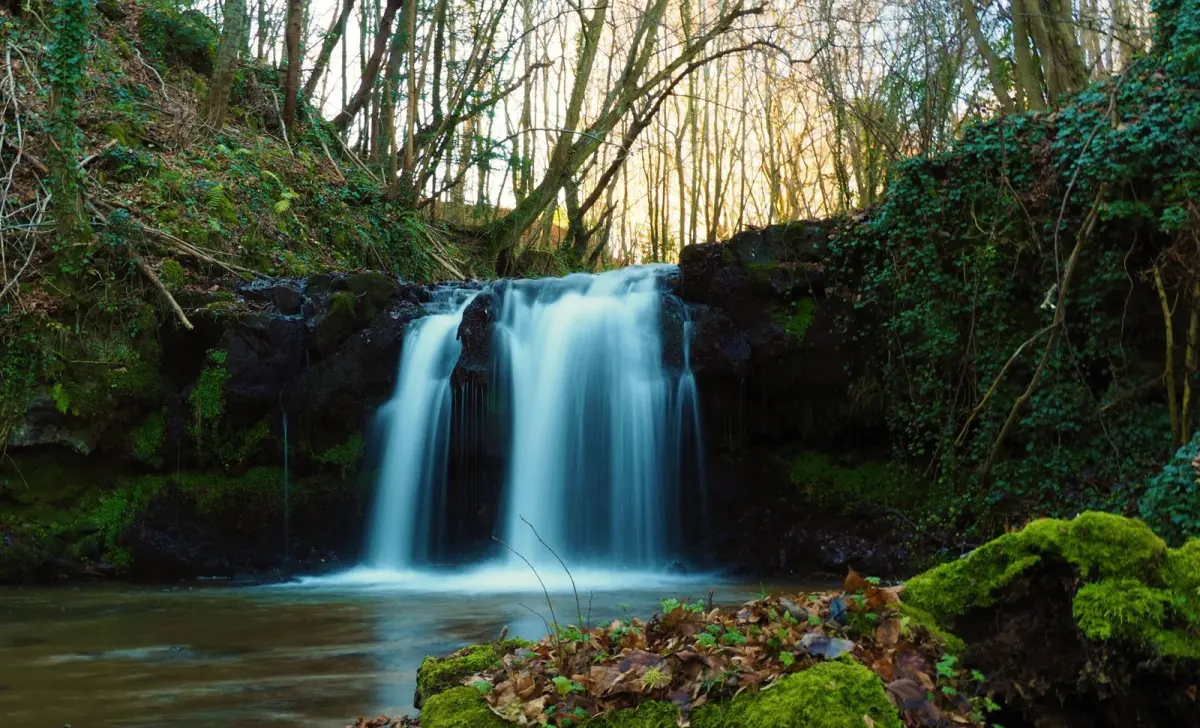
You have one still photo and you want it to move: water flowing, a smile, hair in the wind, a slow camera push. There are a few ways to do that, and they give very different results. Some only fake depth when you tilt your phone. Others create a real video you can share. And the most useful skill of all is controlling which part moves, so the picture comes alive without everything wobbling.
This guide covers the main ways to make a picture move, a step-by-step walkthrough with AI, how to keep most of the photo still, prompts for different kinds of photos, and fixes for the usual problems. We also ran one real test so you can see what to expect.
Three ways to make a picture move
| Method | What you get |
|---|---|
| AI image-to-video (for example, Photo to Video) | A real video file, a few seconds long, where you describe the motion in words. Works with any photo you upload. |
| Built-in phone features | Depends on the feature. Some make a short AI clip; others only add a tilt or depth effect that is not a video. |
| Partial motion (also called a cinemagraph) | Only one area moves, such as water, clouds or hair, while the rest stays still. With AI, you get this by describing what moves and what does not. |
What phones can do today (checked October 30, 2026)
- Google Photos: the Create tab includes a photo-to-video option. You pick a photo, then choose "Subtle movements" or "I'm feeling lucky," and it generates a short clip. It launched in the US, the clip length has changed with model updates, and the results carry AI watermarks.
- iPhone Spatial Scenes (iOS 26): adds a parallax depth effect that shifts as you tilt your phone. It needs an iPhone 12 or newer. It is a viewing effect, not a video.
- iPhone Live Photos: these are recorded by the camera when you take the picture. You cannot turn an existing still photo into a Live Photo.
If you want a video you can download, post and control with your own description, an AI image-to-video tool is the most direct route. The rest of this guide shows how to do that on Photo to Video.
How to make a picture move with Photo to Video
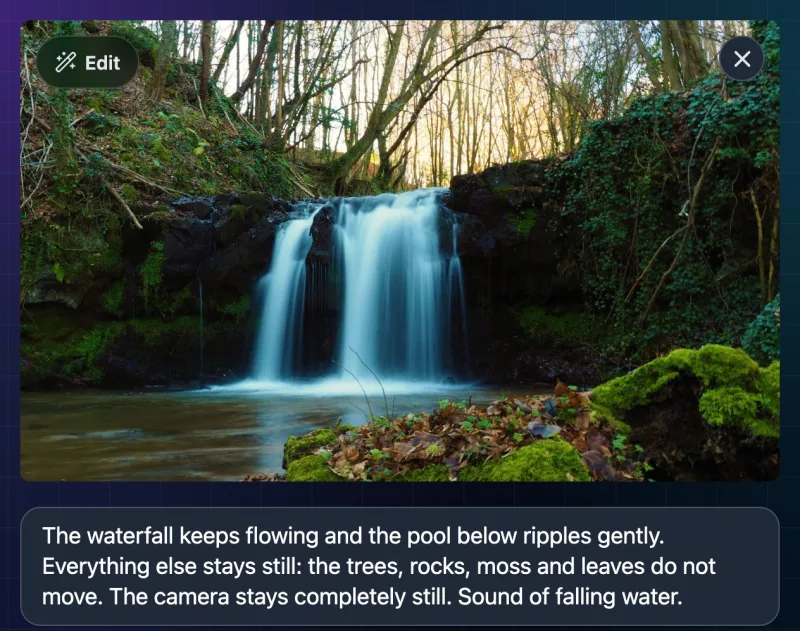
- Open the generator on the Photo to Video home page and sign in. New accounts get welcome credits.
- Upload your photo. A sharp photo with one clear subject gives the model the most to work with.
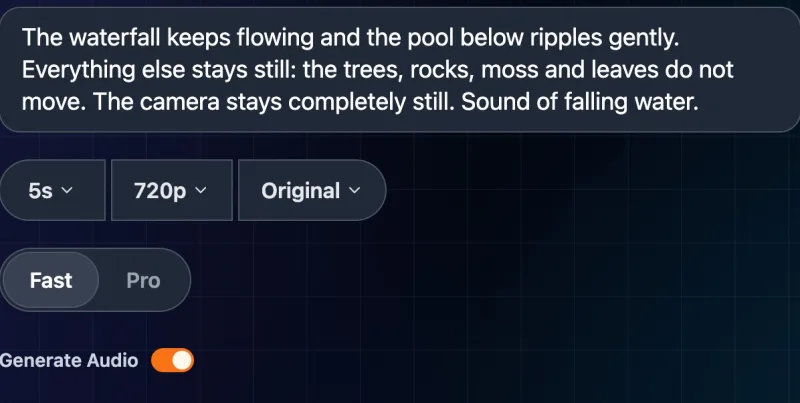
- Pick a model. The home page starts on Seedance → Fast, which is a good, inexpensive place to start. You can switch in Choose an AI model.
- Set the length and resolution. For a first try, 5 seconds at 720p keeps it quick and cheap. In our test that cost 26 credits with sound, or 13 without.
- Describe the motion. Say what should move, how much, and what should stay still. The next section shows how.
- Check the price on Make Video, then click it.
- Watch the whole clip before downloading. Check faces, hands, edges and anything that should not have moved.

Upload a photo and make it move
How to make only part of a picture move
Most AI video models like to move things. If you only describe the motion you want, they may also drift the camera, sway the trees or shift the background. To keep the rest of the picture still, your prompt needs three parts:
- What moves: "The waterfall keeps flowing and the pool ripples gently."
- What stays still, by name: "The trees, rocks and leaves do not move."
- The camera: "The camera stays completely still."
Naming the still parts works better than a general "nothing else moves," because the model has to know which areas you mean. Keep the moving part small and gentle; big motion in one area tends to spread to the rest of the frame.
Our test: only the water should move
We ran one generation on the live site to show what this looks like. We did not retry or pick the best of several. The photo is a long-exposure shot of a small forest waterfall.
Seedance Fast: only the water should move
Original image
Generated result
Prompt used: The waterfall keeps flowing and the pool below ripples gently. Everything else stays still: the trees, rocks, moss and leaves do not move. The camera stays completely still. Sound of falling water.
- Cost: 26 credits for Seedance Fast, 720p, 5 seconds with sound, the same as the quote. With sound off, the quote was 13.
- Time: about a minute.
- Output: 1184×704 at 24 fps, about 5 seconds, with an ambient stereo audio track. The first frame matches the photo closely, with the shape very slightly different (about 1.68:1 against 1.65:1).
What worked: the water in the waterfall visibly flows, and the surface of the pool moves.
What did not fully work:
- The camera is not fully locked. Comparing the first and last frames, the waterfall moves to the right and gets slightly larger by the end, about 2% of the frame width: a slight push-in or pan. The prompt asked for a completely still camera, and we did not get it.
- The moss on the right gets slightly softer toward the end.
So this result is partly what we asked for: the water moves, but the frame is not perfectly locked. It is one generation from one photo with one model, and other models or photos may behave differently. If you need a fully still frame, try the fixes in the troubleshooting section.
What to write for different kinds of photos
These prompts are untested suggestions. Each one describes one small motion, names what stays still and fixes the camera.
| Photo type | Prompt idea (untested) |
|---|---|
| Portrait | "She blinks once and gives a small smile. Her head and shoulders stay still. The camera stays still." |
| Landscape | "Clouds drift slowly to the right. The mountains, trees and lake stay still. The camera stays still." |
| Pet | "The dog's ears twitch and it tilts its head slightly. Its body and the sofa stay still. The camera stays still." |
| Old family photo | "The man slowly turns his head toward the camera and smiles. Everyone else stays still. The camera stays still." |
| Product | "Steam rises gently from the cup. The cup, table and background stay still. The camera stays still." |
For old photos, our guide to making a memory video from a photo goes into more detail. For more prompt patterns, see our image to video prompts guide.
Common problems and how to fix them
- The camera moves when it should not. Put "The camera stays completely still" at the end of the prompt, and remove words like "cinematic," "dramatic" or "sweeping," which suggest camera moves. If it still drifts, try a different model, or crop the edges slightly after downloading so a small drift is less visible (both untested suggestions).
- The background moves or warps. Name the background parts that should stay still ("the wall, the window and the plant stay still"). Choose a photo where the subject is clearly separated from the background.
- The motion is too big. Use small words: "slightly," "gently," "a little," "slowly." Ask for one action, not three.
- A face changes or looks different. Keep the action small (a blink, a small smile). Big head turns force the model to invent parts of the face that the photo does not show.
- Things appear that were not in the photo. Describe only what is visible, and say "no new objects appear."
- Hands or fingers look wrong. Avoid asking for hand movements unless the hands are large and clear in the photo.
- It does not move at all. Name the moving part clearly ("the water in the waterfall flows downward") rather than only listing what stays still.
FAQ
Is there an app that makes pictures move?
Photo to Video works in your phone's browser, so there is nothing to install. Some phones also have built-in features, such as Google Photos' photo-to-video option, or iPhone Spatial Scenes, which adds a tilt effect but does not create a video.
Is it free?
New Photo to Video accounts get welcome credits, which cover a short test like ours (26 credits for 5 seconds at 720p with sound). After that, you pay per video with credits. There is no subscription.
How long does it take?
Our 5-second test took about a minute. Longer videos, higher resolutions and busier times take longer.
Can I make only part of the picture move?
Yes, by describing what moves and naming what stays still, including the camera. In our test the water moved as asked, but the camera still drifted slightly, so results are not always perfectly still.
What kind of photo works best?
A sharp photo with a clear subject and a simple background. The motion you want should make sense for what is in the picture: water that can flow, hair that can move, a face that can smile.
Can I make a moving picture from several photos?
That is a different job. See how to create a video from several photos. For the full model and settings walkthrough, read how to turn a photo into an AI video.
Sources
- Photo to Video home generator, checked October 30, 2026.
- TechCrunch, "Google Photos adds AI video generation with Veo 3," September 4, 2025.
- PetaPixel, "The Image-to-Video Tool in Google Photos Now Uses Veo 3," September 4, 2025.
- MacRumors, "iOS 26: Turn Photos Into 3D Spatial Scenes."