On this page
Turn a Photo into a Video on Your Phone
 Photo to Video

To turn a photo into a video on your phone, open Photo to Video in your browser, select a photo, choose your motion and settings, sign in when prompted, and download the finished MP4. You do not need a native app for this workflow.
A video that is ready on the page is not necessarily saved on your phone. The steps below separate generating, checking and downloading it, including what to do when a link opens inside another app.
Cover: the source image for the November 15 example below. We used the same image throughout setup, generation and download in a phone-sized browser viewport.
1. Start in your phone browser
Open photo2video.ai directly in Safari or Chrome on iPhone, or your usual browser on Android. If you arrived through a social app and saving does not work, open the link in your phone’s browser instead.
This is a mobile web guide. It does not depend on an App Store or Google Play listing, and it does not assume that a native app and the website have identical features or balances.
2. Choose a photo and set up a short clip
- Tap the image selector. Choose a photo from your library or files. Wait until the preview appears before continuing. HEIC and HEIF are accepted by the web picker; if a particular file cannot be read, export a JPEG or PNG copy and try that.
- Check the selected image. Use the remove control if it is the wrong photo. Start with the original file when possible, rather than a small screenshot or a compressed copy from a chat.
- Describe the motion. For example: “The person turns slightly toward the camera and smiles. Keep the camera still.” Ask for one clear action first. See the prompt examples for more options.
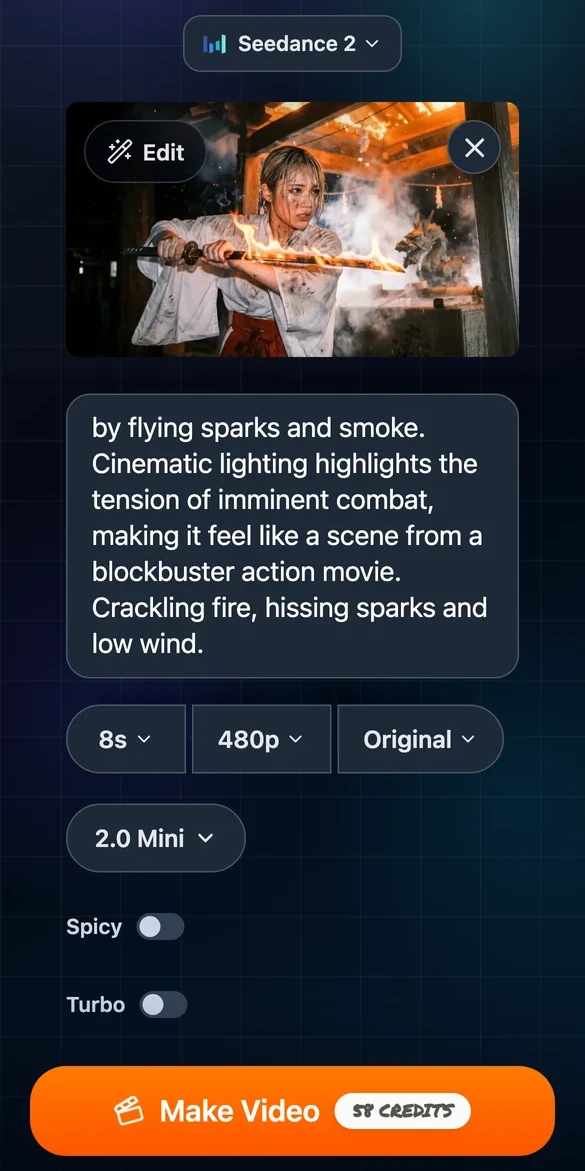
- Choose the available settings. Model, variant, duration, resolution and aspect-ratio options vary. The example below shows one selection, not the controls offered by every model.
- Read the quote, then tap Make Video. Check the displayed credits after changing settings. The standard generator asks you to sign in before submitting a request. After signing in, confirm the photo and settings before generating.
Our November 15 run used Seedance 2 → 2.0 Mini, 8 seconds, 480p and Original aspect ratio. The button quoted 58 credits; the recorded charge was also 58 credits. Check your own quote before submitting, since models and prices can change.
The limited guest offer at /tt is separate from the standard signed-in workflow. Its eligible settings and allowance do not mean every model is free. For a small first-test budget, see the free-credit guide.
Choose a photo in the web generator
3. Review the finished video
Play the complete result before sharing. Check the face, hands, clothing, text and background throughout the clip, including turns and fast movements. Compare the motion with your request. A result can look good at the start and change later.
Example: one photo, an eight-second result
We generated this clip on November 15 with the settings above. One attempt cost 58 credits and took about 160 seconds from Make Video to an available download. The downloaded file is 864×496, 24 fps and 8.10 seconds long, with an AAC audio track. This is the actual 480p output, not an upscaled version. An earlier silent test with a different model cost 10 credits; preparing the two examples cost 68 credits in total. The 58-credit figure applies only to the audio-enabled run shown here.
Prompt: Set against a traditional Japanese shrine background, a determined shrine maiden holds a katana. The blade burns with realistic raging fire, accompanied by flying sparks and smoke. Cinematic lighting highlights the tension of imminent combat, making it feel like a scene from a blockbuster action movie. Crackling fire, hissing sparks and low wind.
In one-frame-per-second comparisons, the camera moves closer, the flames rise and her expression becomes more tense. The close-up also changes facial details and reduces some of the marks on her face. Sampled frames do not prove that every frame is free of hand or blade distortion; play the full file and inspect the details yourself. We confirmed an audio track with signal, but have not verified by listening that its sounds match the requested fire and wind.
If you want a specific action, such as raising or swinging the blade, describe that action directly rather than relying on “cinematic” or “imminent combat”. See the motion prompt guide for examples.
If you requested sound, unmute the player and listen to the downloaded file too. The sound guide includes a complete portrait dialogue example, its source image and prompt.
If you want another attempt, change the relevant input or setting and check the new quote before submitting. A new generation can incur another charge. Keep a result you want before making further edits.
4. Download the MP4 and find the local file
Tap Download on the result. Wait for the transfer to finish, then open the saved file to confirm that it plays. The filename may identify the tool and creation time; it is not always the same as the page title.
- iPhone: check Safari’s Downloads list or the Downloads folder in Files. Apple explains this in its guide to finding downloads. Saving a file does not necessarily add it to Photos automatically.
- Android: check Chrome’s Downloads or the device’s Files app. See Google’s download instructions. Open or share the saved file from there if it is not visible in your gallery.
Temporary download links last 24 hours. If yours expires, sign in to the same account and download the video from History.
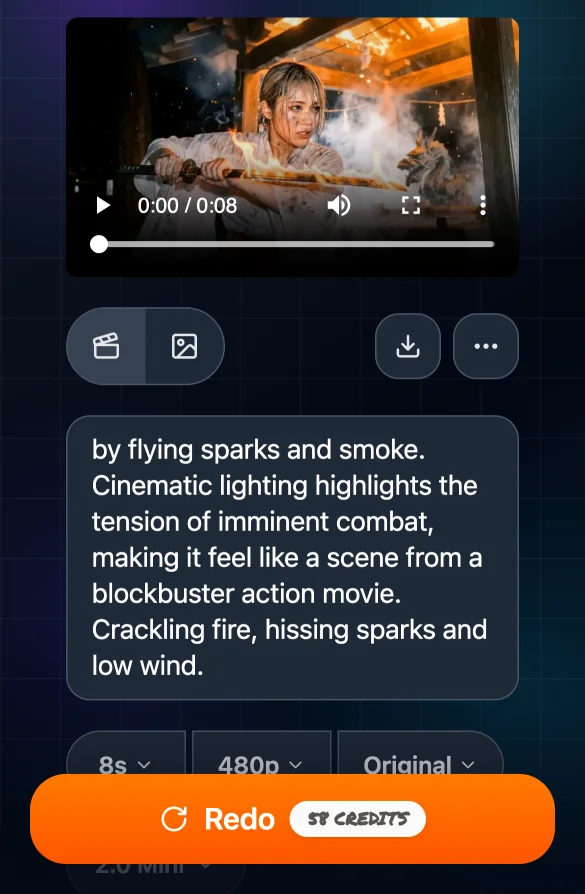
For this run, the download produced an MP4 named “Photo to Video - 2026-11-15T12-03-45.mp4”. We checked the downloaded file, but did not verify saving it to Photos or Gallery on a physical phone.
If the download does not work
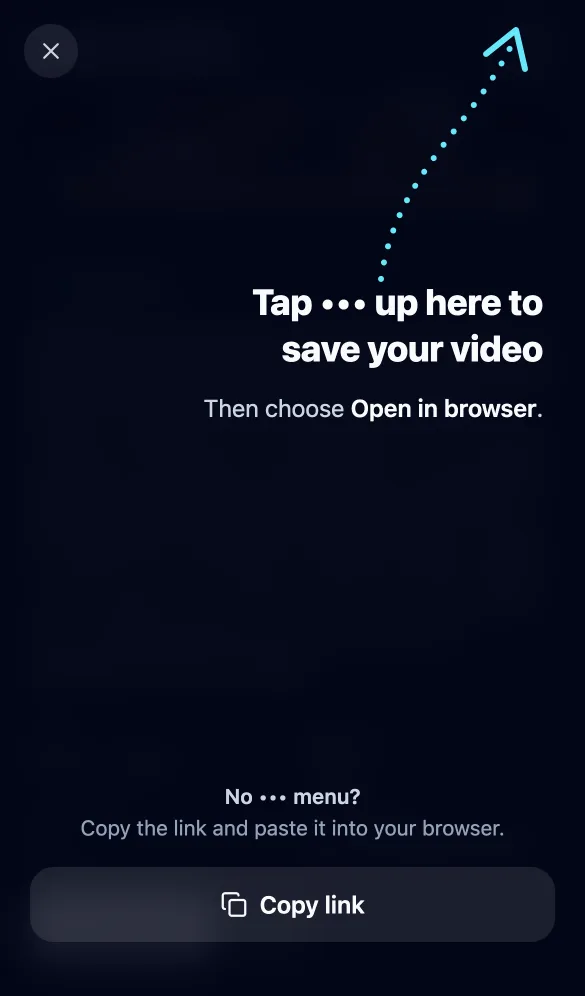
The page opens inside TikTok or another app
Some in-app browsers cannot save the file. If the site presents Copy link or Open in browser, follow those instructions and paste the download-page link into your phone’s browser. Then tap Download video there. A full-screen player alone does not prove that the file was saved.
The file is missing or playback is silent
Check whether the browser download actually finished, whether the device has storage available, and whether you are looking in Files or Downloads rather than only Photos or Gallery. If the original MP4 plays silently, check the player volume and the generation’s audio settings before paying for another attempt.
Optional: add a home-screen entry
Use your browser’s home-screen or install-shortcut option if you want a convenient way back. The label varies by browser and version; Chrome’s current Android instructions use Install and create shortcut. You are still opening a web service, and video generation needs an internet connection.
What we checked on November 15: the live site at a phone-sized browser viewport, photo selection, settings, the sign-in prompt, History states and the expired-link page. The shrine example was generated once and downloaded from the test account. This was a desktop browser using a phone-sized viewport, not a physical iPhone/Android test. Gallery saving, home-screen installation and the actual TikTok webview were not tested.
FAQ
Do I need to install an app to turn a photo into a video?
No. You can open Photo to Video in your phone browser, choose a photo and use the web generator. This guide covers that browser workflow, not a native app installation.
Can I upload an iPhone HEIC photo?
The web image picker accepts HEIC and HEIF as well as other image formats. Wait for the image preview before generating. If a particular file cannot be read, export a JPEG or PNG copy and try that file.
Do I need to sign in?
The standard web generator asks you to sign in before submitting a generation. The separate limited guest offer at /tt has its own eligibility and settings; it is not unlimited free generation.
Where does the downloaded video go on my phone?
Look in your browser’s downloads and your device’s Files or Downloads location. Downloading an MP4 does not necessarily put it in the Photos or Gallery app automatically.
Why can’t I save a video inside TikTok’s browser?
Some in-app browsers cannot save the file. Use the site’s Copy link or Open in browser instructions, open the link in your phone’s browser, then use Download video there.
Can a home-screen shortcut generate videos offline?
No. A shortcut opens the web service; generation needs an internet connection. It is a shortcut to the website, not a separate app.