On this page
How to Make an Image-to-Video Clip with Sound
 Photo to Video
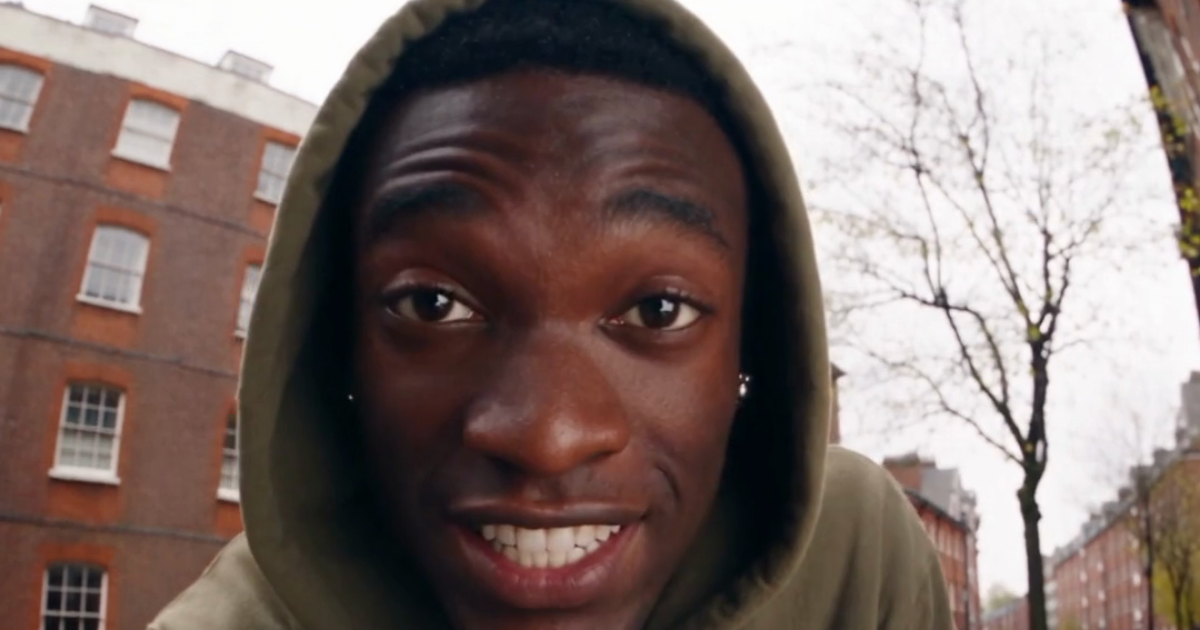
To make an image-to-video clip with sound, choose an audio-capable model, enable Generate Audio when the switch is available, and describe the sound you want in the prompt. Play the finished file with sound before sharing. A photo contains no original audio: any voice, ambience or effects are new output.
Generated sound, a person speaking in sync, and narration added in an editor are different jobs. This guide covers the settings and checks that separate them, with one complete synthetic dialogue sample.
Already have a recorded voice track? This website’s image-to-video workflow does not take an uploaded audio file to drive lip sync. The dialogue example below was generated from a written line, not your own recording. You can add a recording afterward in an editor, but that does not make the mouth follow it.
Choose the kind of sound
| What you want | Workflow | What to check |
|---|---|---|
| Ambience or sound effects | Request sound alongside the video on an audio-capable model. | Whether the requested sounds occur, and whether they fit the action. |
| A person speaking | Request a short spoken line with a clear view of the mouth. | The actual words, voice, timing and mouth movements separately. |
| Your chosen narration or music | Download the video and add the track in an editor. | The mix and timing; adding narration does not animate the mouth. |
Set up audio generation
- Upload your image and choose a model. For example, open Wan or Kling. Select the variant, duration and resolution before checking the audio controls.
- Look for Generate Audio. If it appears, turn it on for generated sound. In our November 13 page check, Wan Fast exposed this switch. Other selections can generate sound automatically without a switch, or offer no audio generation. The control depends on the selected variant.
- Describe the sound. State who speaks and put the requested line in quotation marks, or describe the ambience and effects. If you want speech without music, say so explicitly. These are requests, not guaranteed output.
- Check the Make Video quote, then generate. Recheck it after changing settings. Keep the source image, exact prompt, selected settings and original downloaded file for comparison.
For motion and camera wording, use the prompt guide. A sound instruction does not add an audio capability to a model that lacks it.
A complete synthetic dialogue sample
On November 14, 2026 (UTC), we used an existing AI-generated fictional portrait for one Kling Pro 3.0 request: 10 seconds, 1080p, audio enabled. The recorded generation charge was 252 credits. The portrait was supplied before this test; its creation cost is not included.
The original file is 1080 × 1920, 24 fps, 10.04 seconds and contains an AAC audio track. We show the complete first shot, before trimming or assembling a longer video. The travel-kit line is a fictional demonstration script, not a product review or a verified price claim.
Download the original video · Open the source image · Open the exact prompt
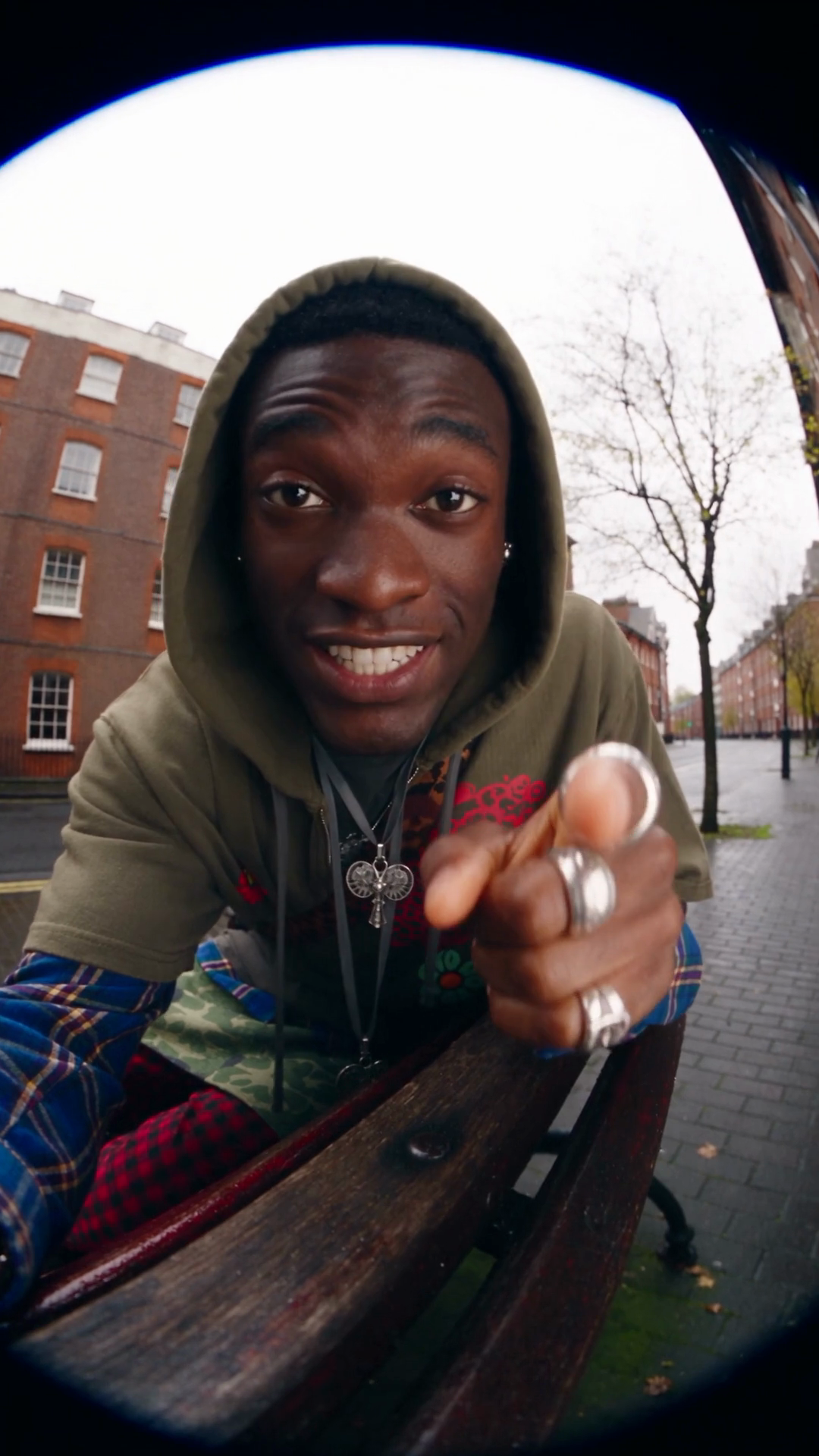
Handheld selfie-style UGC video, fisheye lens, the young man in the olive hoodie leans on the wooden bench and talks directly to the camera with a friendly, excited tone, natural small head movements, keeps his hand still near the lens. He says in clear American English: "This is the travel kit behind every trip I take, and it's way cheaper than you think." His lips match the words. Street ambience only, no music, no subtitles, no text on screen.
What we checked: a speech-to-text check matched the requested words. On November 14, a human reviewer watched the clip and confirmed that the mouth movements matched the spoken line. This is a successful synthetic dialogue example based on playback review, not a frame-by-frame timing measurement.
For more complete files with generated audio tracks, see the 15-second Wan, Seedance and Kling test. Its published comparison adds narration; the original files retain their generated audio. That comparison evaluated visible actions, not sound quality.
If the video plays silently
- Check playback first. Start the video, unmute its player, check whether the browser tab is muted, and check your device volume and selected headphones or speakers.
- Try the downloaded original. Open it in another player. A silent preview does not by itself prove that the downloaded file has no audio.
- Check the generation settings. Was audio enabled for that request? Did that model support it? Writing “sound” in the prompt is not a substitute for selecting a capable model and enabling its switch.
- Choose the next step. If the file has no usable soundtrack, add a track in an editor, or make a new request with appropriate audio settings. Changing a switch afterward does not add sound to the completed file, and a new request can cost more credits.
An audio track can contain silence or unwanted sound. Its presence alone is not a listening check. Conversely, muting the player changes playback, not the audio inside the downloaded file.
Check dialogue and mouth timing separately
Listen for missing, added or altered words first. Then replay the speaking section at normal speed while watching the mouth. Look for obvious early or late speech, mouth movement during silence, and a mouth that stops moving while the voice continues. Pauses and ordinary breathing can also involve mouth movement, so one open-mouth frame is not proof of an error.
Transcription can help check wording; it cannot establish how natural the voice sounds or whether the lips match each spoken sound. A loudness measurement cannot establish that either. If you cannot assess synchronization, record it as uncertain rather than calling the result accurate.
Making a face blink or smile is another task again: facial animation without a checked voice track is not a talking-photo test.
Add narration after generating the video
If a particular script or recording matters more than generated sound, import the downloaded video and your recording into a video editor. Place the recording on an audio track, align it with the relevant visuals and lower or mute the generated sound beneath it. Export a new file and play it from beginning to end.
This works for narration over demonstrations, scenery or product clips. It does not make a visible speaker’s mouth follow a different recording. Choose a separate lip-sync workflow if that is what you need; the image-to-video steps above do not demonstrate supplied-audio lip synchronization.
Plan another attempt with the credit budget guide, and keep the original output so you can distinguish model-generated sound from your final edit.
FAQ
Can I upload my own audio file to make the photo lip-sync on this website?
The web image-to-video workflow shown here does not offer an audio-file upload for driving the mouth movements. It generates sound from your prompt on supported models. Adding your recording in an editor changes the soundtrack, not the visible mouth movements. If matching an existing recording is essential, look for an audio-driven lip-sync workflow and test the actual words and timing; this guide is not a demonstration of that capability.
Can an image-to-video AI generate sound?
Yes, on audio-capable models. Some generate audio automatically; others have a Generate Audio switch. A still image has no original sound to recover: the soundtrack is newly generated.
Why is there no Generate Audio switch?
A missing switch does not tell you whether sound is supported. Some models generate audio automatically, while others do not offer it. Check the selected model and variant rather than assuming that no switch means no audio.
Why does my AI video play silently?
First check the player, browser tab and device volume. Then download the original file and try another player. If the file has no usable soundtrack, unmuting cannot create one; add sound in an editor or generate another clip with suitable audio settings.
Does generated dialogue mean the lips are synchronized?
No. A spoken line, an audio track and mouth movement are separate observations. Review the words, their timing and the corresponding mouth movements. In our sample, a playback reviewer found the mouth movements matched the dialogue; this observation applies to that clip.
Can I add my own narration instead?
Yes. Add a recording or generated voiceover in a video editor after downloading the clip. This adds a soundtrack; it does not automatically change the visible mouth movements to match it.
Does turning sound on change the credit cost?
It can depend on the selected model and settings. Check the current Make Video button after changing audio, duration or resolution. The 252-credit sample on this page is a dated charge, not a universal price.
Working on a phone? Follow the mobile upload and MP4 download steps, including what to do when a video opens inside another app.