On this page
How to Animate a Face from a Photo: Blink and Smile
 Photo to Video
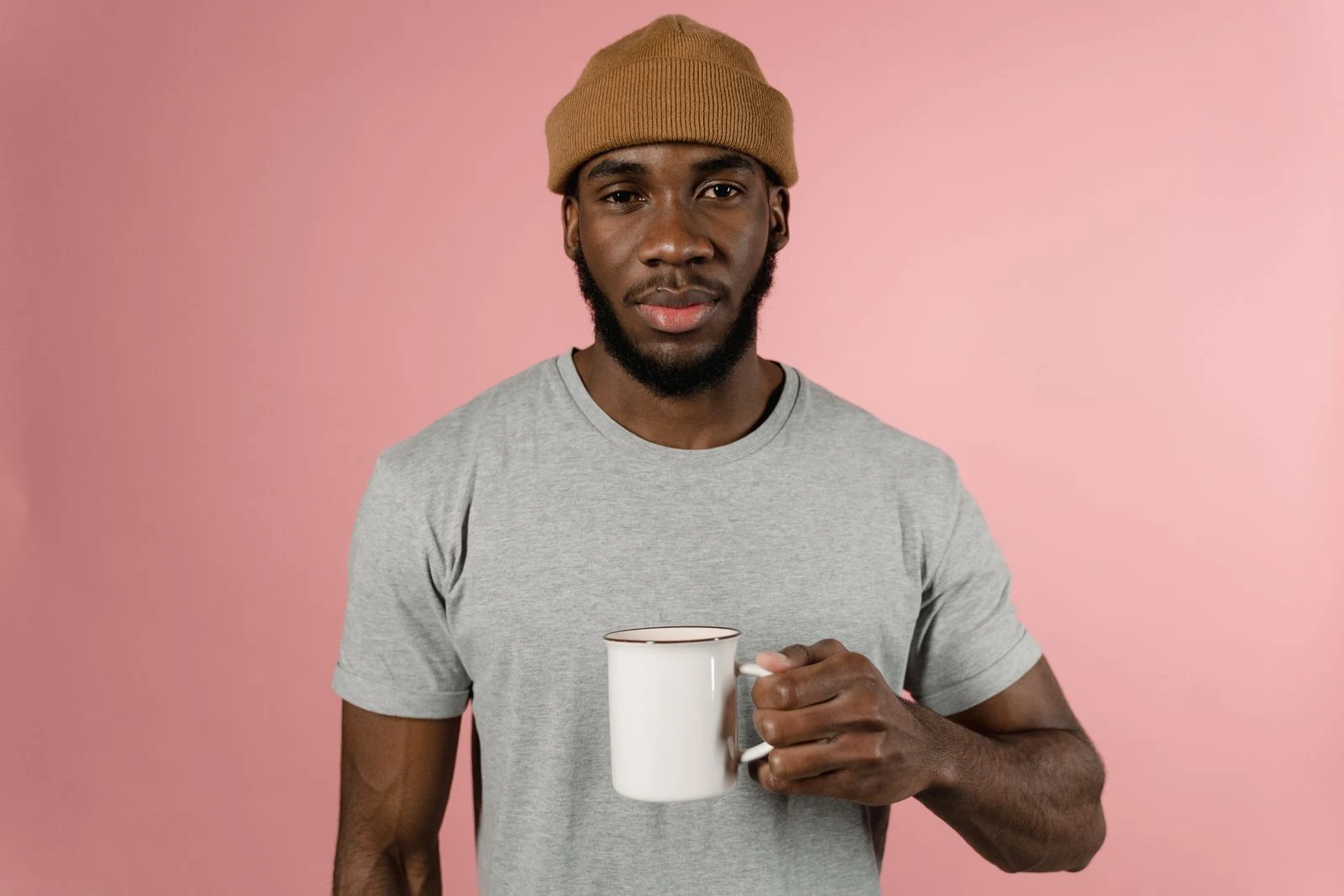
To animate a face from a photo, upload a clear portrait, describe a small expression such as a blink or closed-mouth smile, and generate a short clip. Then check the eyes and mouth separately: visible movement does not necessarily mean the prompt was followed.
We ran one test on Photo to Video on November 10, 2026 and kept the complete result. The smile worked, but the blink did not follow the requested count. One requested blink became a long eye closure and two shorter ones. Below are the exact prompt, settings, cost and output from our own product test.
How to animate a face step by step
- Choose a clear portrait. Both eyes and the mouth should be visible. Hair, glare or a hand over the face can make a blink harder to inspect. Use a photo you have permission to animate.
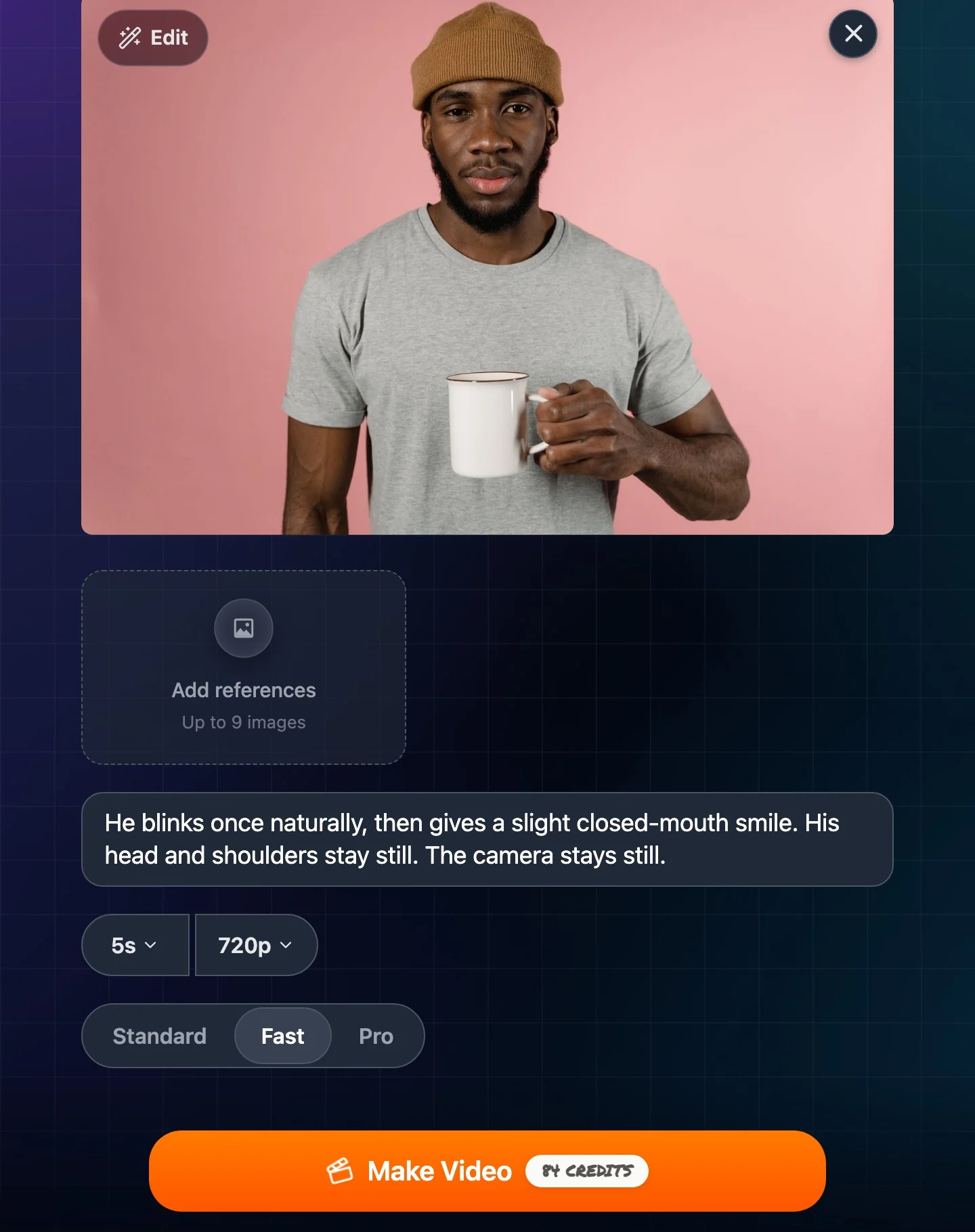
- Open Kling AI on Photo to Video and sign in. Upload one photo. For our example, we selected Fast, 5 seconds and 720p, without extra reference images.
- Describe a small action and the camera. Ask for the expression you want and name what should stay still. Our full prompt is below; these instructions are requests, not precise animation controls.
- Check the quote and your balance. Our run cost 84 credits. The 50-credit welcome grant alone would not cover this example; your account needs enough credits for the displayed quote.
- Generate, inspect and download. Watch the whole clip at normal speed, then examine the eye closures and facial details in a player or editor that supports slow playback or frame stepping.
Animate your portrait with Kling
For the broader upload and model workflow, see how to turn a photo into an AI video. To write other kinds of movement, use the image-to-video prompt guide.
Our photo, prompt and settings
The cover is the original 1600 × 1067 landscape photo: a man facing the camera, holding a mug against a plain background. His eyes are visible and his mouth starts closed, which makes the changes easier to compare. Open the full source photo.
He blinks once naturally, then gives a slight closed-mouth smile. His head and shoulders stay still. The camera stays still.
| Setting | Recorded value |
|---|---|
| Model | Kling Fast |
| Selected settings | 5 seconds, 720p, one photo, no additional references |
| Button quote and actual charge | 84 credits |
| Submission to visible result | About 70 seconds |
| Output file | 1176 × 784; 24 fps; 5.04 seconds; AAC audio track |
Watch the complete result
The eye review sampled 12 frames per second; the full-frame editorial review sampled six per second. These checks help locate movements but do not certify that every frame is free of defects.
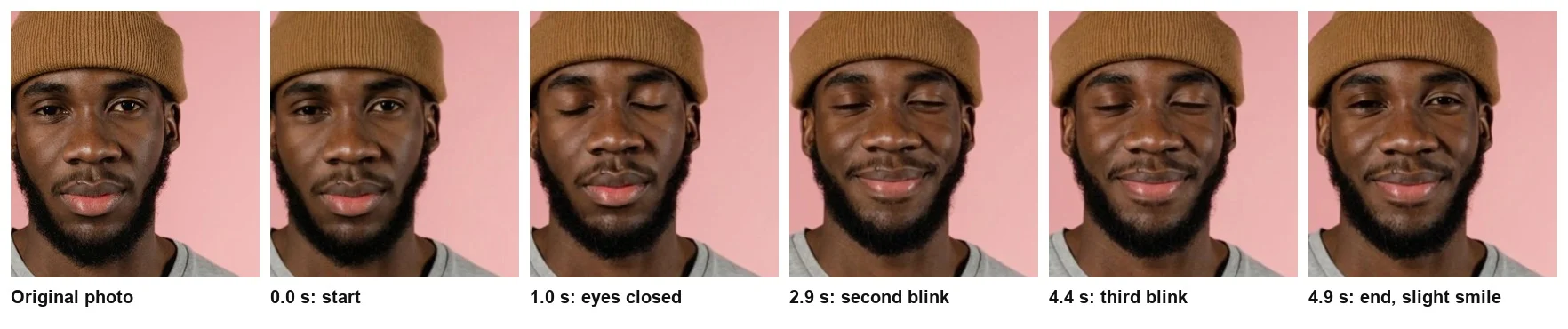
Open the full-size face comparison to inspect the eye closures more closely.
| Requested or checked | Observed result |
|---|---|
| One natural blink | A slow closure starts at about 0.5 seconds and lasts roughly a second. Two shorter closures follow, around 2.9 and 4.4 seconds. |
| Slight closed-mouth smile | A small smile develops at around 2 seconds and remains through the ending, with the lips closed. |
| Still head and shoulders | The head dips slightly and returns; the shoulders move very little. |
| Still camera | No obvious framing or background shift in the inspected samples. |
| Facial appearance | Beard, nose, hat and overall facial appearance remain broadly recognizable in the inspected frames. |
How to check eyes, smile and framing
- Count eye closures. Watch each eye separately. A prolonged closure is different from a brief blink; small movements can be missed when sampling only a few frames.
- Check the mouth. Compare the expression with the prompt, including whether lips remain closed and whether teeth appear unexpectedly.
- Compare facial details with the source. Look at eyes, nose, beard, face shape and skin texture. A recognizable result can still change individual features.
- Inspect the full frame. Compare head position, shoulders, mug and background edges. A shifting background can come from generated deformation as well as camera movement, so it does not prove the camera moved.
If exact timing or exactly one blink matters, this result is not a precise match. You can revise the prompt or try another generation, but another attempt costs credits and may still miss the instruction. We did not rerun this test, so we cannot claim a particular wording fixes it.
What this test cannot promise
This is one photo, one prompt and one run on one preset. It does not establish a success rate, prove the face remains unchanged, or compare models. The generated movement is not a recording of the person performing it. It also does not test talking photos or lip sync.
The menu said 5 seconds and 720p; the file was 5.04 seconds at 1176 × 784. An audio track is present, but we did not evaluate the sound. Review it before sharing, or mute the downloaded file in an editor if you do not need audio.
For a separate small comparison across three presets, watch our six portrait videos from Kling, Wan and Seedance. Those runs used a different photo and action, so they do not measure blink accuracy. For a plan that includes extra attempts, see how to budget AI video credits.
FAQ
Can AI animate a face in a photo?
Yes. In our single test, the eyes closed and a small smile appeared. The model did not follow the requested blink count: one blink became a long eye closure and two shorter ones.
Can it make someone smile in a photo?
In this test, a slight closed-mouth smile developed and remained through the ending. That is one result, not a guarantee for every portrait.
What kind of photo should I use?
Choose a clear portrait with both eyes and the mouth visible. A front-facing face makes changes easier to inspect. Use a photo you have permission to upload and animate.
How much did this face animation cost?
Our November 10, 2026 test cost 84 credits for Kling Fast, 5 seconds and 720p. This exceeds the 50-credit welcome grant. Check your balance and the current button quote before generating.
Will the face stay the same?
Not necessarily. Facial details looked broadly consistent in the frames we inspected, but this was not a face-matching measurement. Compare eyes, mouth, nose and face shape with your source photo.
Is face animation the same as making a photo talk?
No. This workflow requests facial movement with text. It does not test speech, a supplied voice track or lip-sync accuracy.
For generated dialogue, sound settings and silent-playback checks, see image to video with sound.