On this page
Vidu Image to Video: Q4 Settings & a Tested Example
 Photo to Video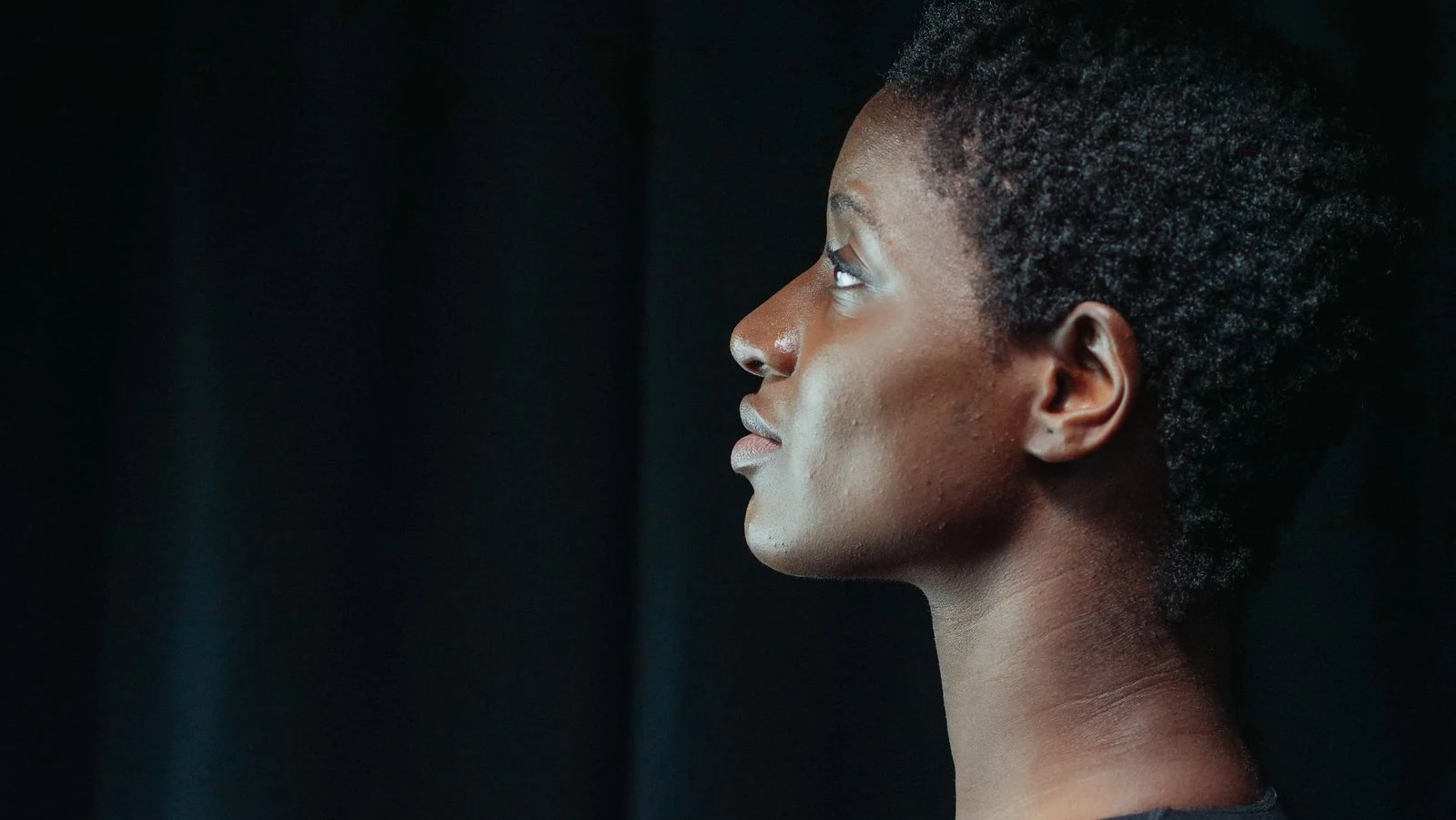
In standard photo mode, pick Vidu in the Photo to Video model menu and there are no Fast or Pro buttons to choose between. From a photo, there is one Vidu model, with a short list of settings: length, resolution and, if you add extra images, aspect ratio. That makes it one of the simplest models on the site to set up, but it also means some controls you may know from other models are simply not there.
This guide explains what runs when you choose Vidu, which settings you actually get, what each resolution costs, how reference images change things, and what one real Vidu generation looked like, including where it fell short.
What runs when you pick Vidu
As of October 29, 2026, the Vidu card works like this:
| What you start from | Model that runs |
|---|---|
| A photo | Vidu Q4 (Preview) |
| A text prompt, no photo | Vidu Q3 Pro |
This guide is about the first row: turning a photo into a video. Earlier versions of the site offered Vidu Q3 in Fast and Pro tiers for photos. Those are gone from the photo menu; standard photo mode now runs on Q4. Separate special modes are outside this guide.
The settings you get from a photo
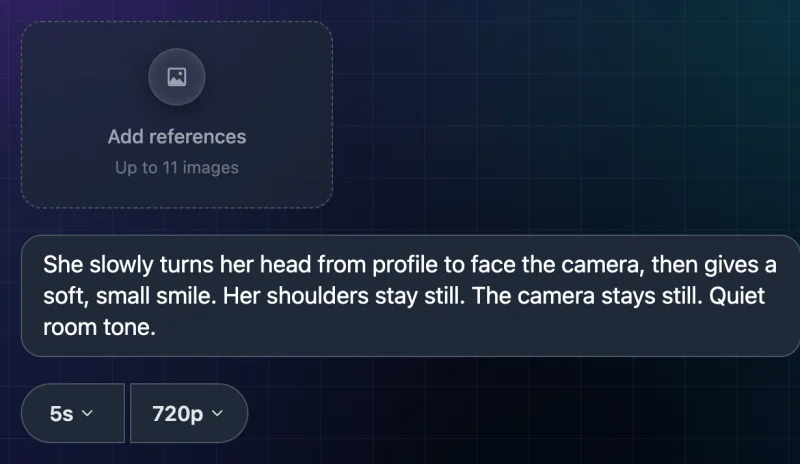
With a photo uploaded, the Vidu settings are:
- Length: any whole number of seconds from 3 to 16.
- Resolution: 540p, 720p, 1080p, 2K or 4K.
- Sound: always on. The site always requests audio, and there is no switch to turn it off. A returned audio track may still be very quiet.
- Aspect ratio: no menu. The model decides the shape of the video from your photo.
- End frame: not available. You cannot give Vidu a last frame to end on.
- Enhance: not available. There is no optional prompt-rewriting button. That does not guarantee exact prompt adherence.
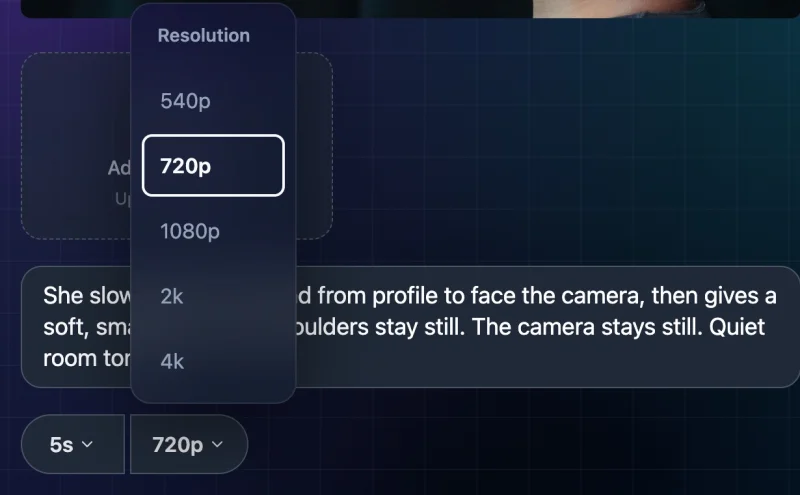
When you open /vidu in a browser that has never used it, the page starts at 5 seconds and 540p. After that it remembers your last length and resolution, so check them before each generation.
If you need an end frame, a fixed aspect ratio from a single photo, or a sound-off option, Vidu is not the right model. Other models on the site offer those; our Wan guide explains which versions offer each control. No single Wan version offers all three together.
Reference images: what changes
Below your photo is an Add references box. It takes up to 11 more images, so 12 in total including your main photo. You can use them to show the model a second person, an outfit, a product or a place, and refer to them in your prompt with the mention button on each thumbnail.
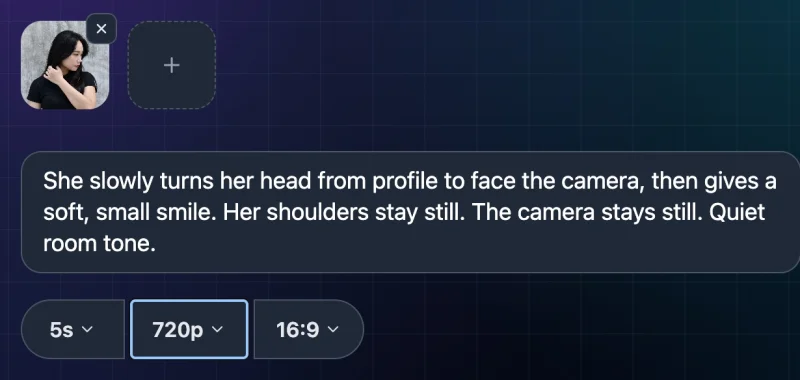
Adding even one reference image switches Vidu to its reference model. Here is what that changes on the page:
| Setting | With reference images |
|---|---|
| Aspect ratio | A menu appears: 16:9, 9:16, 4:3, 3:4 or 1:1 |
| Length | Unchanged: 3–16 seconds |
| Resolution | Unchanged: 540p–4K |
| Sound | Still always on |
| Price | Same as without references |
In reference mode, your main photo is one of the reference images, not a guaranteed first frame, so the video may not open on your photo. We checked these controls on the live site but did not generate a video with reference images for this guide. For more on combining several photos, see how to create a video from several photos.
You may see Vidu's provider advertise more reference images or reference audio. Those options are not on our site; the limits above are what you can use here.
What Vidu costs in credits
Vidu is priced by length and resolution, and sound is always included. These are the credit quotes for 5 seconds on October 29, 2026, from the same pricing calculation the Make Video button uses. We also saw the 720p price (57) on the button itself.
| Resolution | Credits for 5 s |
|---|---|
| 540p | 27 |
| 720p | 57 |
| 1080p | 72 |
| 2K | 114 |
| 4K | 234 |
Longer videos cost more. At 720p, 16 seconds is 183 credits; at 4K, 749. Prices can change, so always check the number on Make Video before you click.
Tested example: one Vidu clip
To show an ordinary Vidu result, we ran one generation on the live site. We did not retry or pick the best of several.
Settings: Vidu, 5 seconds, 720p, no reference images.
Photo: a side-profile portrait of a woman with short hair against a dark curtain, 1600×901 (about 16:9).
Vidu Q4: turning toward the camera
Original image
Generated result
Prompt used: She slowly turns her head from profile to face the camera, then gives a soft, small smile. Her shoulders stay still. The camera stays still. Quiet room tone.
Result:
- Cost: 57 credits, the same as the quote.
- Time: approximately two minutes. We submitted at 01:08:36 UTC and observed completion between 01:10:25 and 01:10:54 UTC; the exact completion time was not recorded.
- Output: 1278×720 at 24 fps, 5.04 seconds, with a stereo audio track. Both files are approximately 16:9 and the first frame has similar framing. One result does not prove that framing will always be preserved.
What happened:
- In roughly the first 2.5 seconds she turns from profile to a near-front, three-quarter view, then smiles and holds it to the end.
- The background curtain and the camera stay still.
- As she turns, her head also drops from looking slightly up to looking straight ahead, and moves a little toward the lower left of the frame.
What to check in your own results:
- The new side of the face is invented. The original photo shows only one side of her face. The newly revealed side of the face has to be generated. The visible ear and hairline also change perspective. We did not notice obvious discontinuities in sampled frames, but the source cannot verify details that were hidden; a plausible result is not proof of identity accuracy.
- The lighting changes. The photo is side-lit with a darker face. After the turn her face is brighter and her skin looks glossier, as if the model added light from the front.
- The sound is almost silent. There is an audio track, but it is very faint, and we cannot say what it contains.
This is one generation from one photo at one setting. It does not show how Vidu behaves at other resolutions, at longer lengths, or with reference images.
How to make a Vidu video from a photo
- Open /vidu and sign in. Eligible new users can receive welcome credits; check your balance and the generation quote.
- Upload your photo.
- Pick a length (3–16 seconds) and a resolution.
- Optional: add reference images. An aspect ratio menu will appear.
- Write your prompt: describe the motion, what should stay still, and the camera.
- Check the price on Make Video, then click it.
- Watch the whole result before downloading. Look closely at faces, hands, and anything the photo did not show.
New to this? Our step-by-step guide to turning a photo into an AI video covers the basics.
Prompt ideas for Vidu
We have not tested these prompts. They follow the pattern of our test: a clear subject, a small movement, and an explicit camera instruction. Adjust them to your photo.
- Portrait: "He looks down at the ground, then slowly lifts his eyes to the camera and raises one eyebrow. The camera stays still."
- Product: "The watch turns slowly to the left on its stand, light sliding across the glass. The background stays still. No text appears."
- Pet: "The cat blinks slowly, then turns its head toward a sound on the right. Its body stays still. The camera stays still."
- Landscape: "Fog drifts slowly across the lake. The trees stay still. Slow push-in toward the far shore."
- Couple: "They lean toward each other and laugh. Their hands stay on the table. The camera stays still."
Name directions and sides, describe one main action, and say what should not move. More ideas are in our image to video prompts guide.
Troubleshooting
- There is no aspect ratio menu. That is normal from a single photo. It appears only after you add a reference image.
- I can't find the end frame option. Vidu does not have one on our site.
- I can't turn the sound off. The site always requests generated audio. Mute or replace it after downloading if you do not want it.
- I don't see Fast or Pro. Vidu now has one model for photos. The tiers you may remember were older Q3 options.
- The video doesn't start on my photo. If you added reference images, your photo is one of the references rather than the first frame. Remove them to use single-image mode, then compare the opening frame with your original.
- Parts of the face or body look different. Anything the photo does not show, such as the other side of a face, has to be invented. Choose photos that already show what you want to keep.
- The settings changed since last time. The page remembers your last length and resolution. Check them before generating.
FAQ
Which Vidu version does Photo to Video use? For standard photo mode, Vidu Q4 (the Preview release). For prompts without a photo, Vidu Q3 Pro.
How long can a Vidu video be? From a photo, 3 to 16 seconds, in one-second steps.
What resolutions does Vidu support? 540p, 720p, 1080p, 2K and 4K. Our 720p test produced a 1278×720 file.
Does Vidu make videos with sound? The site always requests audio. In our test the sound was almost silent.
Can I choose the aspect ratio? Not from a single photo; the model determines the output framing from your image. With reference images, you can choose 16:9, 9:16, 4:3, 3:4 or 1:1.
How much does Vidu cost? On October 29, 2026, 5 seconds cost 27 credits at 540p, 57 at 720p and 234 at 4K. The Make Video button shows the current price.
Sources
- photo2video.ai /vidu settings, checked October 29, 2026.
- WaveSpeed: Vidu Q4 image-to-video and Vidu Q4 reference-to-video. Note: these pages describe the provider's current Q4 options, which can differ from what our site offers.
- Vidu official site.