On this page
Why Is My AI Video Blurry? Check Motion, Detail and Faces
 Photo to Video
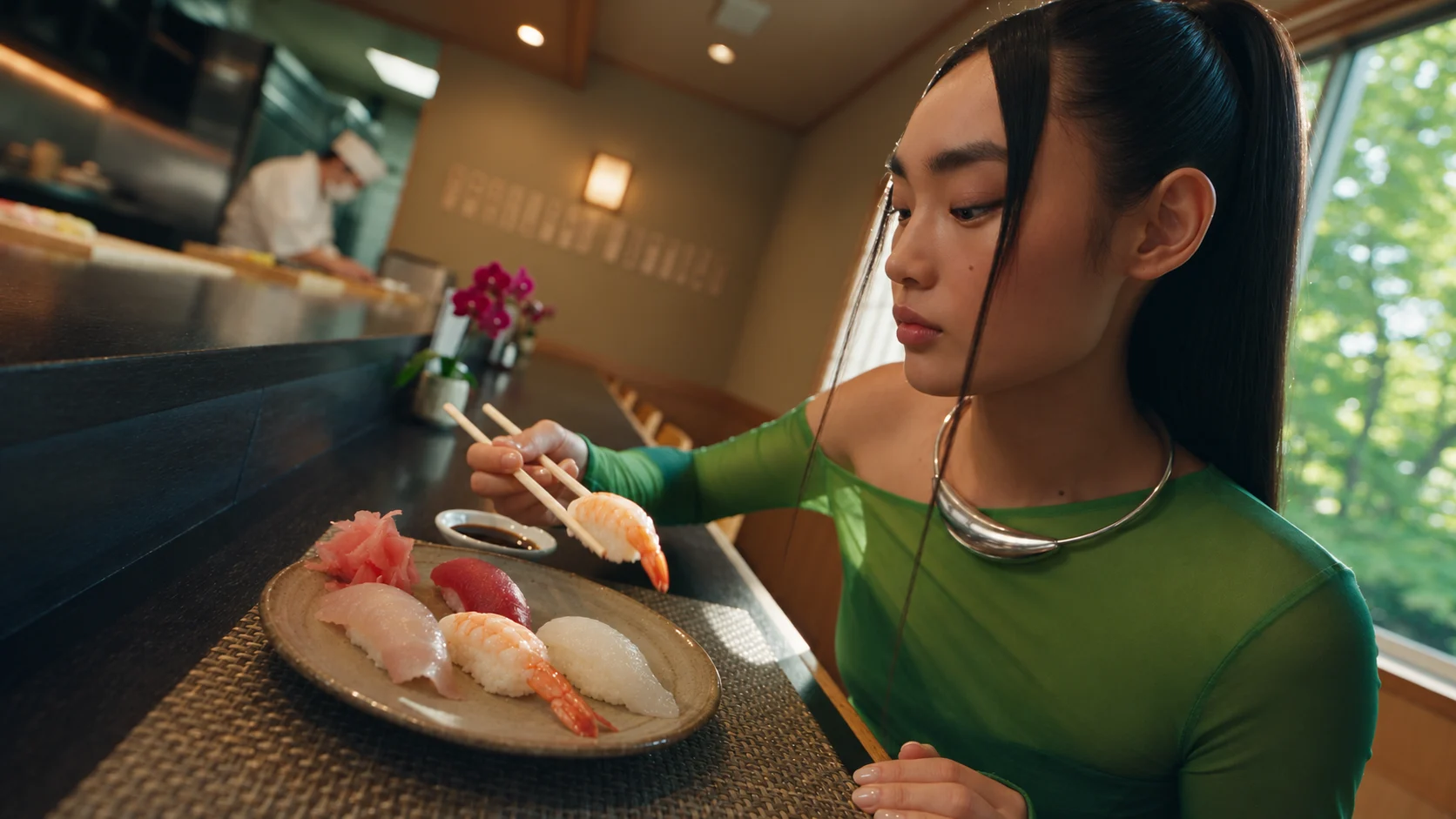
Before spending credits on a blurry AI video, compare a still moment with a moving moment. Smearing mainly around a moving subject suggests a motion-related problem. Persistent softness needs a different check: the source, file dimensions, focus and compression. A sharp but different-looking face is a likeness problem. These can occur together.
Below, a real 1080p Kling Pro clip shows why resolution alone does not tell you whether an action looks clear. We also use existing background and face comparisons. The inspection steps are practical checks; the retry ideas are experiments, not demonstrated fixes.
Check the original before retrying
- Download the original MP4. Compare it with the preview at a similar display size. A small embedded player or a re-encoded social upload may hide or introduce visible differences.
- Play the full clip normally, then pause around the problem. Compare frames immediately before, during and after the movement. One paused frame does not show whether motion feels natural.
- Look at stationary details too. If the moving face smears while the background is much clearer, inspect the motion. If everything stays soft, check file dimensions and your original photo before blaming motion.
- Compare the person and objects with the source. Check facial proportions, clothing, lettering and object shapes independently of sharpness.
Motion smear in a 1080p example
On November 12, 2026, our Kling Pro follow-up used the same sushi photo and timed prompt as the earlier test. The output measured 1916 × 1080 pixels at 24 fps and lasted 15.04 seconds. It cost 378 credits at the time. These are historical settings and charges, not a current quote.
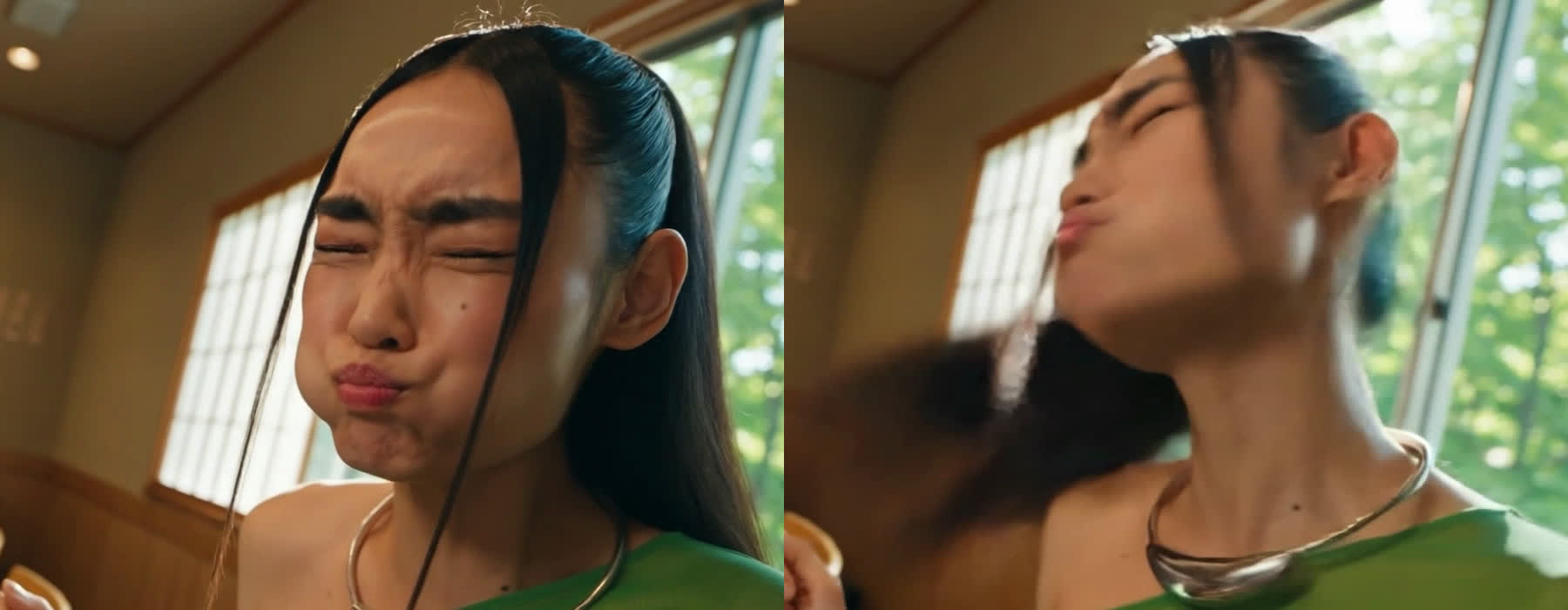
At 10 seconds, facial details are more distinct. At 11 seconds, the turn smears the face and ponytail; parts of the window and wall remain much clearer. The clip has enough pixels to show distinct detail in a quieter moment, yet the moving moment still looks blurred.
See the full prompt and Kling Pro test record. This example shows motion-like smearing in generated frames; it does not establish a physical camera exposure or a model defect. Some blur can make fast movement look natural. Decide whether it harms your intended shot before retrying.
Soft frames are not automatically a resolution problem
A low pixel count can limit detail when a video is displayed large. But softness can also come from the input photo, out-of-focus regions, compression, scaling or the generated content itself. Compare the downloaded file at its native size and at your intended delivery size. A 4K label alone does not settle the cause.
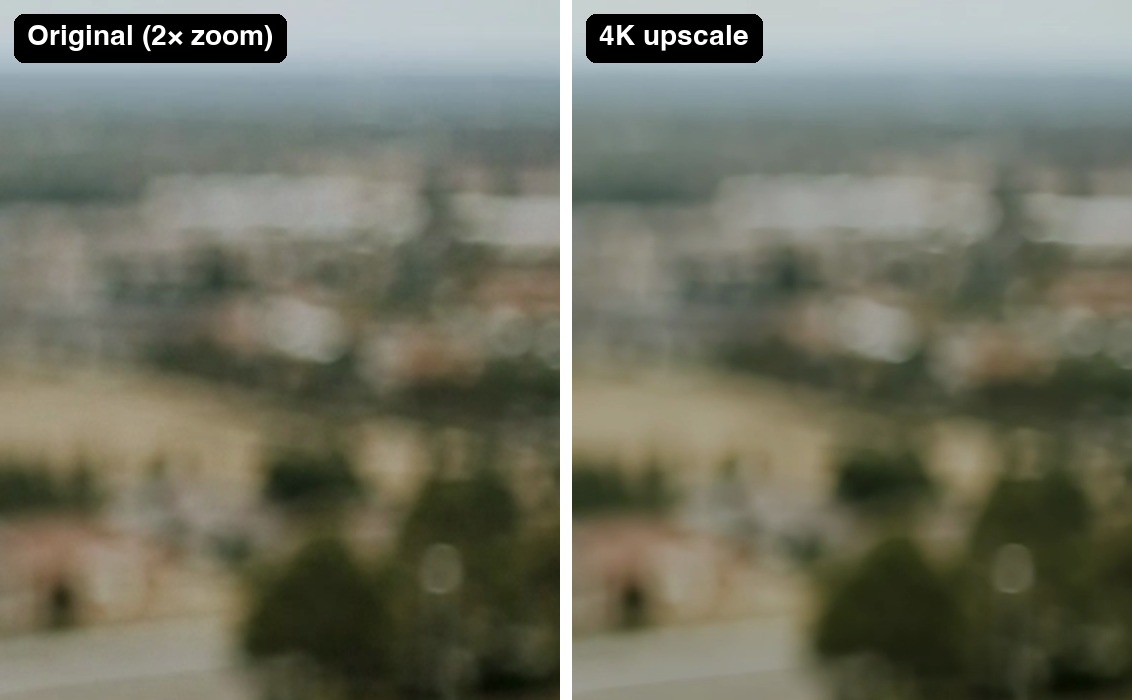
In this separate example, the out-of-focus town remained blurred after upscaling. Our 4K test shows the complete files and changes in fine texture. An upscaler may reconstruct or alter details; apparent sharpness is not proof that it recovered the original scene accurately.
If the action and likeness are already suitable, compare an upscale with the original at the same display size. If the source photo is soft, consider a clearer source as a separate experiment. Neither a higher resolution nor an upscale guarantees removal of a motion smear.
A sharp frame can still change the face
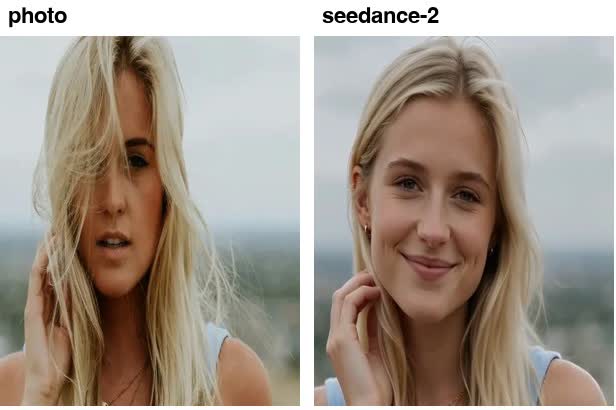
Our six-run portrait test recorded smoother facial texture and changes in apparent jaw and nose proportions, particularly in this second Seedance run. Read the full clips and limits there. A small sample does not establish which model will preserve every face best.
Check several frames against the input, accounting for changes in angle, expression and hair covering the face. Upscaling can change detail again; it is not a verified way to restore the correct likeness.
Hands need a separate continuity check
We do not present a demonstrated hand-repair example here. Watch visible fingers and the grip as a hand passes a cup, chopsticks or another object. Look for merging, sudden extra parts or an implausible change across adjacent frames. Occlusion and perspective can hide fingers or change the hand’s apparent shape, so do not judge from a finger count in one frame alone.
Plan one-variable experiments
These suggestions have not been tested as repairs for the examples above. Keep a copy of the original and record what changed. Changing one variable makes a comparison easier to interpret, but random generation still prevents one successful retry from proving what caused the improvement.
| What you see | One possible change | Keep or record |
|---|---|---|
| Smearing during a fast action | Request a smaller movement | Photo, model, resolution and duration |
| Too many actions in a short clip | Remove one action from the prompt | Photo, model, resolution and duration |
| A small file looks soft at your delivery size | Try a higher resolution, if available on the same model | Photo, prompt and duration; note any automatic model change |
| Facial proportions change | Request a smaller expression | Photo, model, resolution and duration |
| The result remains unsuitable | Try another model | Photo and prompt; match other settings where available |
For example, replace a fast head shake with a small, slow head turn while leaving the other settings alone. That is a new creative request, not a guaranteed deblur command. Use our motion prompt guide for more examples.
Each submitted retry can cost credits. Check the generator’s current quote and use the credit cost and retry budget table before committing. Stop if a clip already works for the intended viewing size and action.
What these examples establish
This page re-examines one existing Kling Pro motion example, an earlier upscale comparison and a frame from the six-run portrait test. No new generation or repair experiment was run for this article. It is not a high-frame-rate benchmark or a ranking of model quality.
For filmed footage, exposure and motion affect blur; Adobe’s motion-blur documentation explains that distinction. Our AI generator does not expose shutter or frame-rate controls. Writing those numbers in a prompt does not set a camera or guarantee the downloaded file’s frame rate.
Test one change with your photo
FAQ
Why is my AI video blurry only when the person moves? It may be motion blur or a generated smearing artifact. Compare the moving subject with stationary details and nearby frames. In our Kling Pro example, the face was sharper at 10 seconds and smeared during the head turn at 11 seconds. That observation does not establish the cause of every blurry clip.
Will upscaling to 4K fix a blurry AI video? It may improve apparent detail, but it is not a guaranteed repair for motion smears or a changed face. An upscaler can also invent or alter details. Check the action and likeness first, then compare the original and upscale at the same display size.
Does a soft video always mean low resolution? No. A soft source photo, focus, compression, playback scaling and generated blur can also reduce visible detail. Check the downloaded original and its pixel dimensions before paying for another generation.
Why can a sharp AI video show a different-looking face? Resolution and likeness are different checks. A model may change facial proportions or texture while animating. Compare several frames with your source photo; more pixels do not establish that the face is faithful.
Can I set frame rate or shutter speed in Photo to Video? The website generator does not provide frame-rate or shutter controls. A prompt mentioning a camera setting is a request, not a guaranteed technical setting. Inspect the downloaded file if your editing project requires a particular frame rate.
Have the retry suggestions on this page been tested as fixes? No. This page examines existing examples. Smaller movements, clearer inputs or another model are possible experiments, not verified repairs. Change one variable at a time and record the result; generation randomness still limits what a single comparison proves.