On this page
How to Upscale an AI Video to 4K
 Photo to Video
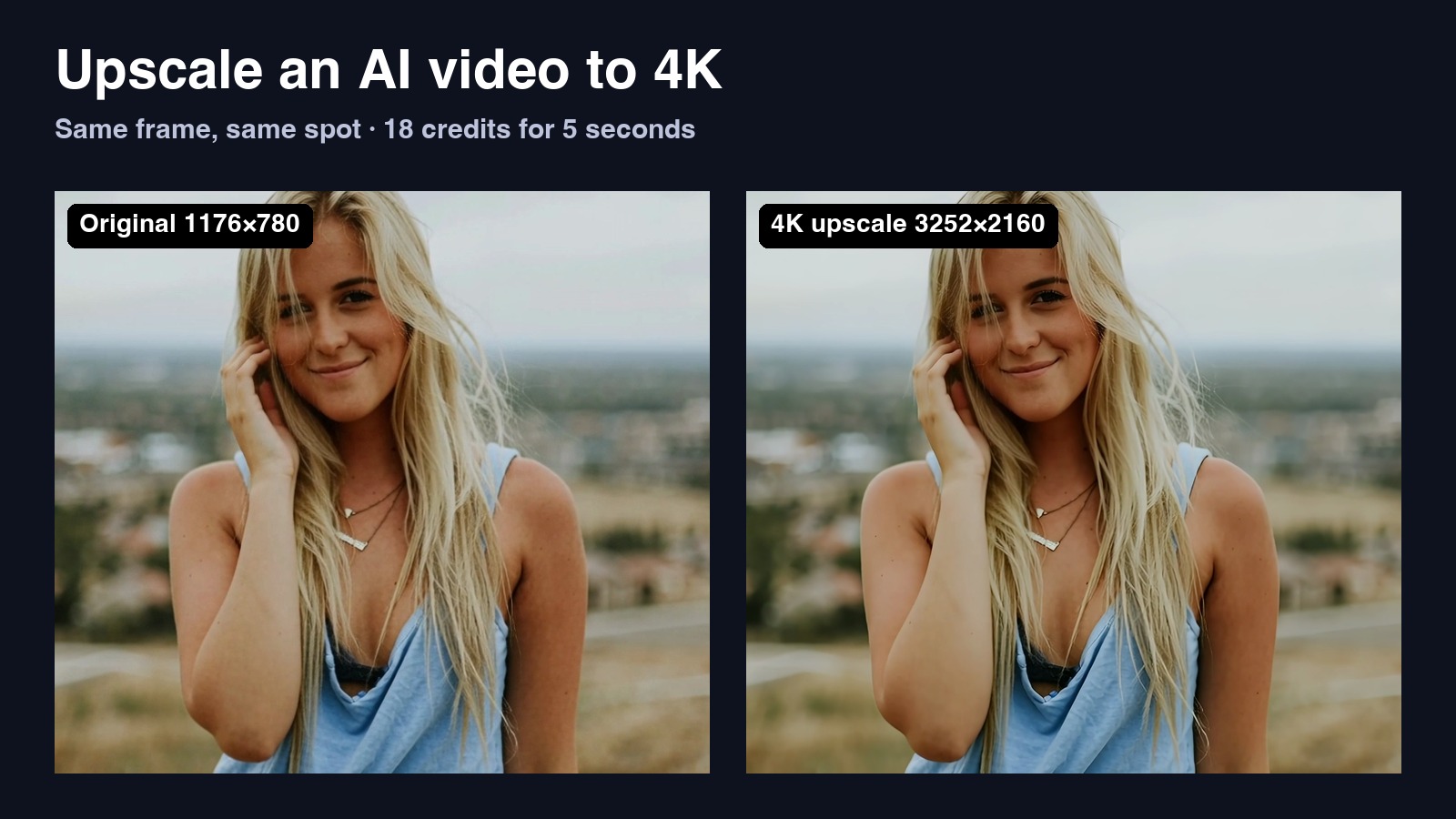
Made a video on Photo to Video and want it sharper or bigger? Open the video, click More actions (⋯) → Upscale, and pick 1080p, 2K or 4K. The price is on the button before you click. In our test, a 5-second Kling clip (1176×780) became a 3252×2160 4K video in about 3 minutes for 18 credits.
One thing to know first: Upscale works on videos you made on Photo to Video. It's a step after generation, not a separate uploader, so you can't drop in a video from your phone. If you don't have a video yet, make one first, then come back to this guide.
Below are the steps, what each size costs, and a same-frame comparison that shows what 4K improves and what it can't fix.
What upscaling does (and doesn't do)
An AI upscaler redraws each frame at a higher resolution. Instead of stretching pixels, it predicts what the sharper edges should look like.
It helps with:
- Edges and lines: walls, window frames, lamp shapes and clothing outlines come out cleaner.
- Compression noise: the blocky smudges you see when you zoom into a small AI video are reduced.
- Playback size: a larger frame gives you more pixels for a high-resolution project or a crop. Whether it looks better depends on the source and the result.
It doesn't:
- Recover detail that was never there. An upscaler can predict or alter details, but those predictions are not evidence of what was really there. In our test, facial edges looked sharper while the out-of-focus background stayed blurred.
- Replace a video edit. It aims to preserve the shot while increasing resolution. Our test kept the overall shot, but fine textures, frame rate and exact duration changed.
- Fix a bad generation. A warped hand or a melting background will just be a sharper warped hand. Regenerate first, upscale last.
More pixels isn't the same as more real detail. The test below shows both.
How to upscale a video to 4K, step by step
- Open a video you made. Go to History and click the video. Or, right after a generation finishes, use the result under the generator.
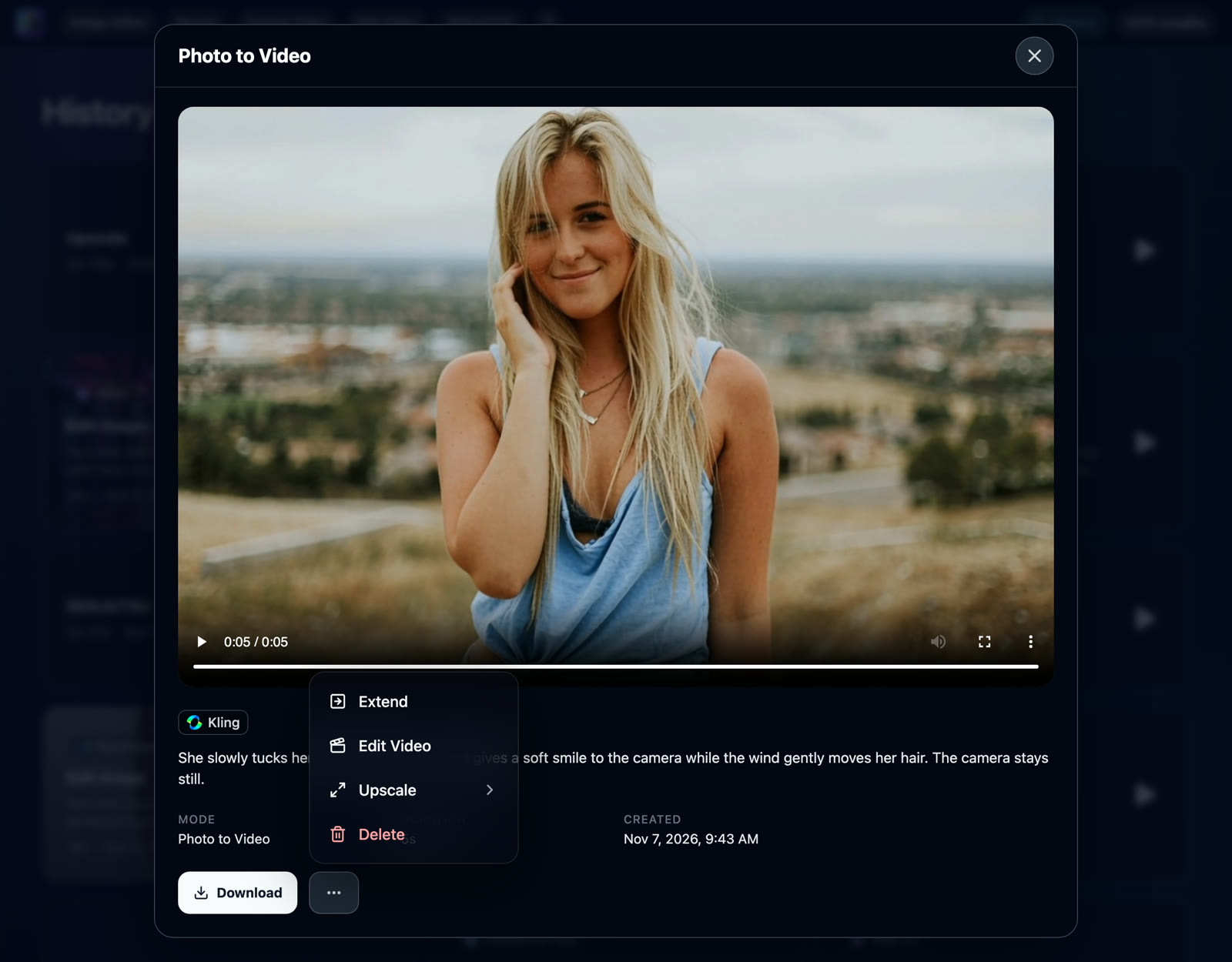
- Click More actions (⋯) next to the Download button. The menu shows Extend, Edit Video, Upscale and Delete.
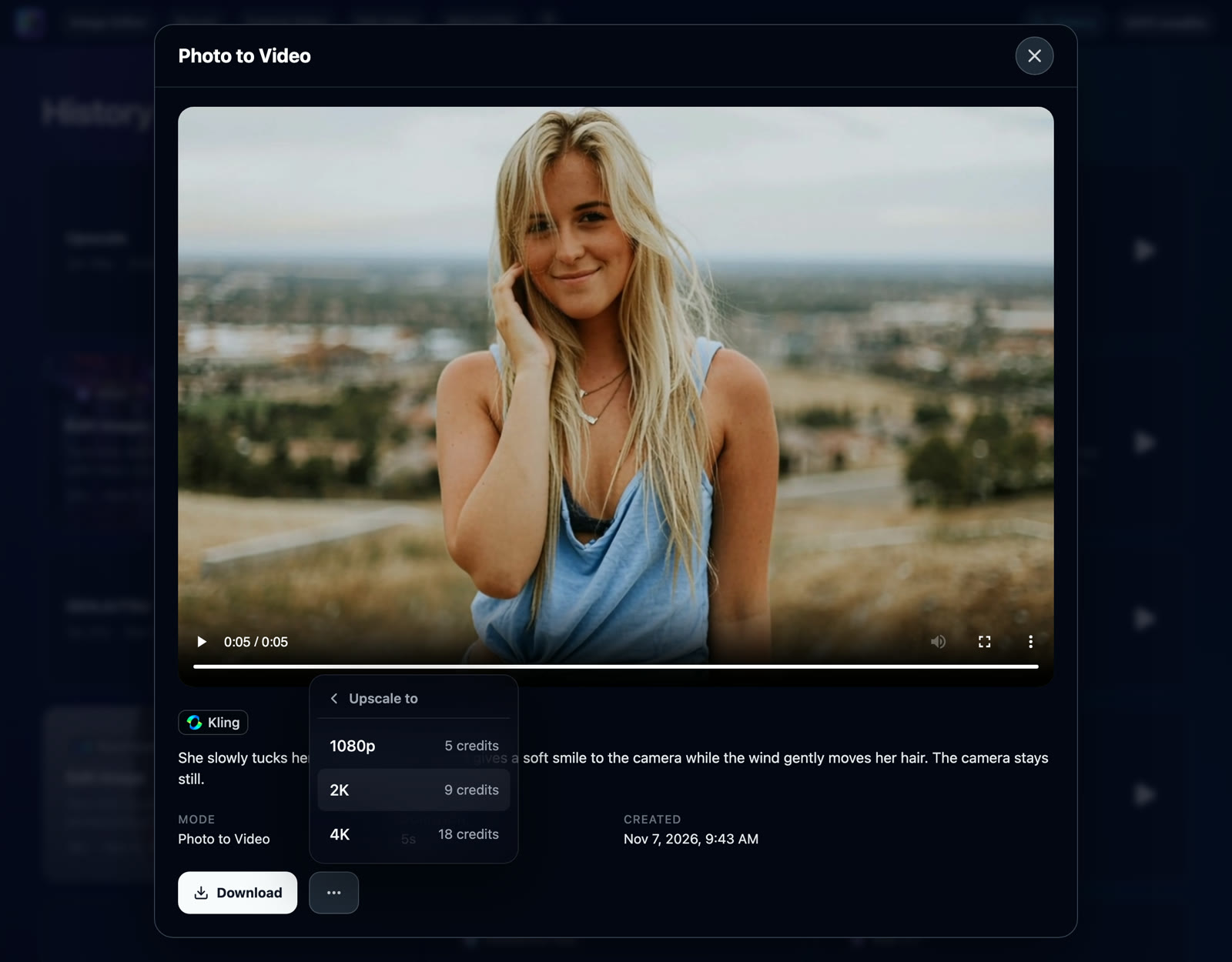
- Click Upscale. You'll see Upscale to and only the sizes above your clip's current resolution, each with its price. For our 5-second Kling clip that was 1080p for 5 credits, 2K for 9 credits and 4K for 18 credits.
- Pick 4K (or a smaller size). The button changes to "Upscaling to 4K…". Download still works on the original while you wait.
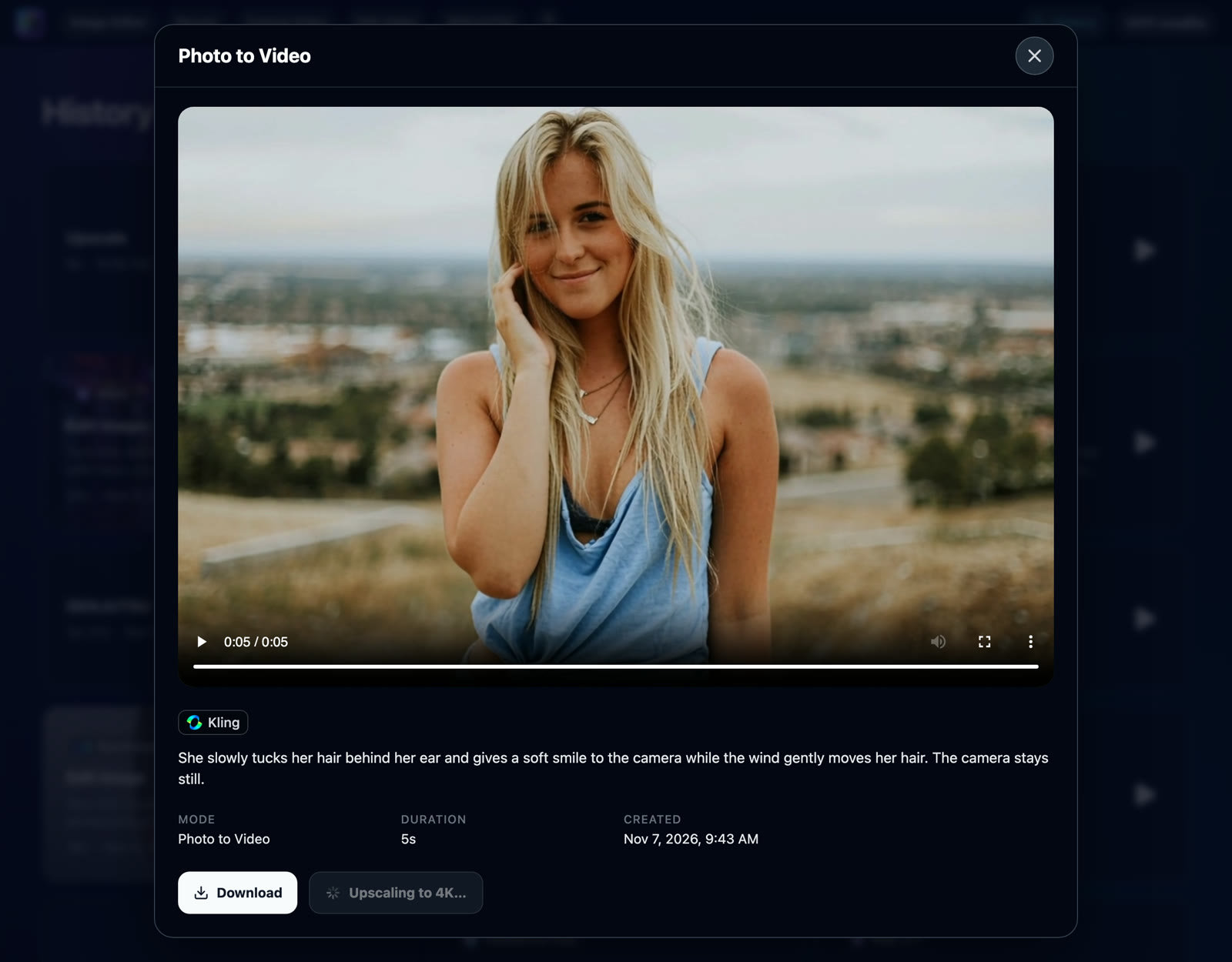
- Wait for processing. Our 5-second test took about 2 minutes 50 seconds; this is one measurement, not a promised wait time. When it is done, the player switches to the 4K version.
- Download it. The 4K version is also saved as its own Upscale card at the top of History, so you can come back to it later.
How much does it cost?
You pay per second of video, and the price depends on the size you pick. There's no subscription, and the exact price shows in the menu before you click.
| Size | Quote for our 5-second clip |
|---|---|
| 1080p | 5 credits |
| 2K | 9 credits |
| 4K | 18 credits |
These are the menu prices we checked on November 7, 2026. We ran only the 4K option, which deducted 18 credits. Other lengths and settings can cost differently: check your own menu before starting. Clip length is rounded to the nearest whole second for pricing, so 8.04 seconds counts as 8.
Which size should you pick?
- 1080p: a practical starting point for phone viewing and social posts. Check the destination’s export requirements before paying for a larger file.
- 2K: an intermediate size if you will crop or reframe the result in another editor.
- 4K: for big screens, YouTube in 4K, or footage you'll cut into a 4K project. Our 4K quote was twice the 2K quote, and the output file was several times bigger (our clip went from 4.6 MB to 12.4 MB).
For a clip labeled 1080p, the menu offers 2K and 4K; for a clip labeled 4K, Upscale is not offered. Our Kling clip had no resolution label, so all three sizes appeared.
Our test: a Kling clip upscaled to 4K
We made a short clip with Kling Standard: a woman tucks her hair behind her ear and smiles while the wind moves her hair. The source generation cost 32 credits; we then ran one 4K upscale for another 18 credits. There were no retries on this sample.
Generation prompt: She slowly tucks her hair behind her ear and gives a soft smile to the camera while the wind gently moves her hair. The camera stays still.
| Property | Original | 4K upscale |
|---|---|---|
| Resolution | 1176×780 | 3252×2160 |
| Frame rate / frames | 24 fps / 121 | 30 fps / 150 |
| Length | 5.04 s | 5.00 s |
| File size | 4.6 MB | 12.4 MB |
| Audio track | None | None |
| Cost | 32 credits to generate | 18 credits to upscale |
| Time | About 100 seconds to generate | About 2 min 50 s to upscale |
The result reached 2160 pixels high, with a width of 3252 rather than 3840 because this source is not 16:9. The overall framing and movement remained similar. Frame rate changed from 24 to 30 fps, and the file became slightly shorter: 5.04 to 5.00 seconds.
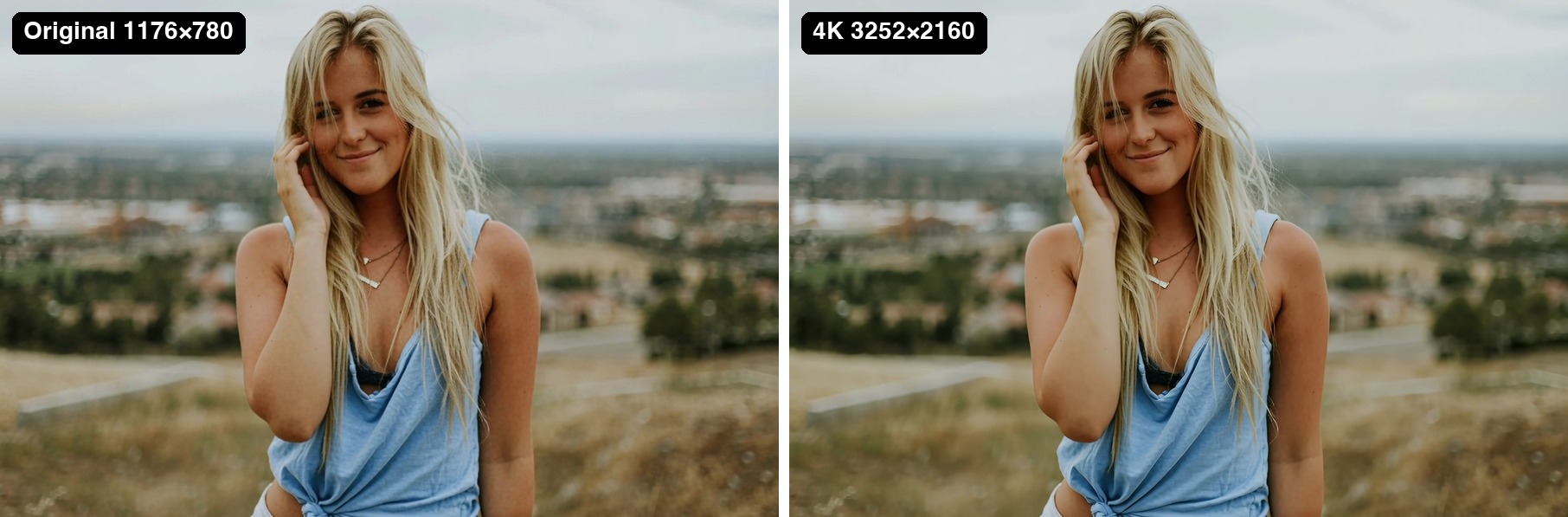
Original: Kling Standard video
Result: 4K upscale
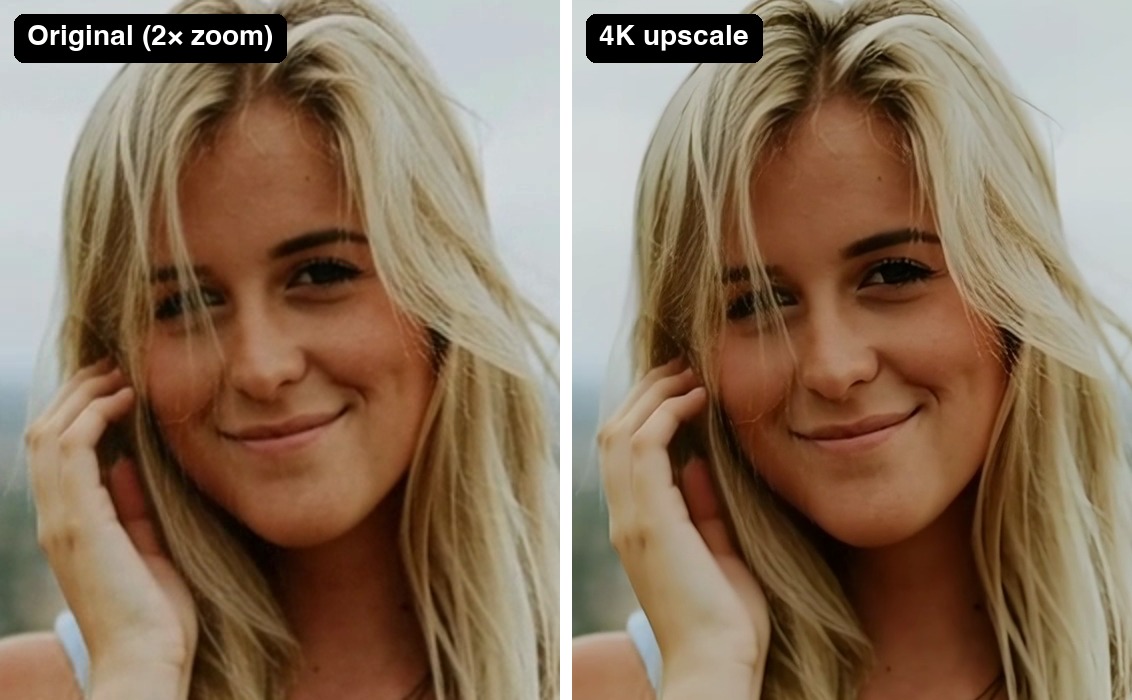
Face: the eyebrows, eyelashes and lip outline look more defined in the 4K frame. The skin also looks smoother. This is a visual improvement for this sample, not proof of recovered facial detail.
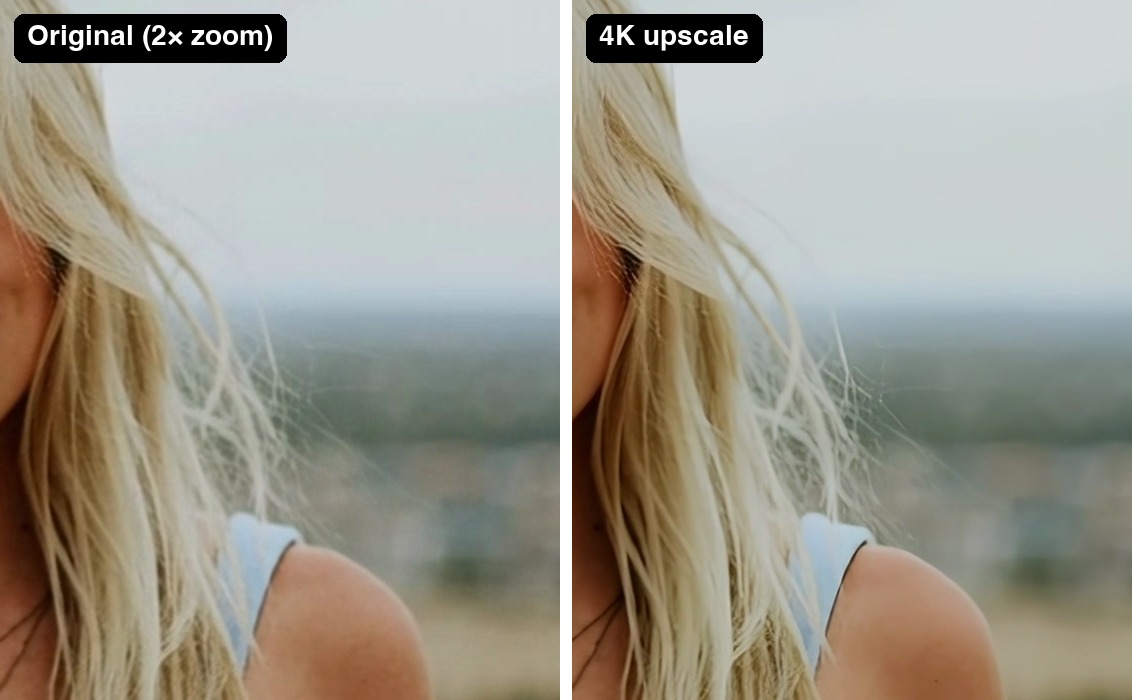
Hair: several loose strands against the sky look thinner and more separated in the 4K frame. Compare the same regions rather than judging from a small player preview.
Background: the distant town remains out of focus. Do not expect upscaling to turn an intentionally blurred background into a sharp one.
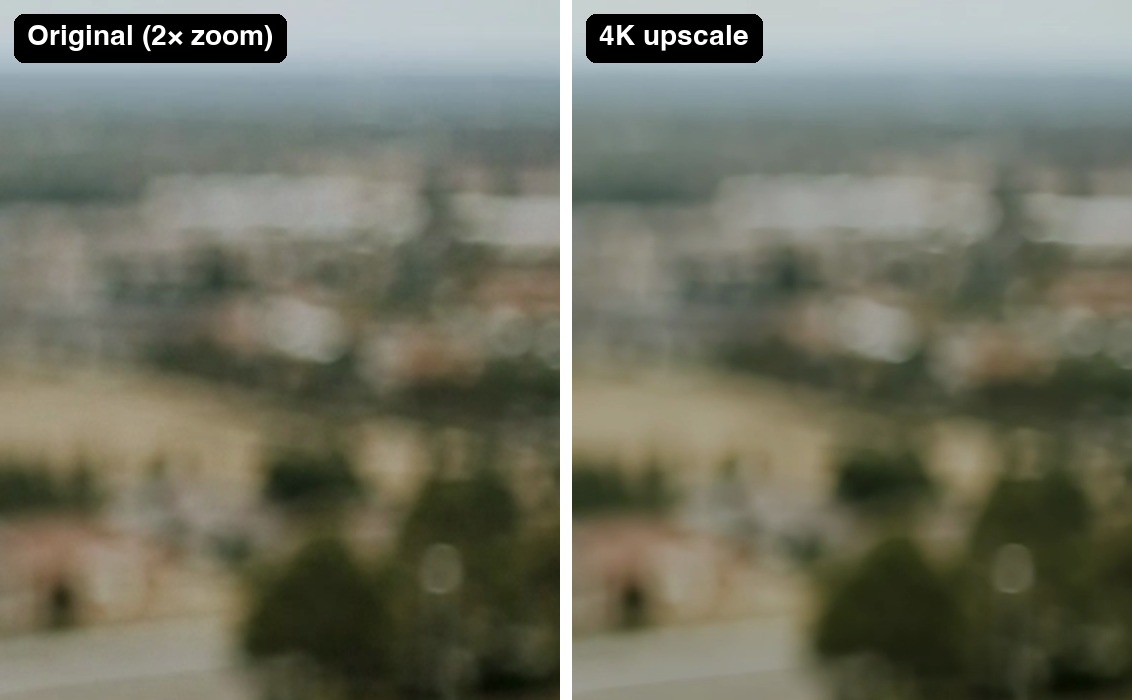
Our verdict: the 18-credit upscale produced a larger file with cleaner facial edges and hair for this clip. Check whether those gains matter at your intended viewing size before upscaling every draft.
Limits: one landscape Kling clip, one 4K pass, no audio. We did not test audio preservation, fine text, fast action or film grain. Processing time depends on the clip and queue. These are this sample’s results, not guarantees for every input.
Tips for the best result
- Get the generation right first. Upscale the take you'll actually use, not every draft.
- Start from the highest resolution you can. A clip generated at 1080p gives the upscaler more to work with than one made at 480p.
- Match the size to where it'll play. For phone-first platforms, 1080p is usually enough.
- Download the 4K file to check it. Small previews hide the difference; open it full screen or zoom in.
If a result looks soft or the person changes during movement, use our AI video blur checks to compare moving and still moments before spending credits on another attempt.
FAQ
Can I upload any video and upscale it here?
No. Upscale is a step for videos you made on Photo to Video. Open one from History, or generate a new one, then use More actions → Upscale.
How much does it cost to upscale a video to 4K?
Our 5-second Kling clip cost 18 credits for 4K, with quotes of 5 for 1080p and 9 for 2K. Check your clip’s menu for its current price.
How long does upscaling take?
Our 5-second Kling clip took about 2 minutes 50 seconds to reach 4K. Processing time varies with the clip and queue.
Does upscaling change my video?
It can. Our test changed fine texture, frame rate and duration slightly; more pixels do not guarantee more accurate detail. Inspect the result before using it.
Will it keep the audio?
Our test clip had no audio track, and neither did the result. We did not test audio preservation with this sample.
Where do I find the upscaled video later?
In History. It's saved as a separate Upscale card, and your original stays as it was.
Why don't I see 4K in the menu?
When the resolution is known, the menu lists only higher sizes; a clip labeled 4K has no Upscale option. If the resolution label is missing, all three sizes can appear. Upscale is unavailable while a new video is being generated.
Why is the 4K result not exactly 3840×2160?
Upscaling follows the source proportions. Our 1176×780 clip became 3252×2160; the 4K label does not imply 3840×2160 for every aspect ratio.
Can upscaling change the frame rate?
Yes. Our test changed from 24 to 30 fps and from 5.04 to 5.00 seconds. Check the output if your editing project requires a specific frame rate.
Sources
- Photo to Video result menu and History, checked November 7, 2026. One 5-second 4K upscale; the input and output are shown above.
- ByteDance video upscaler API documentation on fal. This guide covers the controls available on Photo to Video.
For the source model and settings, see our Kling image-to-video guide. To make your first clip, start with the photo-to-video walkthrough and motion prompt examples. You can also generate with Wan before upscaling the finished result.